

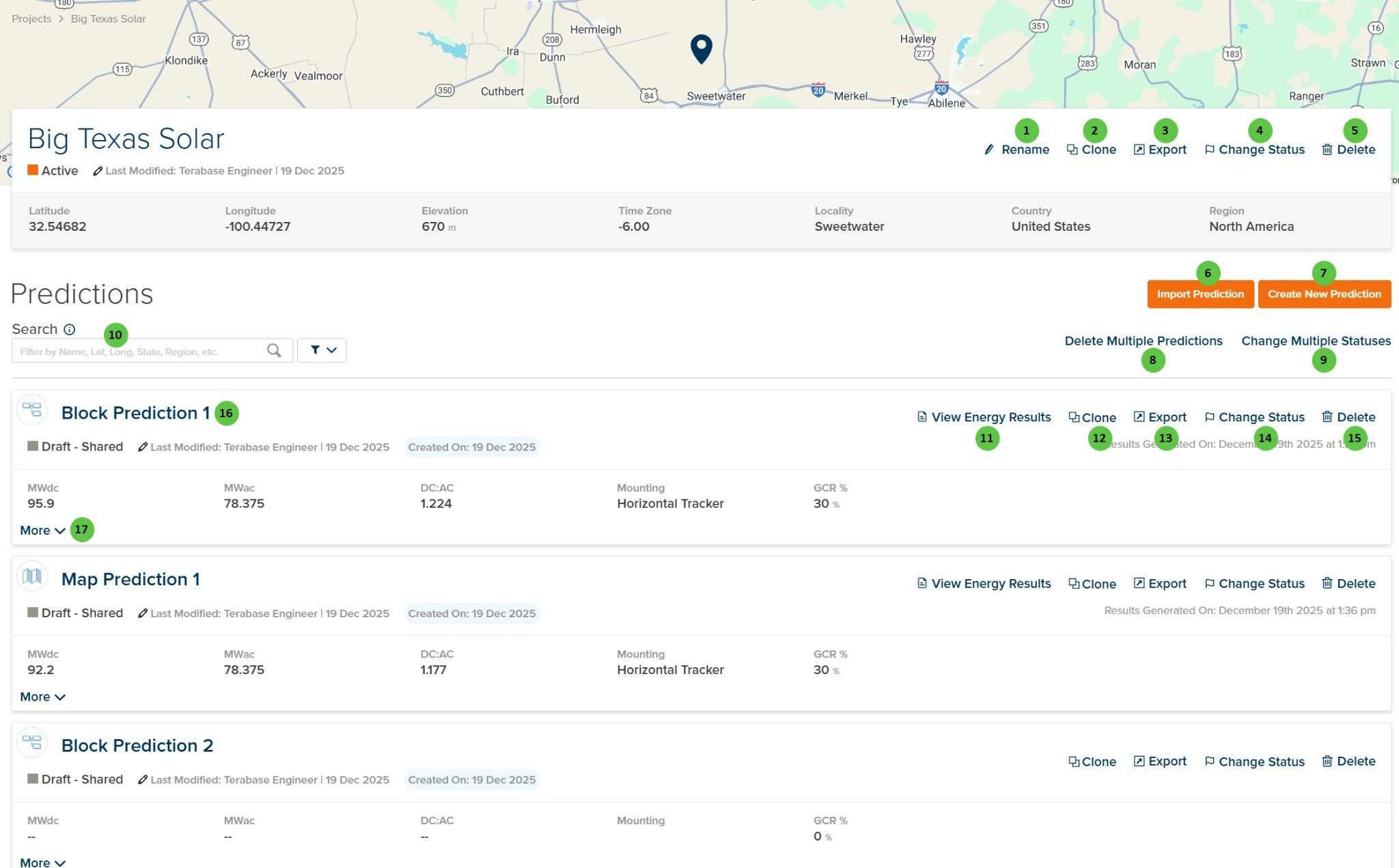
Predictions Management Page
Overview
The Predictions page is organized into three main sections:- Project Header — Displays the project name, status, location details (latitude, longitude, elevation, time zone, locality, country, region), and provides project-level action buttons.
- Predictions Toolbar — Contains buttons to import or create new predictions, delete multiple predictions, change multiple statuses, and search/filter the predictions list.
- Predictions List — Displays all predictions within the project with summary information (MWdc, MWac, DC:AC ratio, mounting type, GCR%) and individual prediction action buttons.
User Inputs
| # | Input | Type | Units | Description | Related Documentation |
|---|---|---|---|---|---|
| 1 | Rename | Button | — | Opens a dialog to rename the current project. | — |
| 2 | Clone (Project) | Button | — | Creates a copy of the entire project, including all predictions and configurations. | — |
| 3 | Export (Project) | Button | — | Exports the project data to a downloadable file format. | — |
| 4 | Change Status (Project) | Button | — | Opens a dialog to change the project status (e.g., Draft, Active, Archived). | — |
| 5 | Delete (Project) | Button | — | Deletes the entire project and all associated predictions. This action requires confirmation. | — |
| 6 | Import Prediction | Button | — | Opens the import dialog to import a prediction from an external file into the current project. | — |
| 7 | Create New Prediction | Button | — | Opens the prediction creation wizard to define a new prediction within the current project. | — |
| 8 | Delete Multiple Predictions | Button | — | Enables multi-select mode to delete multiple predictions at once. | — |
| 9 | Change Multiple Statuses | Button | — | Enables multi-select mode to change the status of multiple predictions at once. | — |
| 10 | Search | Search Field | — | Filters the predictions list by name, latitude, longitude, state, region, or other attributes. Use the filter icon to access advanced filtering options. | — |
| 11 | View Energy Results | Button | — | Opens the prediction results page to view energy production estimates, loss tree, and detailed outputs. Only available for predictions that have been run. | Summary Results |
| 12 | Clone (Prediction) | Button | — | Creates a copy of the selected prediction within the same project. | — |
| 13 | Export (Prediction) | Button | — | Exports the selected prediction data to a downloadable file format. | — |
| 14 | Change Status (Prediction) | Button | — | Opens a dialog to change the status of the selected prediction (e.g., Draft, Shared, Active). | — |
| 15 | Delete (Prediction) | Button | — | Deletes the selected prediction. This action requires confirmation. | — |
| 16 | Prediction Name | Link | — | Click the prediction name to open and edit the prediction configuration. | Prediction Overview |
| 17 | More | Button | — | Expands the prediction card to show additional details and metadata. | — |