

Workflow
1
Navigate to User Administration
From the Company Settings page, click on the name of the user whose digital assets you want to transfer.
2
Choose Reassignment Method
In the User Administration screen, you have two options: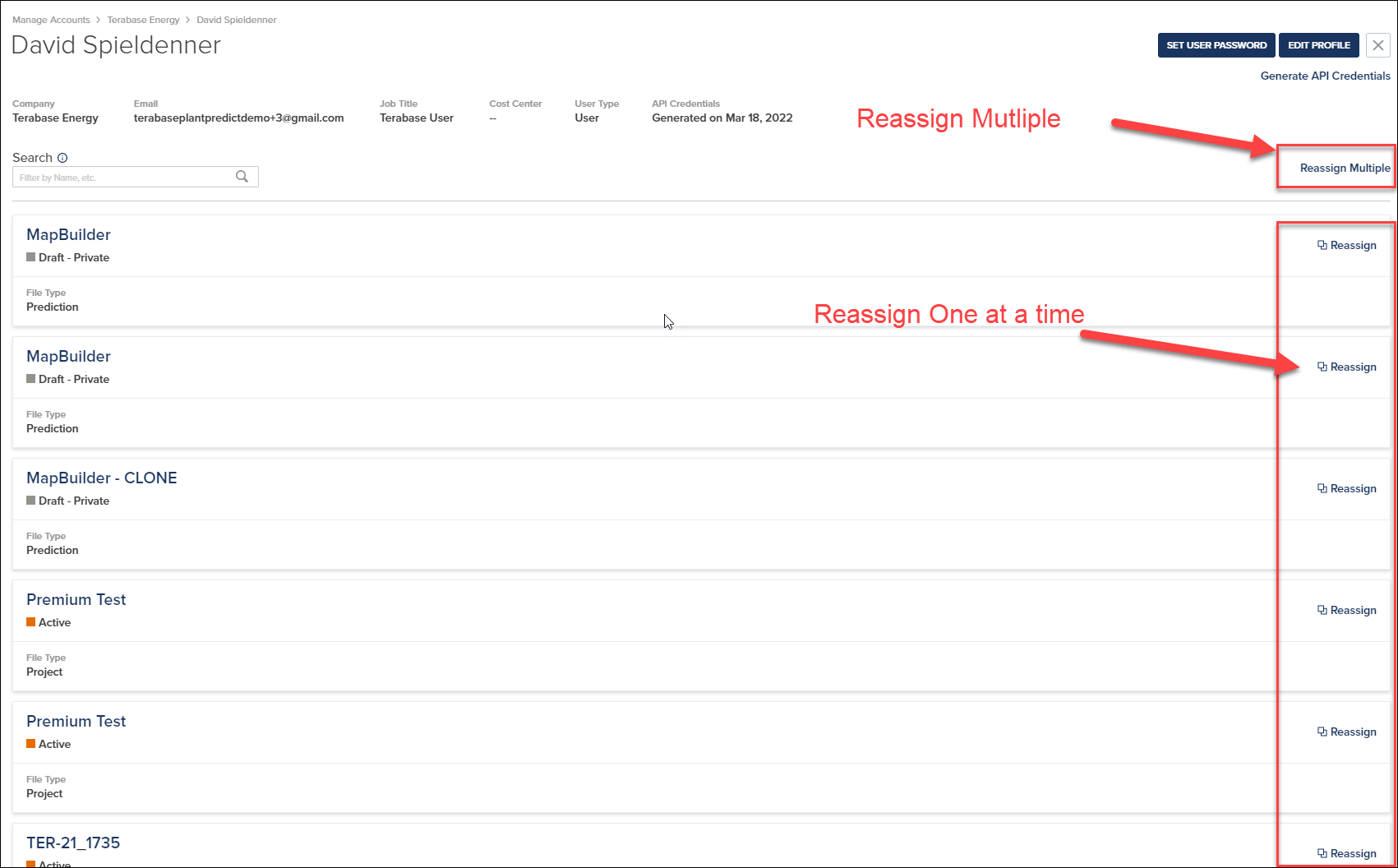
- Reassign Multiple — Transfer multiple assets at once (recommended for bulk transfers)
- Reassign — Transfer individual assets one at a time
3
Select Assets to Transfer
To transfer all assets from one user to another: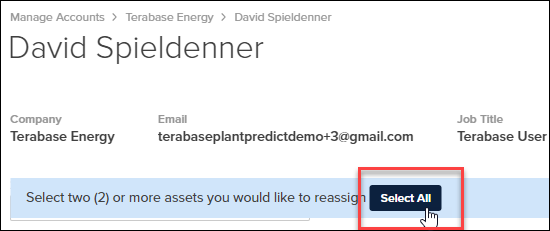
- Click Reassign Multiple
- Click the Select All button near the top of the page
4
Initiate the Transfer
Click Ready To Reassign Assets near the top of the page to begin the transfer wizard.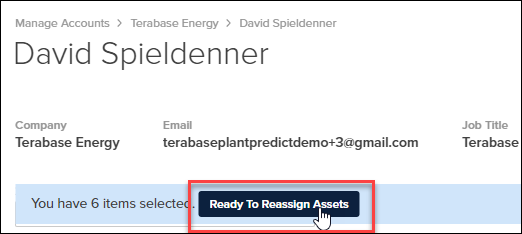
5
Complete the Transfer Wizard
The Reassign Assets wizard guides you through three steps: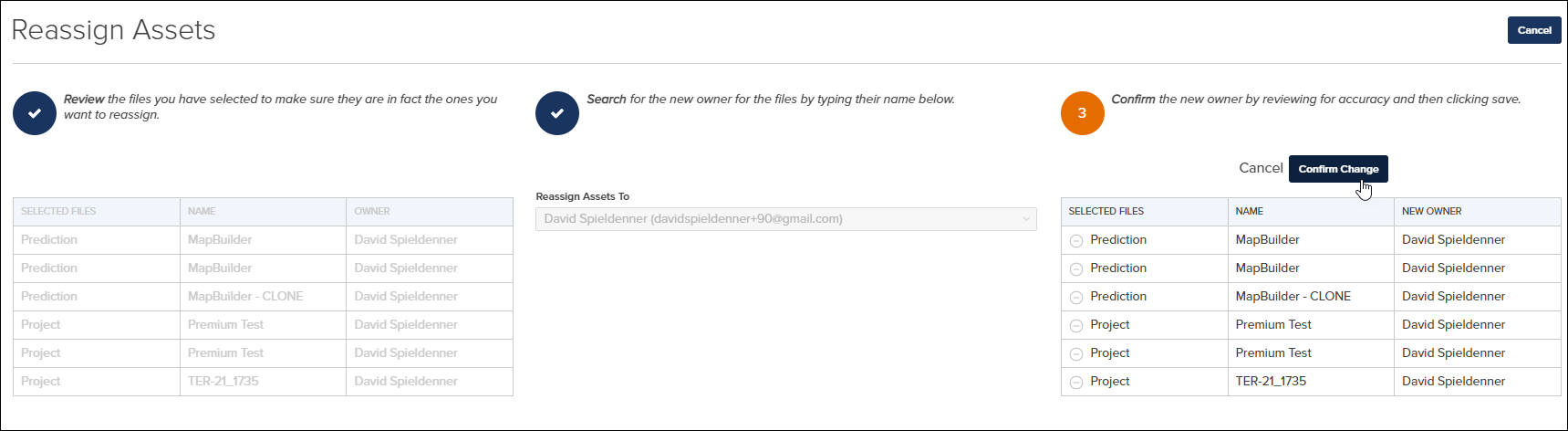
- Review — Verify the digital assets selected for transfer
- Search — Select the new owner by typing their name
- Confirm — Review the new owner assignment and click Confirm Change
Asset Types
The following digital asset types can be transferred between users:After transfer, the new owner has full control over the assets, including the ability to edit, delete, or change the status of transferred items.