

How to Deactivate a User
Deactivating a user requires Company Admin privileges. If you are not a Company Admin, contact your company admin or reach out to support@plantpredict.com to request admin access.1
Open the Manage Account Screen
Click your name in the lower left corner of PlantPredict to open the account menu, then select Manage Account to access the Company Settings screen.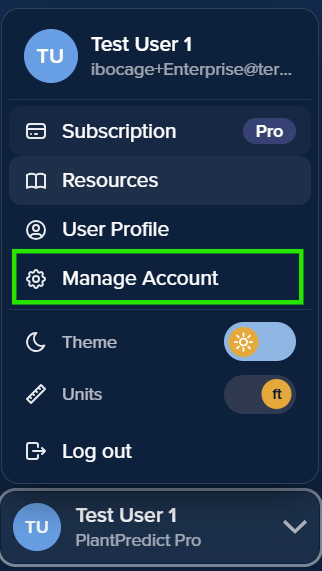
2
Select the User
You’ll be shown a list of users, click the name of the user you want to deactivate.
3
Open Edit Profile
Click the Administration button in the upper right corner of the user’s page, then select Edit profile.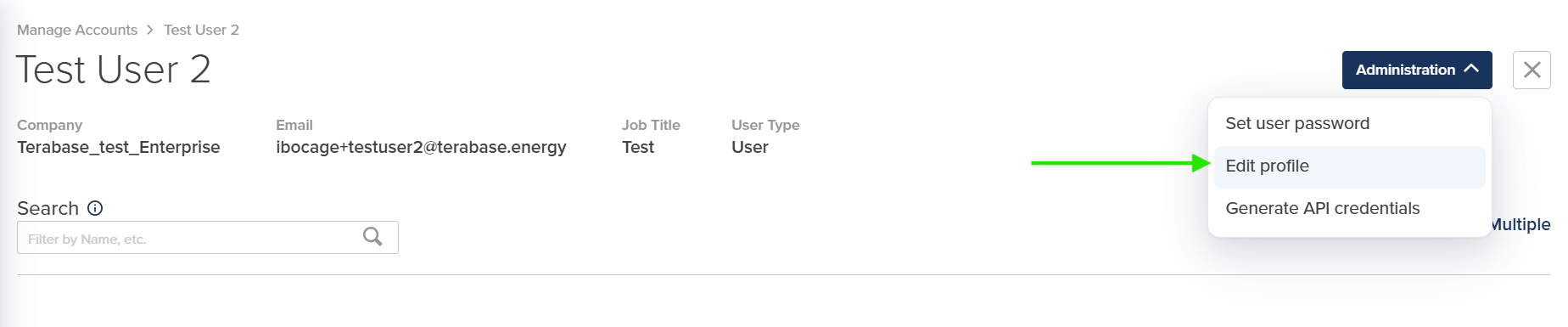
4
Set Account Status to Disabled
In the profile form, change the Account Status dropdown to Disabled.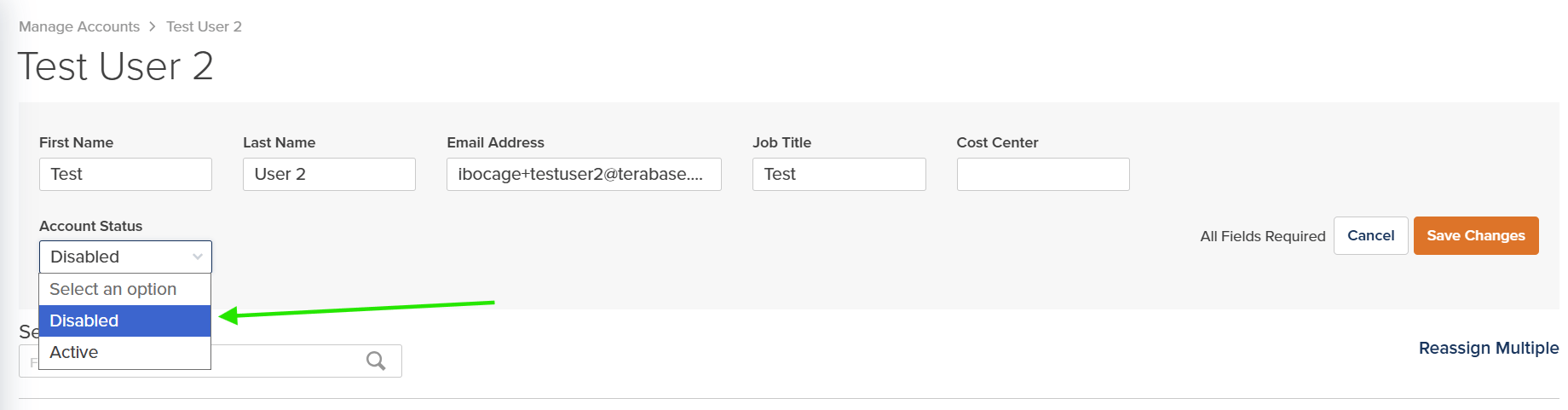
5
Save Changes
Click Save Changes for the deactivation to take effect. All fields on the form are required, so make sure each one is filled in before saving.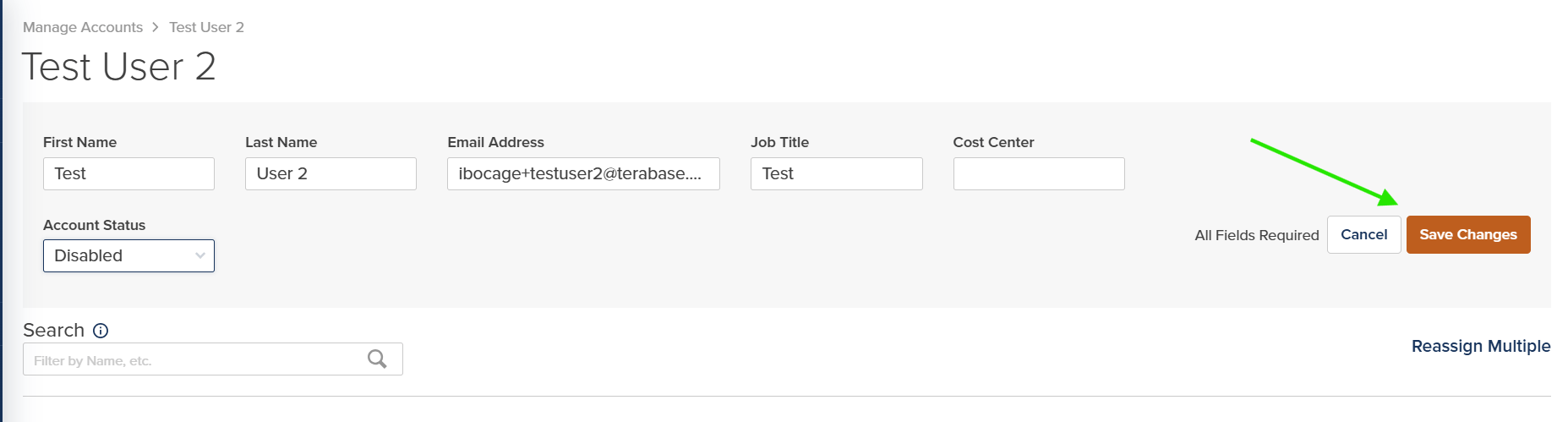
How to Reactivate a User
Follow the same steps as above, but set the Account Status to Active instead of Disabled.License Considerations
Only Active and Pending users count against your user license allocation. You can deactivate a user to free up a seat, which can then be assigned to another user.