

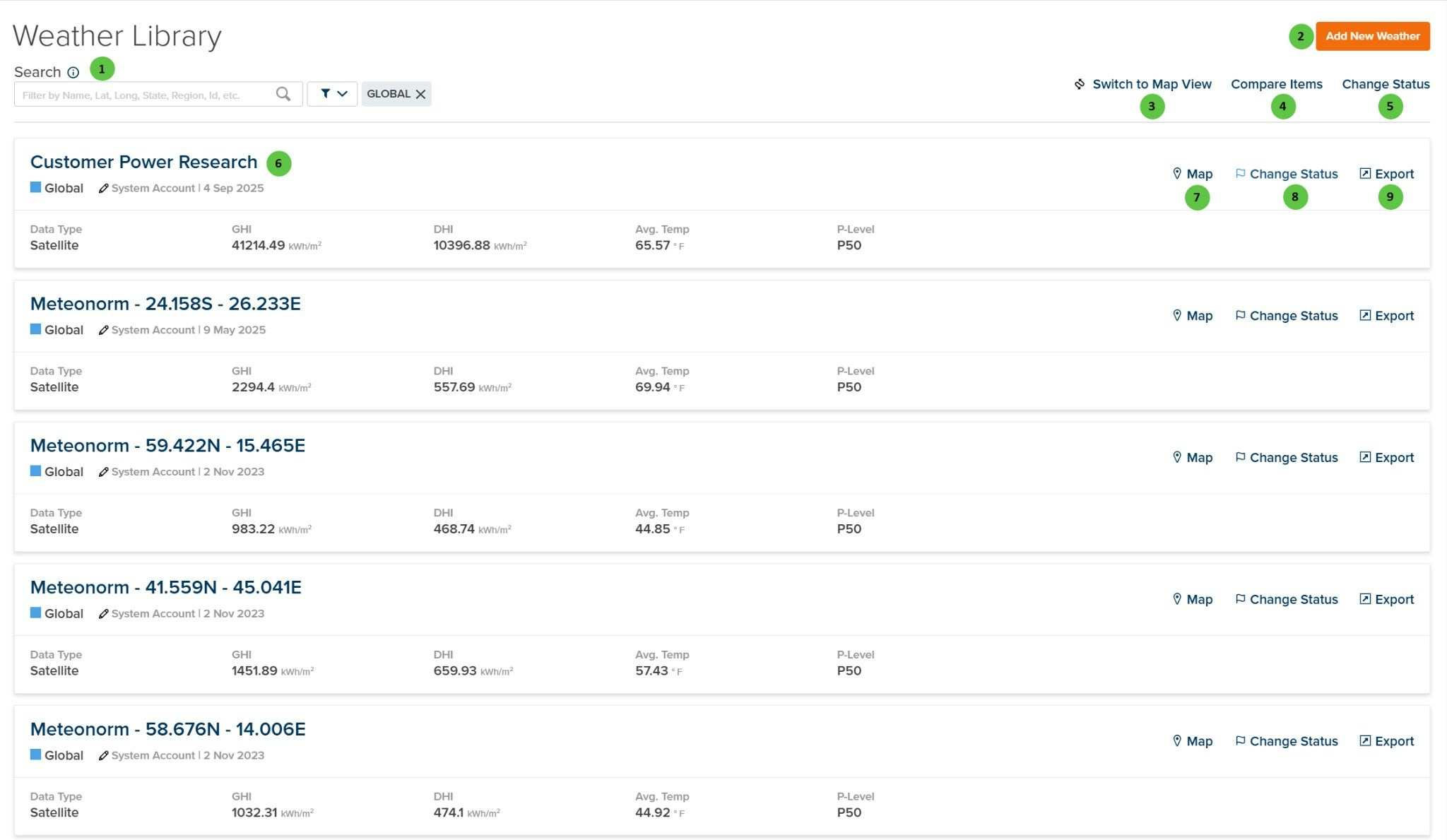
Weather Library
Overview
The Weather Library displays weather files from two sources:- Company Files — Weather files created or uploaded by users in your organization
- Global Files — Shared weather files available to all PlantPredict users
- Data Type — Source type (e.g., Satellite, Ground-measured)
- GHI — Global Horizontal Irradiance (kWh/m²)
- DHI — Diffuse Horizontal Irradiance (kWh/m²)
- Avg. Temp — Average ambient temperature (°F or °C)
- P-Level — Probability level (e.g., P50, P90)
User Inputs
| # | Input | Type | Units | Description | Related Documentation |
|---|---|---|---|---|---|
| 1 | Search | Text Field | — | Search for weather files by name, latitude, longitude, state, region, ID, or other attributes. Filter toggles allow filtering by status (e.g., Global, Active, Draft). | — |
| 2 | Add New Weather | Button | — | Opens the Add New Weather page where you can download weather data from integrated providers, upload your own weather file, or generate synthetic weather data. | Add New Weather |
| 3 | Switch to Map View | Button | — | Toggles between list view and map view. Map view displays weather file locations geographically, allowing you to visually browse files by region. | — |
| 4 | Compare Items | Button | — | Opens the weather file comparison tool. Select multiple weather files to compare their irradiance, temperature, and other parameters side-by-side. | — |
| 5 | Change Status | Button | — | Bulk status change for selected weather files. Available statuses: Draft Private (visible only to creator), Draft Shared (visible to company), Active (approved for use), Retired (archived), Global (shared with all users), Global-Retired (archived global file). | — |
| 6 | Weather File Card | Interactive | — | Click on a weather file card to open the weather file detail view. Each card displays the file name, status, owner, last modified date, and key weather parameters. | Weather File |
| 7 | Map (per file) | Button | — | Opens a map view showing the geographic location of the selected weather file. | — |
| 8 | Change Status (per file) | Button | — | Change the status of an individual weather file. See callout #5 for available status options. | — |
| 9 | Export (per file) | Button | — | Export the weather file data. Available export formats include CSV and PlantPredict native format (PPP). | — |
Weather File Statuses
Global Status: Global and Global-Retired statuses are managed exclusively by Terabase Energy. Organizations cannot promote assets to Global status directly. To request that an asset be promoted to Global status, please contact Terabase Energy support.