

- Download from Vendor — Retrieve weather data directly from integrated weather data providers
- Upload Your Own File — Import custom weather files in supported formats
- Create Synthetic Weather — Generate hourly weather data from monthly averages
Add New Weather
Overview
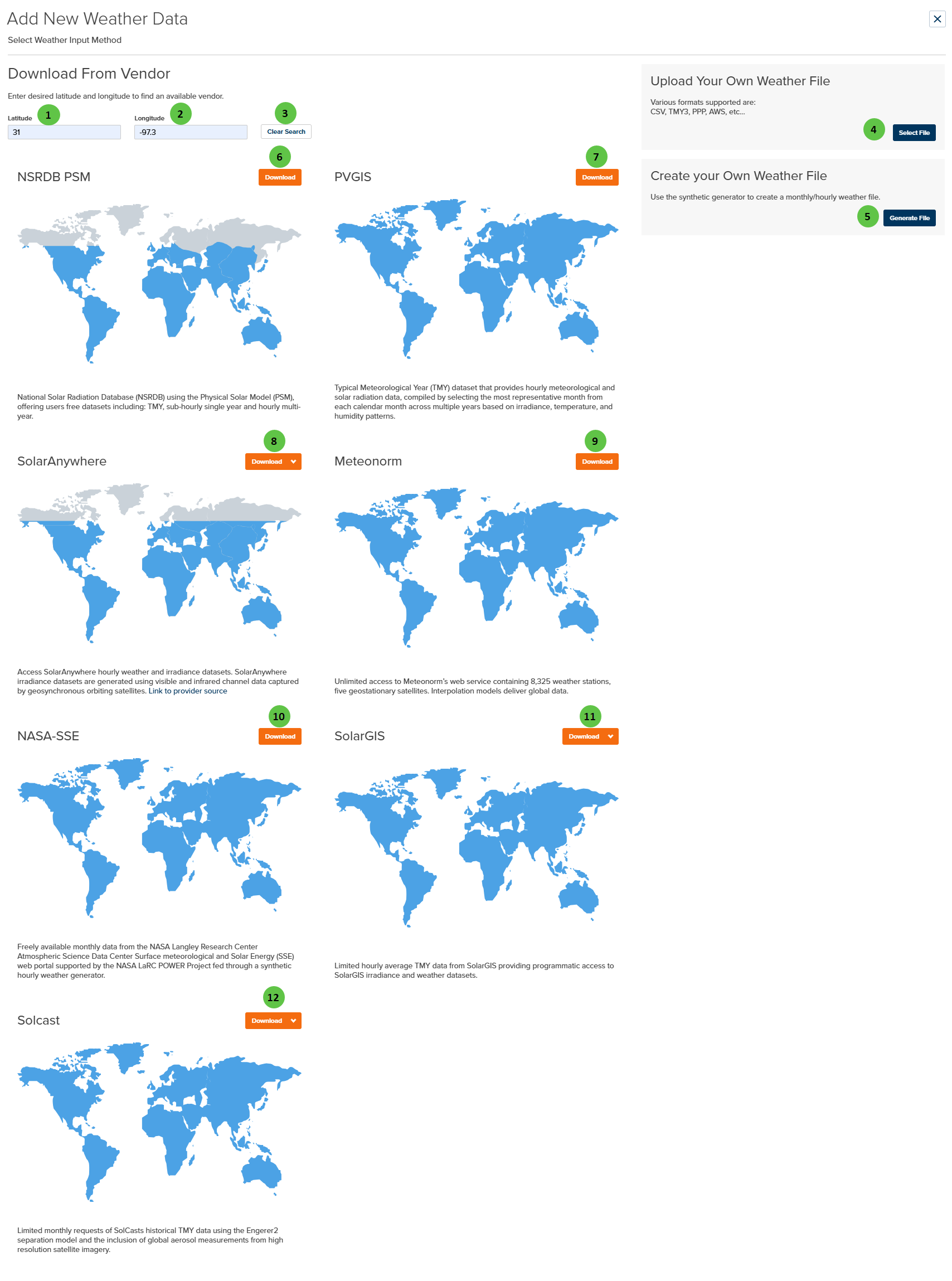
PlantPredict integrates with multiple weather data providers, each offering different data types, coverage areas, and temporal resolutions. Enter your project coordinates to see which providers have data available for your location.Not all weather data providers are available in all locations. Provider availability depends on geographic coverage and data licensing.
User Inputs
| # | Input | Type | Units | Description | Related Documentation |
|---|---|---|---|---|---|
| 1 | Latitude | Numeric | ° | Enter the latitude of your project location. Positive values for North, negative for South. Used to query available weather data providers for your location. | — |
| 2 | Longitude | Numeric | ° | Enter the longitude of your project location. Positive values for East, negative for West. Used to query available weather data providers for your location. | — |
| 3 | Clear Search | Button | — | Clears the latitude and longitude inputs and resets the provider search results. | — |
| 4 | Select File | Button | — | Opens a file browser to upload your own weather file. Supported formats: CSV, TMY3, PPP (PlantPredict native format), and AWS. After upload, PlantPredict guides you through the data mapping process to ensure correct integration. See Weather File Upload Steps below. | — |
| 5 | Generate File | Button | — | Opens the synthetic weather generator. Create hourly weather data from monthly average values. Useful when only monthly summary data is available for a location. | — |
| 6 | NSRDB PSM Download | Button | — | Download weather data from the National Solar Radiation Database (NSRDB) using the Physical Solar Model (PSM). Offers free datasets including: Hourly TMY, sub-hourly Time Series, and Multi-Year Time Series. | — |
| 7 | PVGIS Download | Button | — | Download weather data from PVGIS (Photovoltaic Geographical Information System). Provides a free Typical Meteorological Year (TMY) dataset with hourly meteorological and solar radiation data, compiled by selecting the most representative month from each calendar month across multiple years based on irradiance, temperature, and humidity patterns. No separate API key is required. | — |
| 8 | SolarAnywhere Download | Button | — | Download weather data from SolarAnywhere. Provides hourly weather and irradiance datasets generated from visible and infrared satellite data. Supports versions 3.4 through 4.0. Requires API credentials configured in User Profile or Company Settings. | — |
| 9 | Meteonorm Download | Button | — | Download weather data from Meteonorm. Provides unlimited access to Meteonorm’s web service containing 8,325 weather stations and five geostationary satellites. Interpolation models deliver global Hourly TMY data. | — |
| 10 | NASA-SSE Download | Button | — | Download weather data from NASA-SSE (Surface meteorology and Solar Energy). Provides freely available monthly data from NASA Langley Research Center, converted to synthetic hourly weather through a weather generator. | — |
| 11 | SolarGIS Download | Button | — | Download weather data from SolarGIS. Provides programmatic access to SolarGIS irradiance and weather datasets. Supported formats: TMY15, TMY60. Note: PVPlanner format is deprecated. Requires API credentials. | — |
| 12 | Solcast Download | Button | — | Download weather data from Solcast. Provides historical TMY data using the Engerer2 separation model with global aerosol measurements from high-resolution satellite imagery. Supported formats: TMY Hourly, PT15M (15-minute), PT60M (60-minute). Requires API credentials. | — |
Integrated Weather Data Providers
Some providers require API credentials to be configured before downloading. Configure your personal API keys in User Profile under the Weather Provider Configuration tab. Company-wide API keys can be configured by Admins in Company Settings.
Supported Upload Formats
When uploading your own weather data, the following file formats are supported:
In addition to the formats above, any reasonable Excel workbook or CSV file can be uploaded and formatted during the upload process.
PlantPredict can handle weather files of almost any granularity, from 60 minutes down to single minute intervals.
Weather File Upload Steps
After clicking Select File and choosing your weather file, PlantPredict guides you through a multi-step process to ensure your data is correctly mapped and validated.Step 1: Select File
Click Select File (callout #4) and browse to select your weather file. Supported formats include CSV, Excel workbooks, and the standard formats listed above.Step 2: Define Locality
Specify the geographic location associated with the weather data, including latitude, longitude, and time zone information.Step 3: Set Parameters
Enter optional metadata for the weather file. While not required, it is highly encouraged to fill in these values for informational purposes and future reference.Step 4: Format Data
This is the most critical step in the upload process. The goal is to map columns from your uploaded file to PlantPredict weather variables. Key elements:- Data Preview Table — Displays all data from the uploaded file on the right side of the screen
- Variables Tab — Select which weather variables to include using checkboxes, then use dropdown menus to specify which column contains each variable
- Timestamp Tab — Define the Start Date and Interval Duration; PlantPredict automatically extrapolates the end date
- Header Rows to Skip — Indicate how many header rows exist in your file (these will be excluded from the weather data)
- Leap Day Toggle — Choose whether to include leap day(s) in the timestamp definition
Minimum Required Data: A PlantPredict weather file requires at minimum irradiance (GHI or POA) and temperature data.
Step 5: Quality Check
Review all uploaded data before the PlantPredict weather file is created. This step includes:- Data Visualization — Compare your weather data against the clear sky model to detect potential timeshifts
- Timeshift Correction — If a timeshift is detected, use the built-in data shifting feature to correct it without restarting the process