

Profile Information on the About tab is configured during new user registration and can only be edited by the Company Admin within the Company Settings page.
About
The About tab displays your profile and organization information. These fields are read-only for standard users.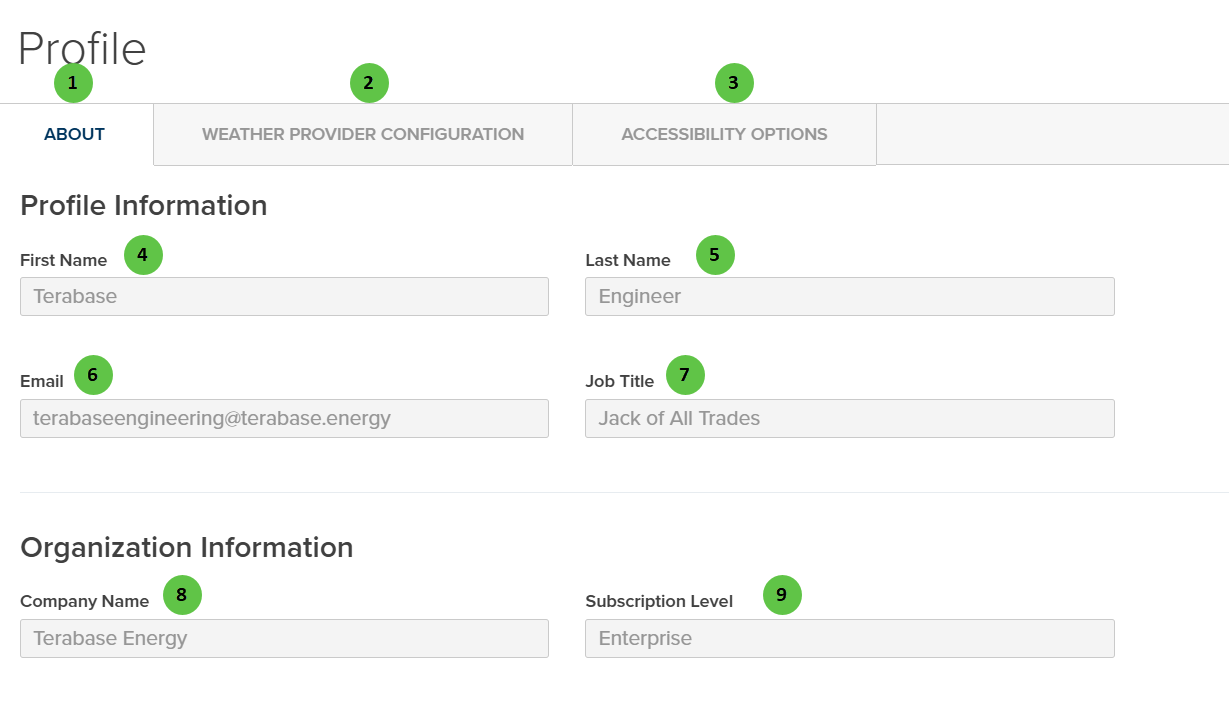
Profile - About
User Inputs (About)
| # | Input | Type | Units | Description | Related Documentation |
|---|---|---|---|---|---|
| 1 | About (Tab) | Tab | — | Currently selected tab. Displays user profile and organization information. | — |
| 2 | Weather Provider Configuration (Tab) | Tab | — | Navigate to configure user-specific API credentials for third-party weather data providers. | — |
| 3 | Accessibility Options (Tab) | Tab | — | Navigate to configure display accessibility settings including color palette selection. | — |
| 4 | First Name | Display | — | User’s first name as registered. Read-only — contact your Company Admin to update. | — |
| 5 | Last Name | Display | — | User’s last name as registered. Read-only — contact your Company Admin to update. | — |
| 6 | Display | — | User’s email address used for login and notifications. Read-only — contact your Company Admin to update. | — | |
| 7 | Job Title | Display | — | User’s job title within the organization. Read-only — contact your Company Admin to update. | — |
| 8 | Company Name | Display | — | Name of the organization associated with this account. Read-only. | — |
| 9 | Subscription Level | Display | — | Current PlantPredict subscription tier (e.g., Enterprise, Professional). Determines available features and API access. Read-only. | — |
Weather Provider Configuration
The Weather Provider Configuration tab allows you to enter user-specific API credentials for third-party weather data providers. These credentials enable direct download of weather files within PlantPredict.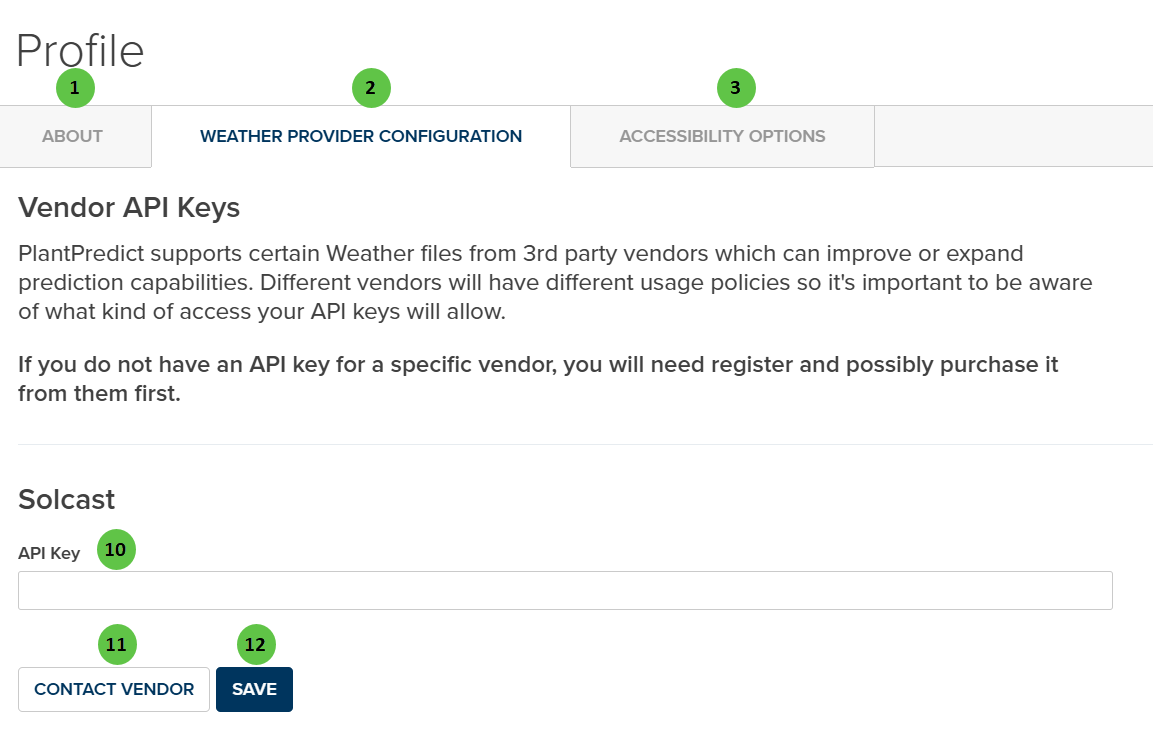
Profile - Weather Provider Configuration
Company-wide API credentials can be configured by the Company Admin in the Company Settings page.
User Inputs (Weather Provider Configuration)
| # | Input | Type | Units | Description | Related Documentation |
|---|---|---|---|---|---|
| 10 | API Key (Solcast) | Text Field | — | Enter your Solcast API key to enable direct weather data downloads from Solcast. If you do not have an API key, you will need to register with the vendor and possibly purchase access. | — |
| 11 | Contact Vendor | Button | — | Opens the vendor’s website to register for API access or learn more about their weather data services. | — |
| 12 | Save | Button | — | Saves the entered API key to your user profile. The key is securely stored and used for subsequent weather data requests. | — |
Accessibility Options
The Accessibility Options tab provides display customization settings to improve usability for users with visual impairments or color vision deficiencies.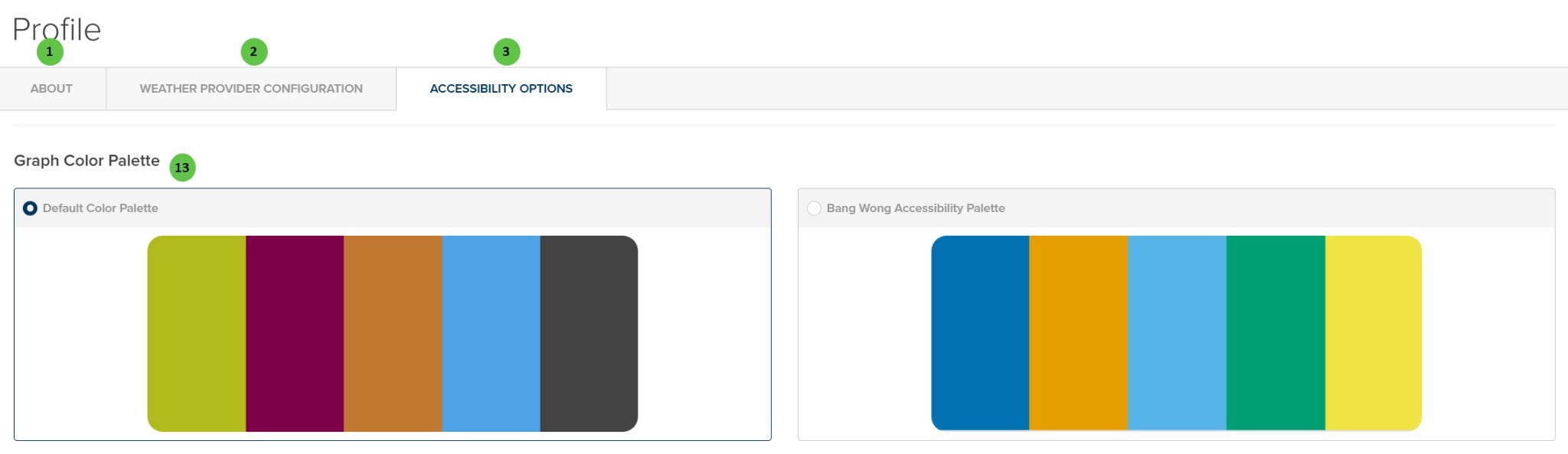
Profile - Accessibility Options
User Inputs (Accessibility Options)
| # | Input | Type | Units | Description | Related Documentation |
|---|---|---|---|---|---|
| 13 | Graph Color Palette | Radio Button | — | Select the color palette used for charts and graphs throughout PlantPredict. Default Color Palette uses standard colors. Bang Wong Accessibility Palette uses a colorblind-friendly palette designed for users with color vision deficiencies. | — |