

Module Library
Overview
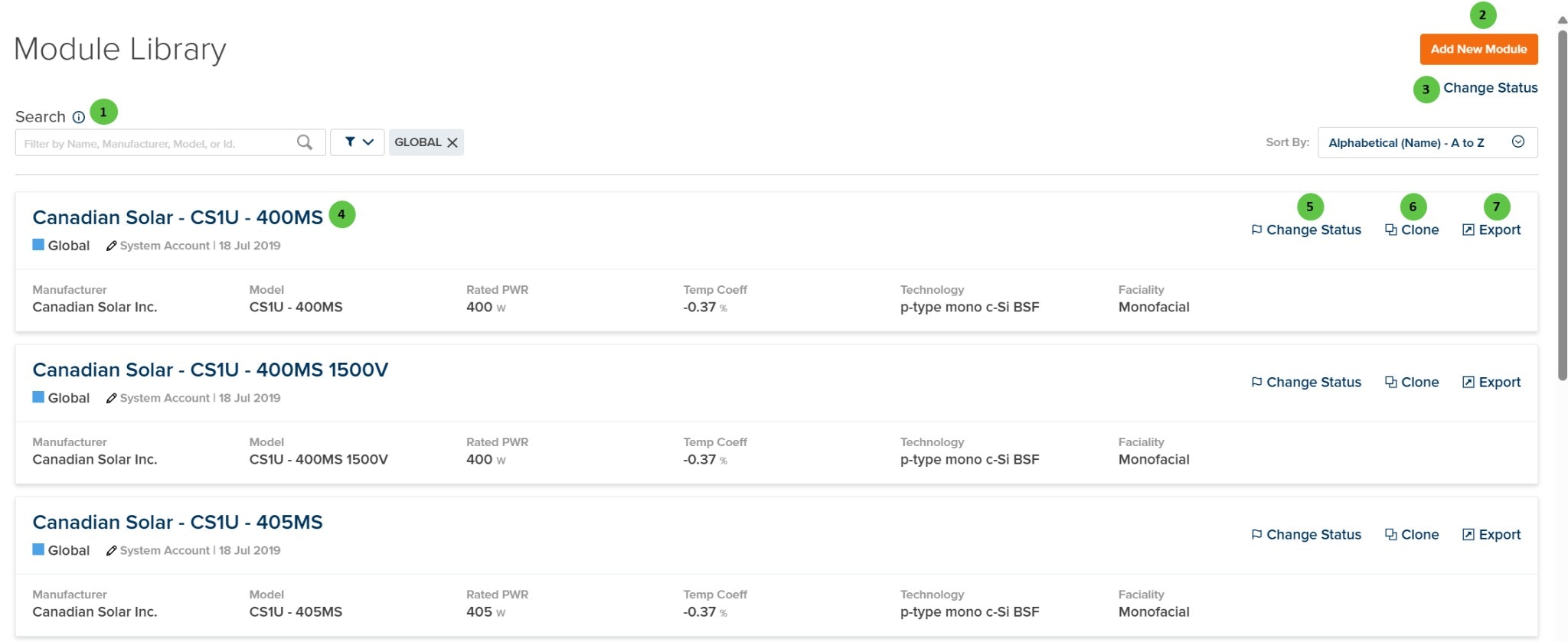
The Module Library displays module specifications from two sources:- Company Modules — Custom modules created or uploaded by users in your organization
- Global Modules — Manufacturer module specifications available to all PlantPredict users
- Manufacturer — Module manufacturer name
- Model — Model number or name
- Rated PWR — Rated power at STC (W)
- Temp Coeff — Temperature coefficient of power (%/°C)
- Technology — Cell technology (e.g., p-type mono c-Si BSF, n-type TOPCon)
- Faciality — Monofacial or Bifacial
User Inputs
| # | Input | Type | Units | Description | Related Documentation |
|---|---|---|---|---|---|
| 1 | Search | Text Field | — | Search for modules by name, manufacturer, model, or ID. Filter toggles allow filtering by status (e.g., Global, Active, Draft). Sort options include alphabetical ordering. | — |
| 2 | Add New Module | Button | — | Opens the Add New Module options. See Add New Module Options below for available methods. | Add New Module |
| 3 | Change Status | Button | — | Bulk status change for selected modules. Available statuses: Draft Private (visible only to creator), Draft Shared (visible to company), Active (approved for use), Retired (archived), Global (shared with all users), Global-Retired (archived global). | — |
| 4 | Module Card | Interactive | — | Click on a module card to open the module detail view. Each card displays the module name, status, owner, last modified date, and key specifications. | Module File |
| 5 | Change Status (per module) | Button | — | Change the status of an individual module. See callout #3 for available status options. | — |
| 6 | Clone (per module) | Button | — | Create a copy of the module specification. Useful for creating custom variations of existing modules or Global modules. | — |
| 7 | Export (per module) | Button | — | Export the module specification. Available export formats include PPM (PlantPredict native module format). | — |
Add New Module Options
Clicking Add New Module presents the following options for creating a new module specification:The Enter Basic Data option is the fastest way to create a module from a manufacturer datasheet. PlantPredict uses the entered values to generate a complete module model including I-V curve parameters.
Module Statuses
Global Status: Global and Global-Retired statuses are managed exclusively by Terabase Energy. Organizations cannot promote assets to Global status directly. To request that an asset be promoted to Global status, please contact Terabase Energy support.