

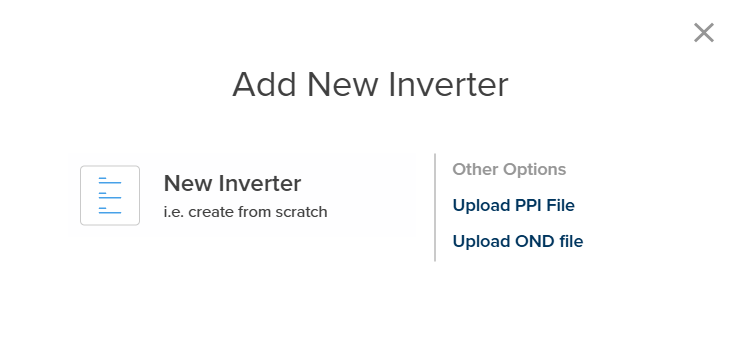
Add New Inverter Options
Input Options Overview
1. Upload PPI File
Upload a PlantPredict native inverter file (.ppi format). This is a straightforward file import:- Click Add New Inverter
- Select Upload PPI File
- A file explorer opens
- Navigate to and select your .ppi file
- The inverter is imported with all parameters intact
PPI files can be exported from any PlantPredict inverter using the Export button in the Inverter Library.
2. Upload OND File
Upload a PVsyst native inverter file (.ond format). This allows migration of inverter specifications from PVsyst:- Click Add New Inverter
- Select Upload OND File
- A file explorer opens
- Navigate to and select your .ond file
- PlantPredict converts the PVsyst parameters to PlantPredict format
Some PVsyst parameters may not have direct equivalents in PlantPredict. Review the imported inverter to ensure all critical parameters are correctly mapped.
3. Create from Scratch
Creates a new inverter file where you define all parameters manually across four tabs.- Click Add New Inverter
- Select Create from Scratch
- The inverter editor opens with all tabs available
- Enter parameters across all required tabs
- Click Save Inverter when complete
Inverter File Structure
When creating an inverter from scratch, you define parameters across four tabs. See Inverter File for complete documentation of all parameters.Parameters Tab (Required)
The Parameters tab contains general information and electrical ratings including:- General: Name, Model, Manufacturer, Data Source
- Ratings: Min/Max Voltage, Min DC Power Threshold, Max Current, Max Absolute Voltage
- Power: Real Power at 50°C, Apparent Power, Elevation
- Notes: Inverter Notes
Efficiency Tab (Required)
The Efficiency tab defines power-efficiency curves at multiple DC voltage levels. PlantPredict requires efficiency curves to calculate DC-to-AC conversion losses. Curve Requirements:- Minimum of 3 efficiency curves (at different voltage levels)
- Each curve contains AC Power, DC Power, and Efficiency pairs
- Typical voltage levels: Minimum, Nominal, and Maximum MPPT voltage
- Select a voltage level or click Add Curve to create a new voltage curve
- Enter power-efficiency pairs using Add Point
- Review the efficiency chart to verify curve shapes
Temperature & Elevation KVA Tab (Optional)
The Temperature & Elevation KVA tab defines temperature-dependent power derating. When enabled, inverter capacity is reduced at high ambient temperatures. Curve Structure:- Toggle Enable kVA Curves to ON
- Define Temperature-kVA pairs at one or more elevation levels
- Click Add Curve to add curves at different elevations
- If site elevation exceeds all curve elevations, the highest elevation curve is used
- If ambient temperature exceeds the curve range, the inverter shuts down
- Leave disabled if temperature derating is not applicable
Active and Reactive Power Curves Tab (Optional)
See Inverter File - Active and Reactive Power Curves Tab for more information.Workflow Summary
- Click Add New Inverter from the Inverter Library
- Choose your input method (Upload PPI, Upload OND, or Create from Scratch)
- For file uploads: Select your file and review the imported parameters
- For creating from scratch:
- Enter all required Parameters
- Define Efficiency curves at minimum 3 voltage levels
- (Optional) Enable and define Temperature & Elevation KVA curves
- Click Save Inverter to add to the Inverter Library