

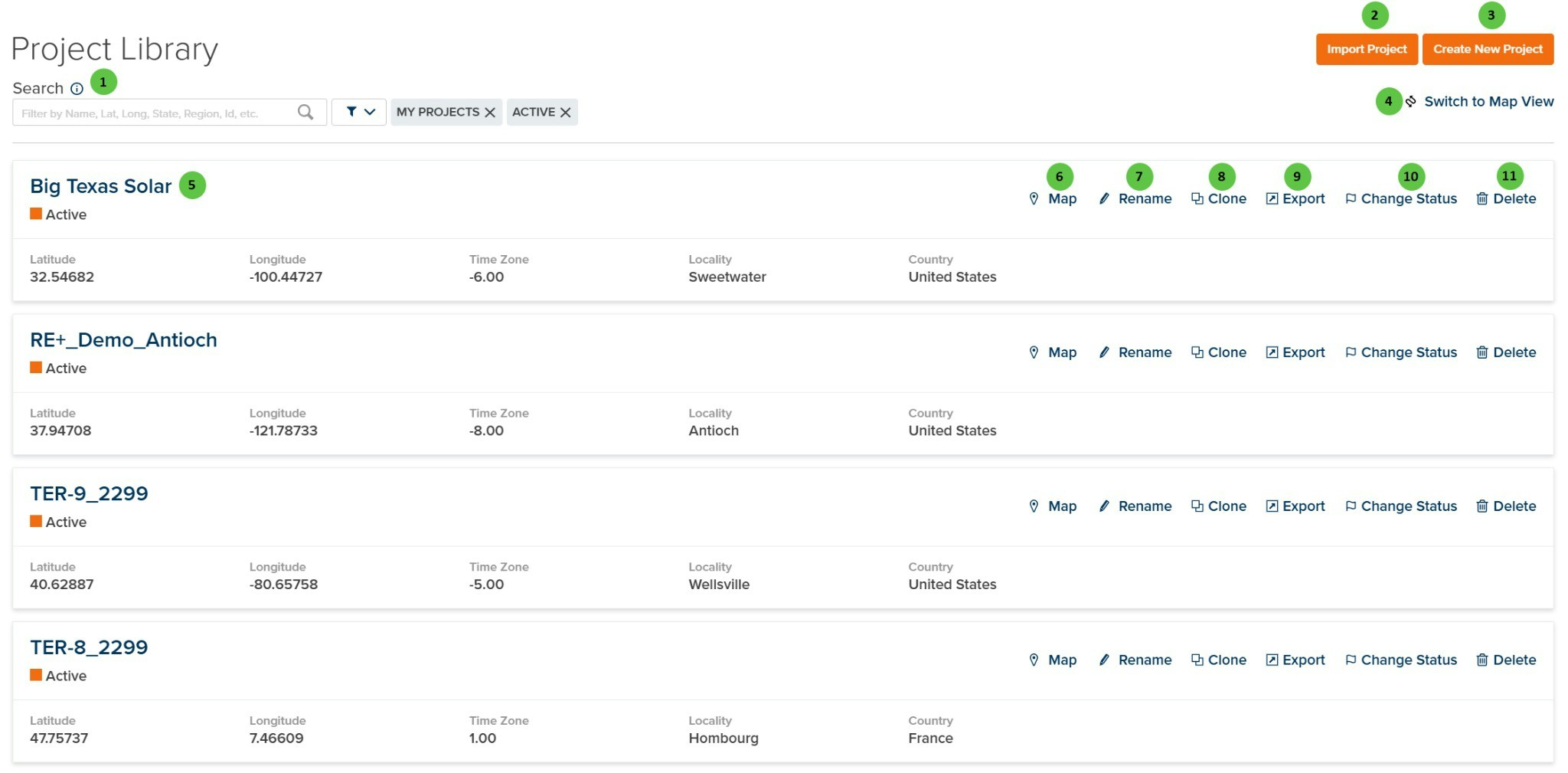
Project Library
Overview
The Project Library displays all projects accessible to you, including:- My Projects — Projects you have created or own
- Shared Projects — Projects shared by other users in your organization
- Latitude — Project latitude coordinate
- Longitude — Project longitude coordinate
- Time Zone — UTC offset for the project location
- Locality — City or locality name
- Country — Country where the project is located
User Inputs
| # | Input | Type | Units | Description | Related Documentation |
|---|---|---|---|---|---|
| 1 | Search | Text Field | — | Search for projects by name, latitude, longitude, state, region, ID, or other attributes. Filter toggles allow filtering by ownership (e.g., My Projects) and status (e.g., Active, Draft, Retired). | — |
| 2 | Import Project | Button | — | Import a project from an exported project file. Use this to restore projects or transfer projects between PlantPredict accounts. | — |
| 3 | Create New Project | Button | — | Opens the Create New Project page where you define the project name, location, and initial settings. | Create New Project |
| 4 | Switch to Map View | Button | — | Toggles between list view and map view. Map view displays project locations geographically, allowing you to visually browse projects by region. | — |
| 5 | Project Card | Interactive | — | Click on a project card to open the project and view its predictions. Each card displays the project name, status, and location details. | Predictions Library |
| 6 | Map (per project) | Button | — | Opens a map view showing the geographic location of the selected project. | — |
| 7 | Rename (per project) | Button | — | Rename the project. Opens a dialog to enter a new project name. | — |
| 8 | Clone (per project) | Button | — | Create a copy of the project including all predictions and settings. Useful for creating variations or backups of existing projects. | — |
| 9 | Export (per project) | Button | — | Export the project to a file. The exported file can be imported into another PlantPredict account or used as a backup. | — |
| 10 | Change Status (per project) | Button | — | Change the status of the project. Available statuses: Draft Private (visible only to creator), Draft Shared (visible to company), Active (approved for use), Retired (archived). | — |
| 11 | Delete (per project) | Button | — | Permanently delete the project and all associated predictions. This action cannot be undone. | — |
Project Statuses
Unlike component libraries (Weather, Inverters, Modules), projects do not have Global status. Projects are always scoped to your organization.