

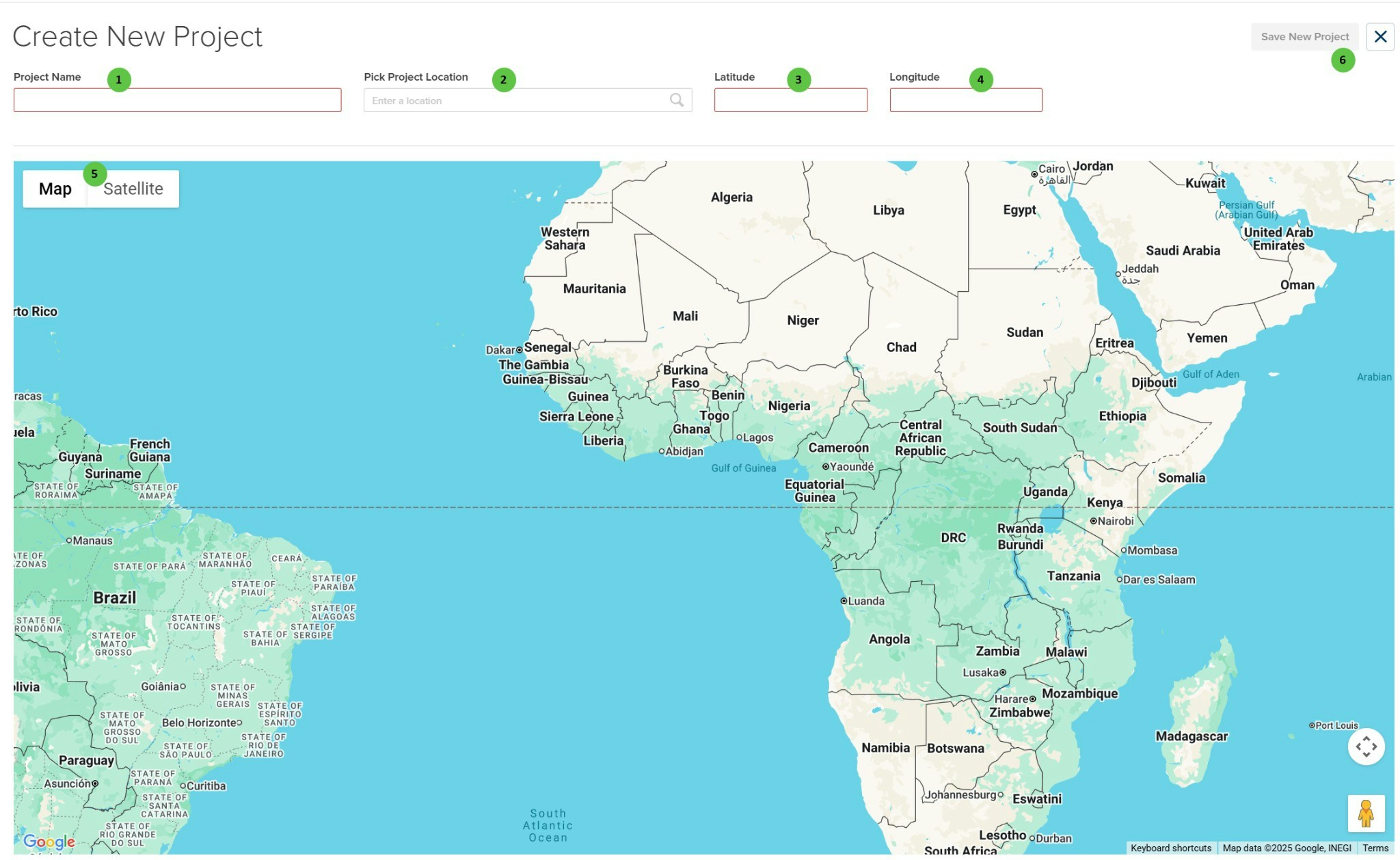
Create New Project UI
Overview
The Create New Project page is organized into two main areas:- Project Header — Enter the project name and specify the geographic location using either a location search or direct latitude/longitude coordinates.
- Interactive Map — Visual map interface for selecting or verifying the project location. Supports both Map and Satellite views.
User Inputs
| # | Input | Type | Units | Description | Related Documentation |
|---|---|---|---|---|---|
| 1 | Project Name | Text Field | — | Enter a descriptive name for the project. This name will be used to identify the project throughout PlantPredict. | — |
| 2 | Pick Project Location | Search Field | — | Search for a location by entering a city, address, or landmark. The search uses Google Maps to find and geocode the location, automatically populating the Latitude and Longitude fields. | — |
| 3 | Latitude | Text Field | degrees | The latitude coordinate of the project location. Positive values indicate North, negative values indicate South. Can be entered manually or populated via location search or map click. | — |
| 4 | Longitude | Text Field | degrees | The longitude coordinate of the project location. Positive values indicate East, negative values indicate West. Can be entered manually or populated via location search or map click. | — |
| 5 | Map / Satellite | Toggle | — | Switch between Map view (street/terrain) and Satellite view (aerial imagery) for the interactive map. | — |
| 6 | Save New Project | Button | — | Saves the project with the specified name and location. The project will be created and you will be redirected to the project dashboard. | Predictions Library |