

Overview
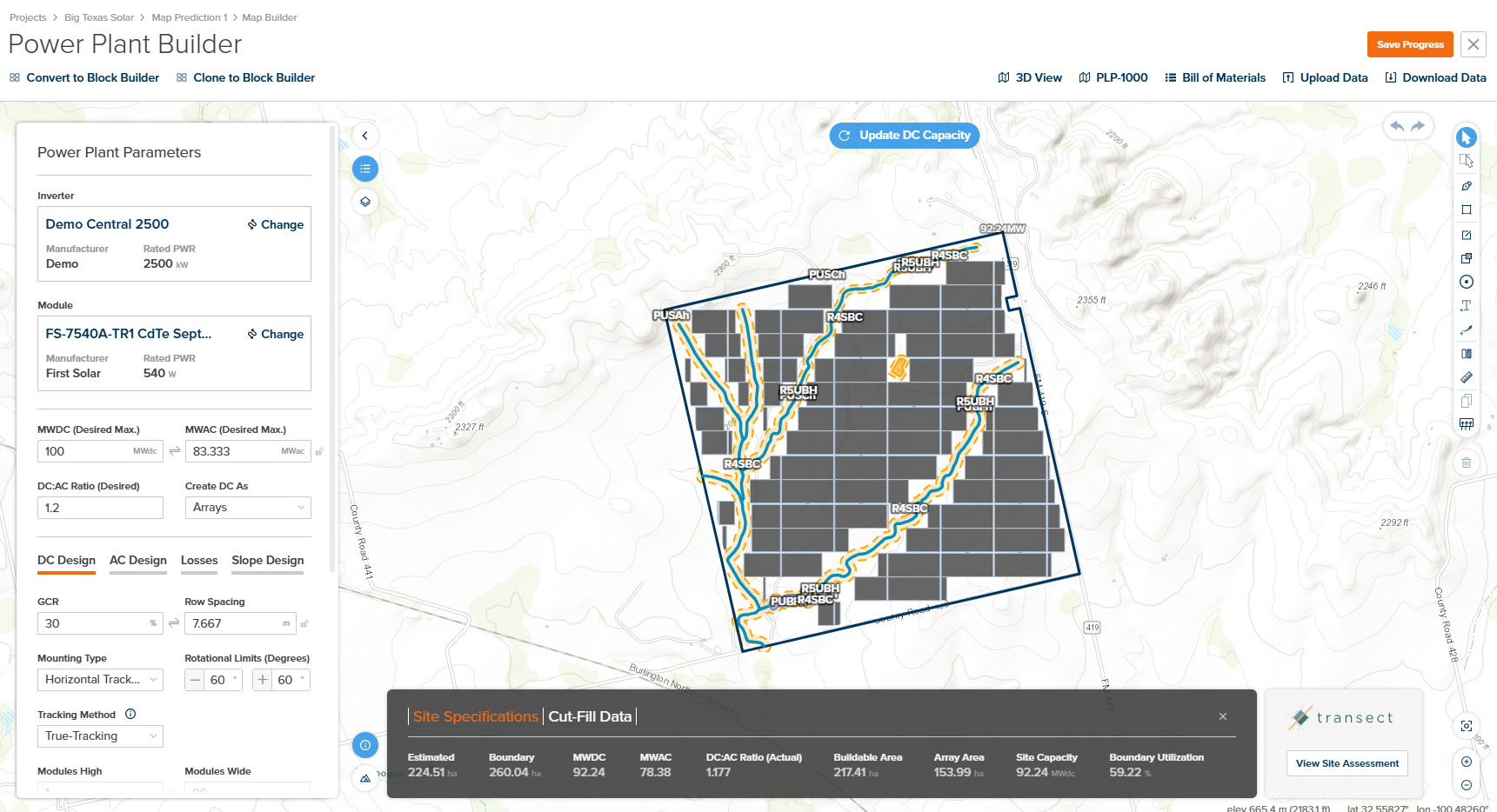
Power Plant Builder Map Interface
- Header Bar — Contains navigation breadcrumbs, conversion options, export tools, and save functionality.
- Power Plant Parameters / Map Overlay Panel — Collapsible left panel for configuring inverter, module, DC/AC design, losses, and slope parameters.
- Map Canvas and Design Editor Toolbox — Central interactive map with right-side toolbar for drawing, selection, and measurement tools.
- Design Results Pane — Bottom panel showing site specifications, cut-fill data, and environmental assessment integration.
- Transect Environmental Assessment — Integrated environmental due diligence data for permitting risk assessment.
User Inputs
Header Bar
The Header Bar provides quick access to design conversion options, 3D shade scene workflows, visualization tools, report generation, and data import/export functionality. Use these controls to convert your map design to other formats, create or update a 3D scene from the map layout, generate professional reports, or exchange data with external CAD and GIS applications.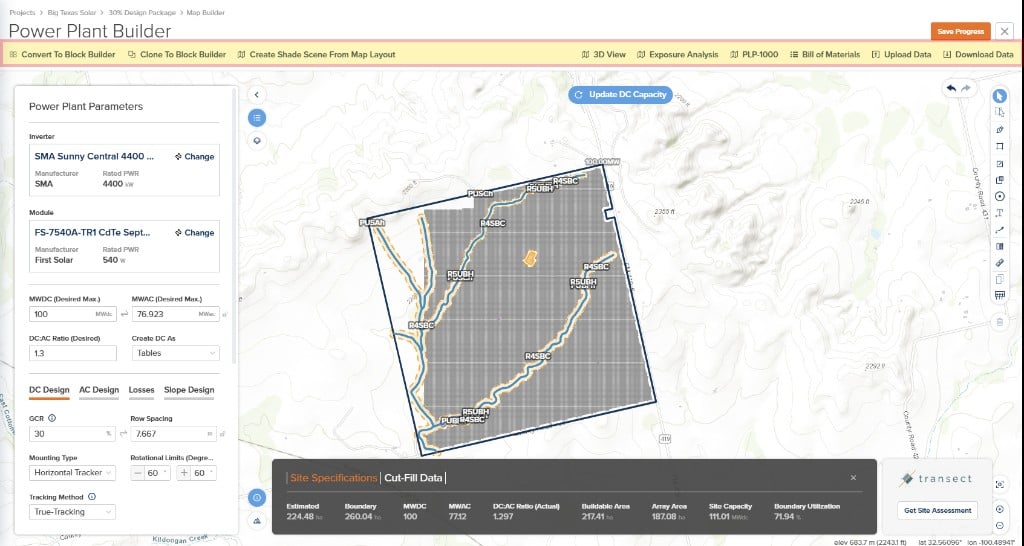
Header Bar (Create Shade Scene From Map Layout)
| Input | Type | Description | Related Documentation |
|---|---|---|---|
| Create Shade Scene From Map Layout | Button | Creates a 3D shade scene from the current map layout and associates it with the project so you can run 3D Scene calculations without manually downloading a PVC from Map Builder and uploading it to the prediction. If a 3D scene already exists, this action can push an updated layout to that scene, subject to the same workflow. Also available alongside Convert to Block Builder in the header toolbar. | 3D Scene Overview |
| Convert to Block Builder | Button | Converts the current map-based design to an equivalent Block Builder design. Note: This is a one-directional conversion—you will not be able to convert back to a map design after this action. | Block Overview |
| Clone to Block Builder | Button | Creates a clone of the current design in Block Builder form. This is a safer approach than Convert as no map builder information is lost—the original map design remains intact. | Block Overview |
| 3D View | Button | Opens the 3D View of the current design, allowing you to visualize the array layout in three dimensions with terrain and shading analysis. | 3D View |
| PLP-1000 | Button | Opens a modal for configuring and generating a PDF download of the array layout (PLP-1000 report). Configuration options include: Base Layer (Satellite or Terrain), Layer Visibility (KML Import, Setbacks, Constraint Offsets, Site Boundaries, Constraints with Labels, DC Flood, Annotations), and Report Details (Project Developer, Project Name, Design Name, MWac Net Capacity, Redacted Version). | PLP-1000 Layout |
| Bill of Materials | Button | Opens a modal displaying a high-level bill of materials for the current design. Displays quantities for: Tables, Modules, Inverters, Combiner Boxes, Harness Pairs, and Home Runs (in linear meters). Click Download BOM (xlsx) to export to Excel. | — |
| Upload Data | Button | Opens a modal for uploading data files. KMZ files allow importing boundaries and exclusions. DEM (Digital Elevation Model) files allow importing custom elevation data for the site. | — |
| Download Data | Button | Opens the Export Map modal with format options. Available formats: KMZ (Google Earth), DXF (CAD), SHP (ESRI/GIS), PVC (PVCollada), CSV (Array Area Capacity Report or TerrainPro format). Select the desired Output Coordinate System before exporting. | — |
Power Plant Parameters / Map Overlay Panel
The Power Plant Parameters panel is the primary configuration hub for your solar array design. Here you can select inverter and module equipment, set DC and AC capacity targets, configure the DC:AC ratio, and access detailed design tabs for DC layout, AC design, system losses, and slope constraints. The Map Overlays section allows you to control layer visibility and styling on the map.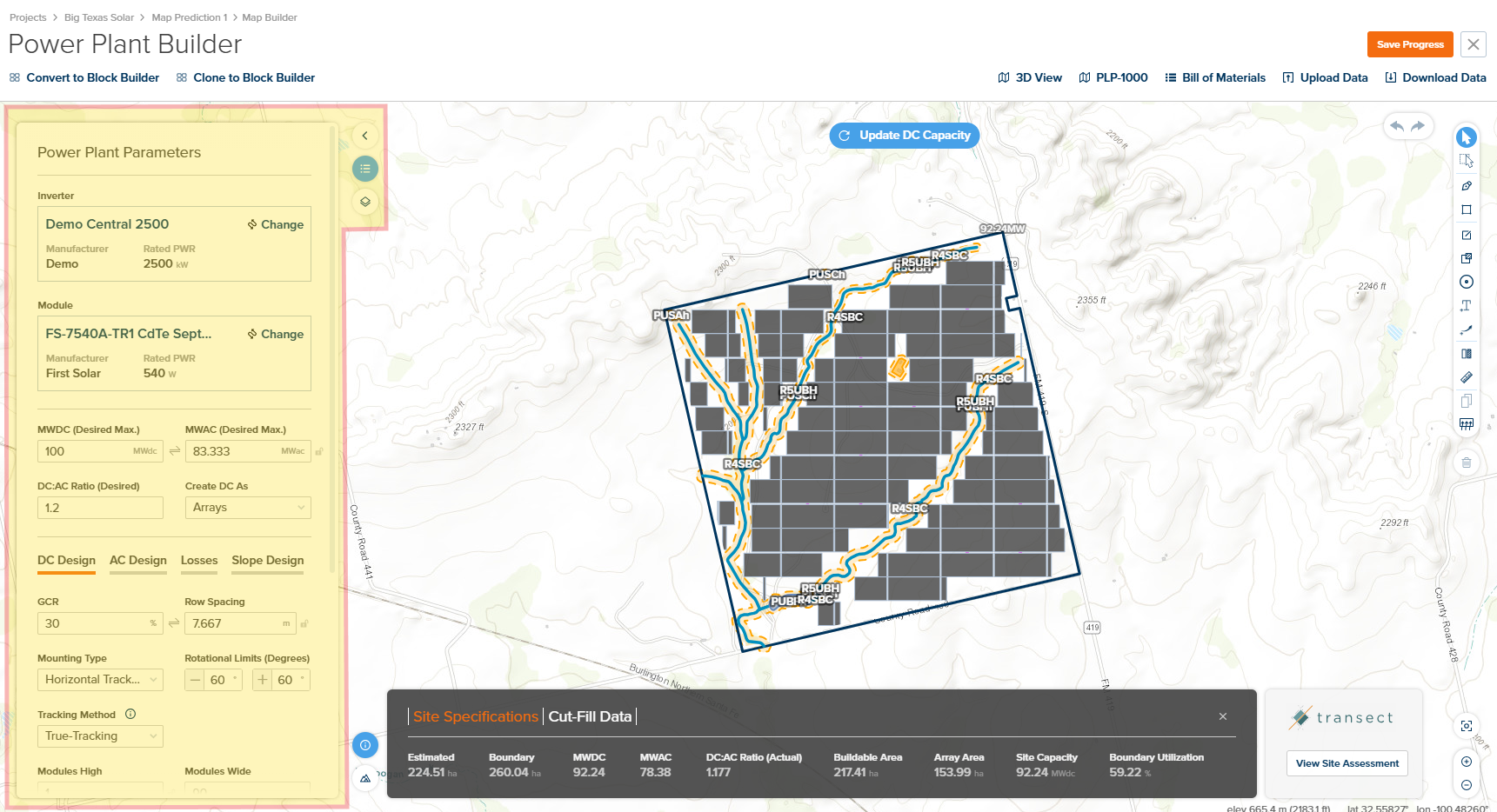
Power Plant Parameters Panel
| Input | Type | Description | Related Documentation |
|---|---|---|---|
| Power Plant Parameters | Panel | Left-side collapsible panel containing all power plant configuration options including module and inverter file selection, MWDC/MWAC targets, DC:AC ratio, and tabbed sections for DC Design, AC Design, Losses, and Slope Design. Also provides access to the Custom Array Editor. | Power Plant Parameters |
| Map Overlays | Panel | Provides controls for layer visibility and styling on the map, including options for displaying various GIS data layers. | Basemap and Overlays |
Map Canvas and Design Editor Toolbox
The Map Canvas is the central workspace where you visualize and interact with your power plant design. Use this area to view your site boundary, constraints, and array layout overlaid on satellite or terrain imagery. The canvas supports pan, zoom, and direct interaction with design elements, and provides real-time feedback as you modify your layout. The Design Editor Toolbox on the right side provides a comprehensive set of drawing and manipulation tools for creating and editing your site layout.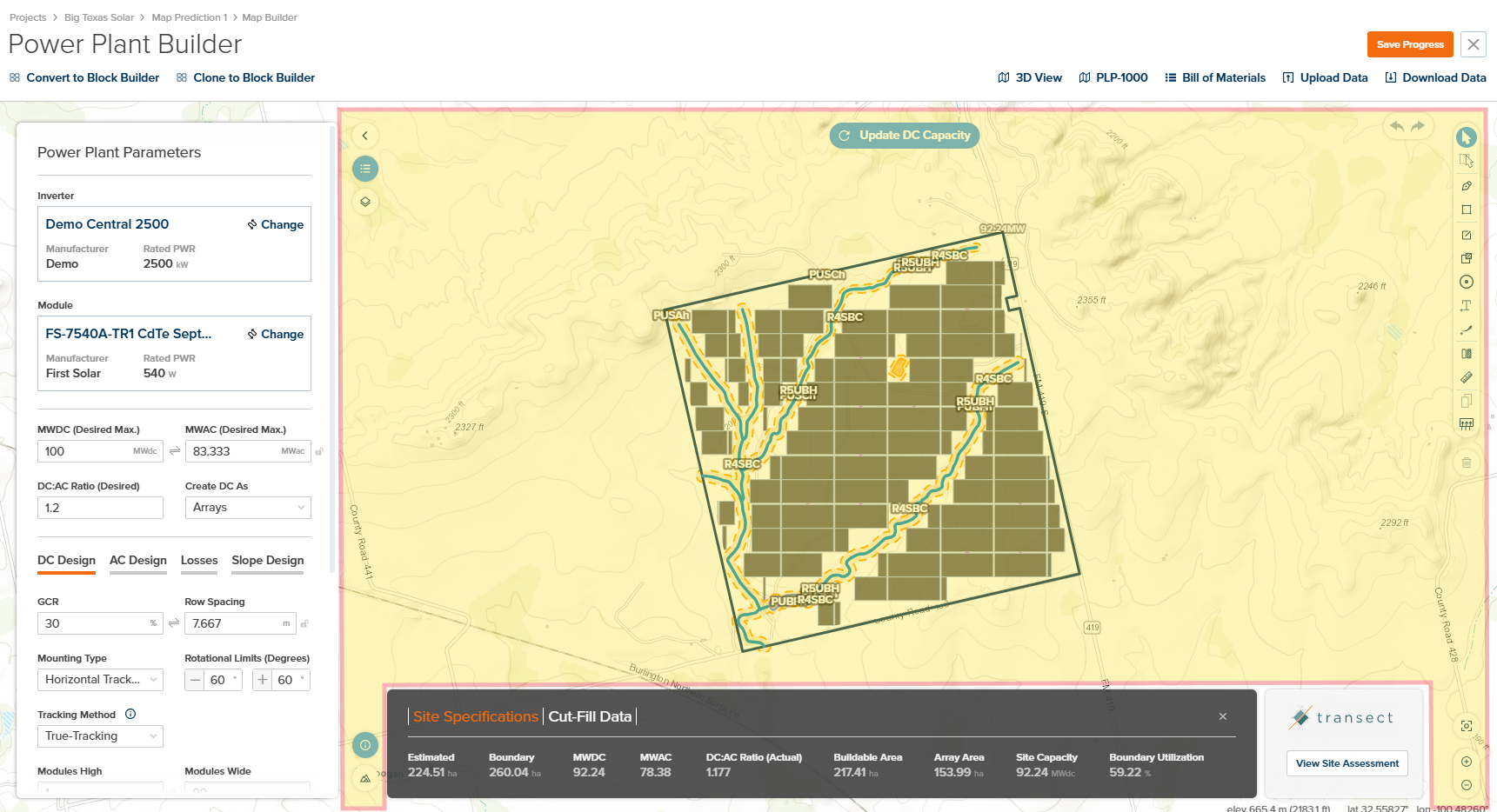
Map Canvas and Design Editor Toolbox
| Icon | Tool | Type | Description |
|---|---|---|---|
 | Collapse / Expand Panel | Toggle | Toggles the visibility of the Power Plant Parameters and Map Overlays panel to maximize the map viewing area. |
 | Display Power Plant Parameters | Button | Displays the Power Plant Parameters section in the left panel when the panel is expanded. |
 | Display GIS Overlay Options | Button | Displays the Map Overlays section in the left panel, providing controls for layer visibility and styling. |
 | Hide / Display Design Results Pane | Toggle | Toggles the visibility of the Design Results Pane at the bottom of the screen to maximize the map viewing area. |
 | Toggle Satellite / Terrain View | Toggle | Toggles the map underlay between Terrain view (showing topographic contours and elevation) and Satellite imagery. See Basemap and Overlays for details on basemap data sources. |
 | Center and Zoom on Design | Button | Centers the map view and zooms to fit the entire design layout within the visible canvas area. |
 | Zoom In / Zoom Out | Button | Adjusts the map zoom level to view more or less detail of the design area. |
 | Undo / Redo | Button | Undoes or redoes the last action performed on the map canvas. |
 | Select Feature | Button | Activates single-click selection mode to select individual features (boundaries, constraints, arrays) on the map. |
 | Select Features in Box | Button | Activates box selection mode to select multiple features by drawing a rectangle on the map. |
 | Draw Site Boundary | Button | Activates drawing mode to create a new site boundary polygon by clicking points on the map. |
 | Create Site Boundary | Button | Creates a site boundary from coordinates or by importing geometry data. |
 | Create Linear Constraint | Button | Activates drawing mode to create linear constraints (e.g., roads, pipelines, streams) that arrays must avoid. |
 | Create Area Constraint | Button | Activates drawing mode to create area constraints (e.g., wetlands, protected zones) that exclude array placement. |
 | Create Point Constraint | Button | Activates drawing mode to create point constraints (e.g., wells, utility poles) with configurable exclusion buffers. |
 | Create Annotation | Button | Adds text annotations to the map for documentation and labeling purposes. |
 | Create Leader Arrow | Button | Creates leader arrows to point to specific features or areas on the map with associated labels. |
 | Create Cut/Fill Analysis | Button | Defines an area for cut/fill analysis to evaluate earthwork requirements based on terrain and design elevations. |
 | Measure | Button | Activates measurement mode to measure distances and areas on the map. |
 | Duplicate Selected Features | Button | Creates copies of the currently selected features on the map. |
 | Drag Selected Features | Button | Enables drag mode to reposition selected features on the map. |
 | Delete Selected Features | Button | Removes the currently selected features from the map. |
Design Results Pane
The Design Results Pane displays key metrics and analysis results for your power plant design. View site specifications including estimated area, boundary dimensions, DC and AC capacity, DC:AC ratio, buildable area, array area, site capacity, and boundary utilization. Toggle between Site Specifications and Cut-Fill Data views to analyze earthwork requirements for your project.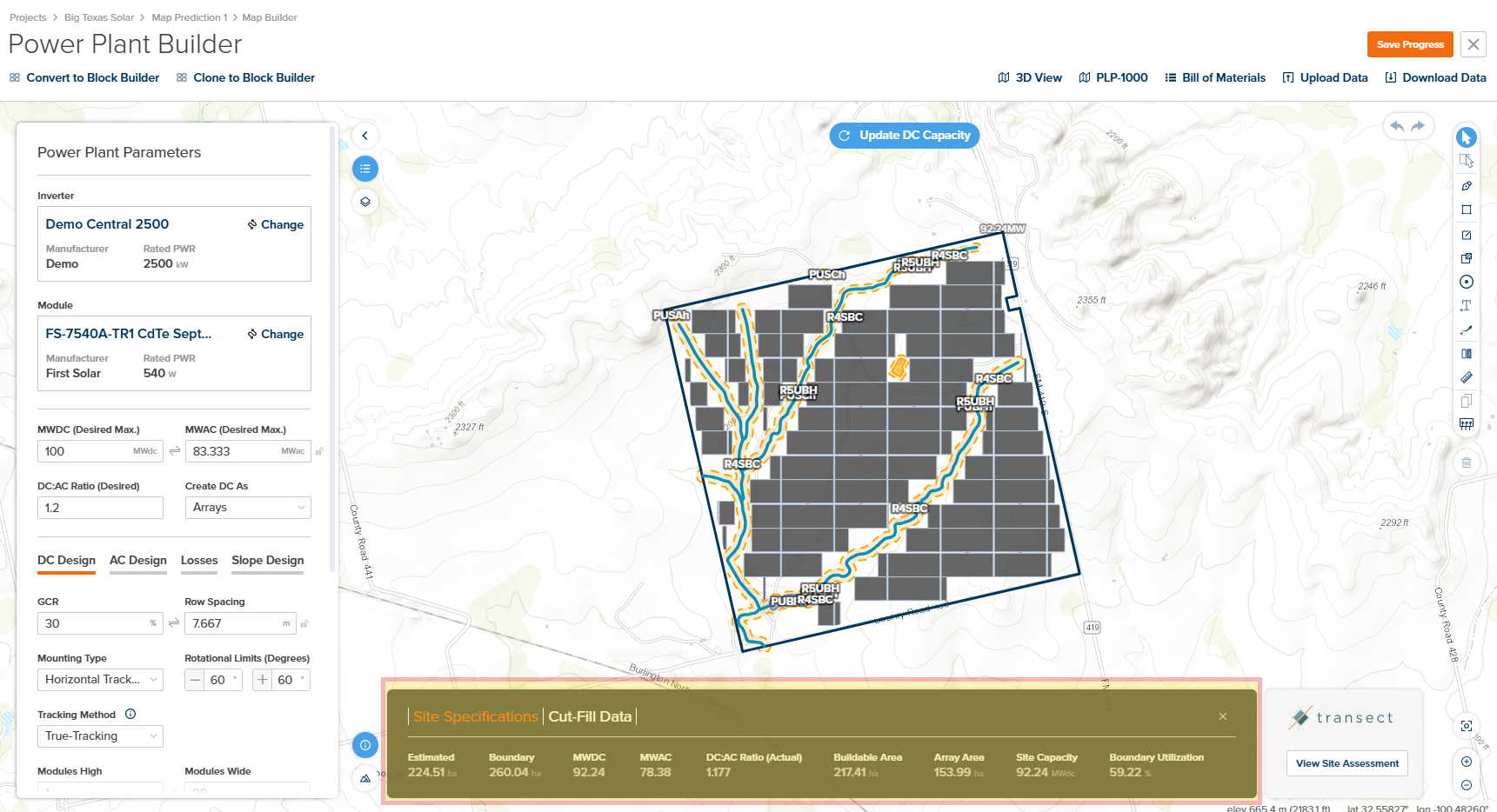
Design Results Pane
| Input | Type | Description | Related Documentation |
|---|---|---|---|
| Design Results Pane | Panel | Bottom panel displaying site metrics. Toggle between Site Specifications (showing Estimated area, Boundary, MWDC, MWAC, DC:AC Ratio, Buildable Area, Array Area, Site Capacity, Boundary Utilization) and Cut-Fill Data for earthwork analysis results. | — |
Transect Environmental Assessment
The Transect integration provides environmental due diligence data directly within the Power Plant Builder, helping you identify potential permitting risks and environmental concerns early in the design process. Access buildable area estimates and risk ratings for protected species, waterways, protected areas, and environmental compliance—all without leaving the application.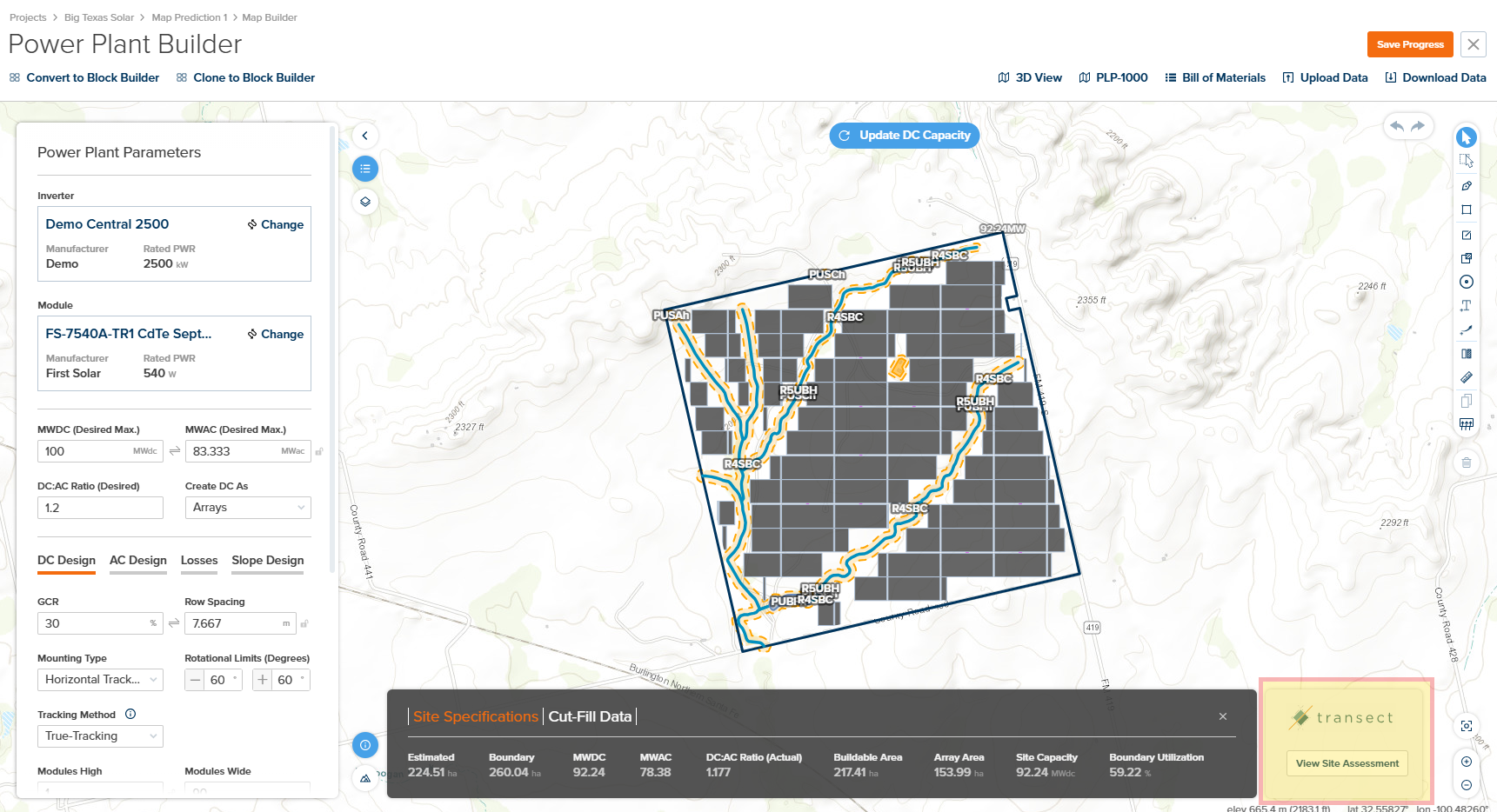
Transect Integration Location
- Buildable Area Range: Estimated percentage and acreage of developable land
- Environmental Permit Concerns: Risk ratings (Low/Medium/High) for:
- Protected Species: Detection of protected species in the area
- Waters: Streams and flood plains analysis
- Protected Areas: Public protected land areas
- Environmental Compliance: Publicly owned areas assessment
| Input | Type | Description |
|---|---|---|
| View Site Assessment | Button | Opens the Transect environmental assessment panel to view environmental permit concerns for your site. This initial assessment is provided free of charge. |
| Order Mini Report | Button | Requests a detailed environmental analysis from Transect. This requires an additional fee and data submission to generate a comprehensive environmental due diligence report. |