

PlantPredict
Bug Fixes
- Fixed an issue where predictions with nighttime disconnect would fail when used with certain weather files.
- Fixed an error which occured when attempting to download weather fields from Solcast.
- Improved error handling and messaging when attempting to use weather inputs which contain negative GHI values.
Terrain Pro
New feature and improvements
Terrain Pro/Mercator Algorithm Update: Algorithm A.3.1 (6.3)
Algorithm 6.3 is an evolution of Algorithm 5.3, and it introduces the following enhancements:- Independent Max TT-Axis Slope Values:
- Users can now enter independent values for the maximum TT-axis slope to the north and _south _when the algorithm selected is the 6.3.
- Average Rack Slope Adjustment:
- After the rack profile with the maximum pile reveal and non-zero maximum slope change is calculated, the algorithm:
- Checks the average slope of the rack.
- Adjusts the rack to ensure the average slope falls within the range
- After the rack profile with the maximum pile reveal and non-zero maximum slope change is calculated, the algorithm:
[max TT-slope North, max TT-slope South]
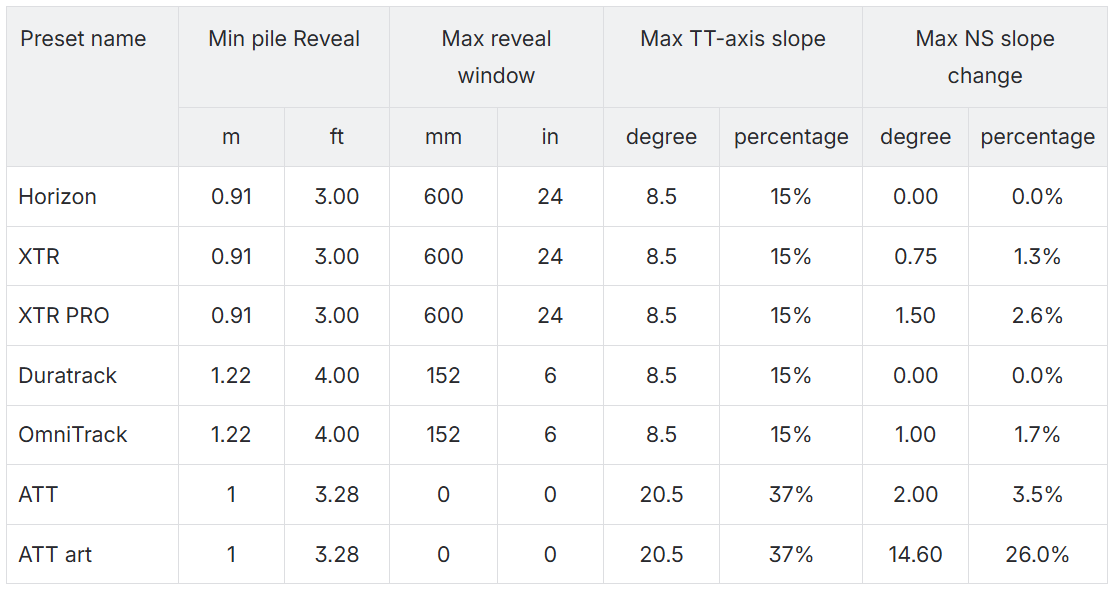
Predefined rack configuration parameters
In Terrain Pro’s configuration page, a new banner has been added above the input parameters allowing the users to chose preselect input parameters for their configurations.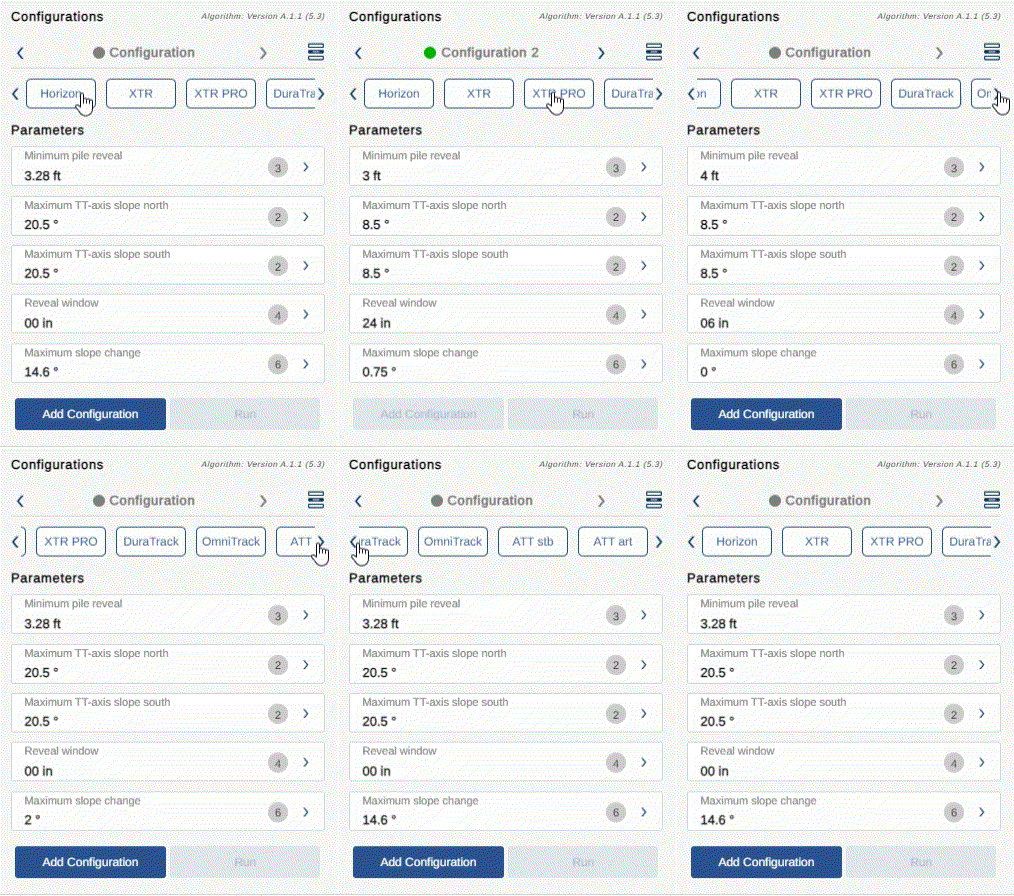
Terrain Pro with import DXF feature
Introducing the Terrain Pro app’s latest feature: the ability to import DXF files. This functionality provides seamless integration of your DXF drawings into Terrain Pro, but there are a few important guidelines to follow for optimal results.
- Unit Compatibility Terrain Pro currently supports drawings with units in either meters or feet. The app will automatically convert units between millimeters and meters, and between inches and feet. For now, please ensure your DXF files use meters or feet as their units. In future releases, we plan to expand unit conversion capabilities, including support for additional unit systems and scale factors.
- Topographic Data For this release, topographic data must be represented as polylines with actual elevation data. Only “lwpolylines” (lightweight polylines) containing elevation information will be accepted. Once imported, the app will identify the layers that contain these polylines, allowing you to select which ones to use for generating the TIN (Triangular Irregular Network) surface. Terrain Pro will automatically skip layers with irrelevant elevation data, such as overhead lines or underground pipelines.
- Rack Representation with CAD Blocks Terrain Pro recognizes racks as CAD blocks and their associated piles as nested blocks within these racks. The insertion points of these nested blocks represent the location of the piles. The app will automatically scan for nested blocks named “pile,” “post,” “column,” or “pier,” but you can manually select blocks if different naming conventions are used.
- Coordinate Systems (Optional) While not mandatory, defining a coordinate system for your drawing (such as UTM or a local coordinate system) will allow Terrain Pro to accurately position your project. The app uses EPSG codes to identify coordinate systems, ensuring precise placement of heat maps, contour lines, and rack profiles. If no coordinate system is provided, the calculations will still be accurate, though your project may be displayed in an incorrect location.
Design Pro Updates
_Algorithm A.3.1 (6.3) _is now the default for earthwork analysis in Design Pro. Each new scenario will utilize this latest version of the algorithm.Mercator Updates
- Algorithm A.3.1 (6.3) is also the default in Mercator.
- Users can specify independent max TT-axis slopes for the North and _South _directions.
- The allowed range for max TT slopes is:
[0, 45].
GeoServer Enhancements
-
Data Storage Update: All GeoTiffs and shapefiles used as base data layers are now stored in an server repository instead of directly in GeoServer. Only their links are saved on the GeoServer.
- This reduces the load on GeoServer and improves stability.
- The data and links remain available for 7 hours, 59 minutes, and 59 seconds, with a cleaning process every 4 hours.
-
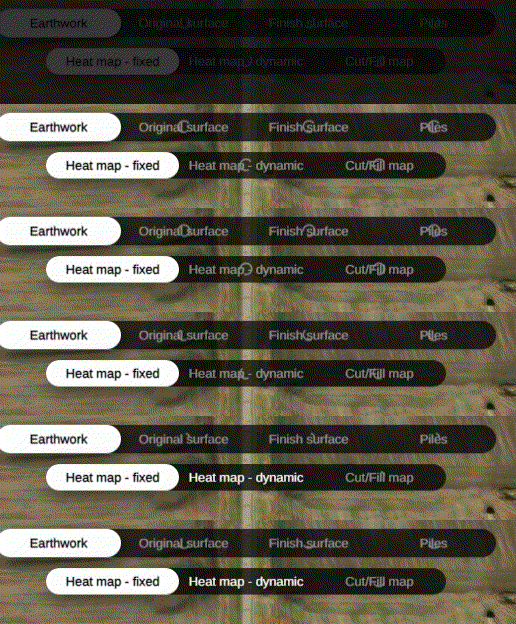
Layer Generation Optimization: To minimize waiting time when creating the nine layers required for every Terrain Pro configuration:
- As soon as the heat map with a fixed style is ready, it becomes immediately available, and the app is responsive again.
- Other layers continue to load in the background, indicated by a spinning wheel on the top bar of Terrain Pro.
- When a layer name changes from faded to solid, it indicates that the layer is fully processed and ready to render.
-
Rack Projection Layer: Note that the rack projection is generated as the last layer, which might not be immediately available.
- The Layer Projection Button will remain disabled until this layer is ready.