

Access by User Type:
- Admin users — Full access to user management (shown below) and can edit Company Default Settings
- Manager and User types — Cannot access user management; are directed to a read-only view of Company Default Settings
Admin Privileges
Admin users have the following special capabilities:- Invite new users — Send registration invitations to new team members
- Edit existing user profiles — Modify user information including name, email, job title, and user type
- Generate API credentials — Create API keys for users to access the PlantPredict API
- Reassign predictions — Transfer ownership of predictions between users
- Set/Reset user passwords — Manage user authentication credentials
- Edit Company Default Settings — Configure organization-wide default values
Account Management
The main view displays organization information and a list of all users. Admins can search, filter, and add new users from this view.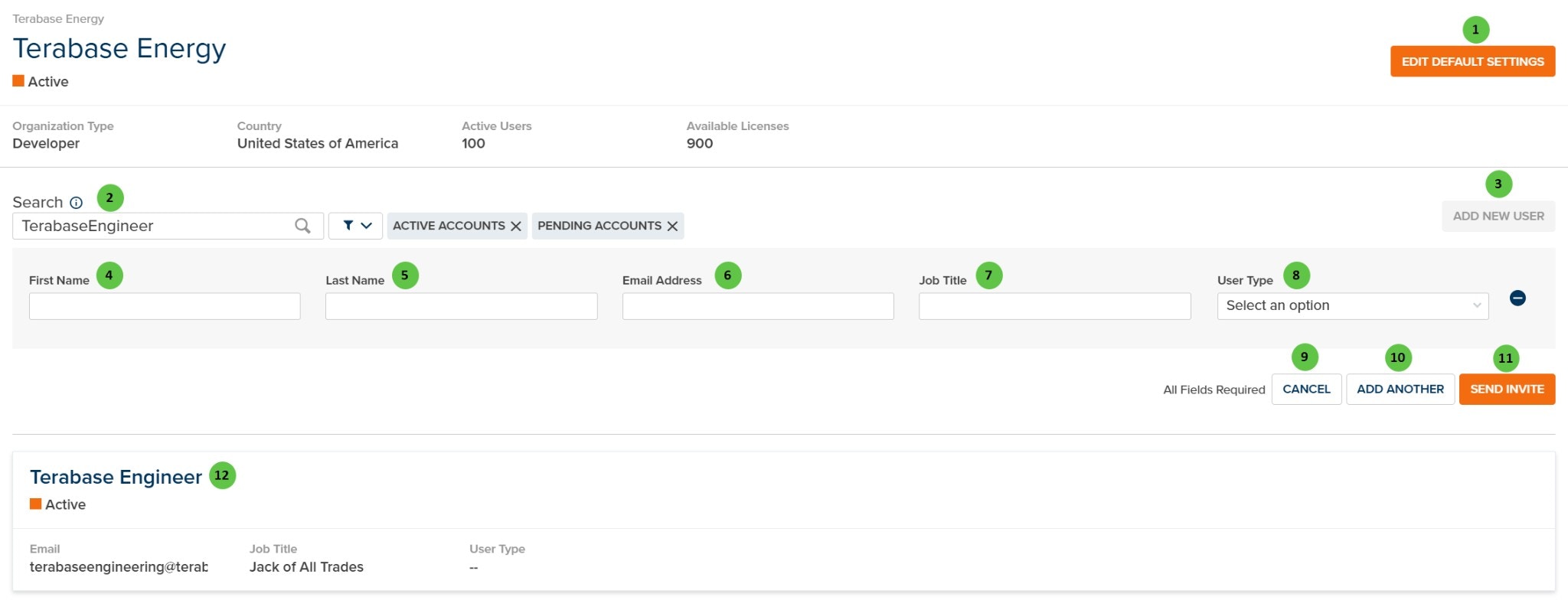
Manage Accounts - Main View
Overview
The page header displays organization summary information (read-only):- Organization Type — Company classification (e.g., Developer, EPC, Owner)
- Country — Organization’s registered country
- Active Users — Current number of active user accounts
- Available Licenses — Remaining user licenses in your subscription
User Inputs (Account Management)
| # | Input | Type | Units | Description | Related Documentation |
|---|---|---|---|---|---|
| 1 | Edit Default Settings | Button | — | Opens the Company Default Settings page for editing. This button is only visible to Admins. See Company Default Settings below for available configuration tabs. | — |
| 2 | Search | Text Field | — | Search for users by name or email. Filter toggles allow filtering by Active Accounts and Pending Accounts (invited but not yet registered). | — |
| 3 | Add New User | Button | — | Expands the new user invitation form to invite one or more users to join the organization. | — |
| 4 | First Name | Text Field | — | New user’s first name. Required field for sending an invitation. | — |
| 5 | Last Name | Text Field | — | New user’s last name. Required field for sending an invitation. | — |
| 6 | Email Address | Text Field | — | New user’s email address. The invitation will be sent to this address. Required field. | — |
| 7 | Job Title | Text Field | — | New user’s job title within the organization. Required field. | — |
| 8 | User Type | Dropdown | — | Select the permission level for the new user. Options: User (standard access), Manager (can manage projects), Admin (full administrative access), IT Admin (IT administrative access). Required field. | — |
| 9 | Cancel | Button | — | Cancels the new user invitation and clears the form. | — |
| 10 | Add Another | Button | — | Adds another row to invite multiple users at once. Click the minus button to remove a row. | — |
| 11 | Send Invite | Button | — | Sends invitation emails to all users in the form. Invited users will appear as “Pending” until they complete registration. | — |
| 12 | User Card | Interactive | — | Click on a user card to open the User Detail view. Each card displays the user’s name, status (Active/Pending), email, job title, and user type. | — |
User Detail View
Clicking on a user card opens the User Detail view, where Admins can manage individual user settings, credentials, and reassign their files.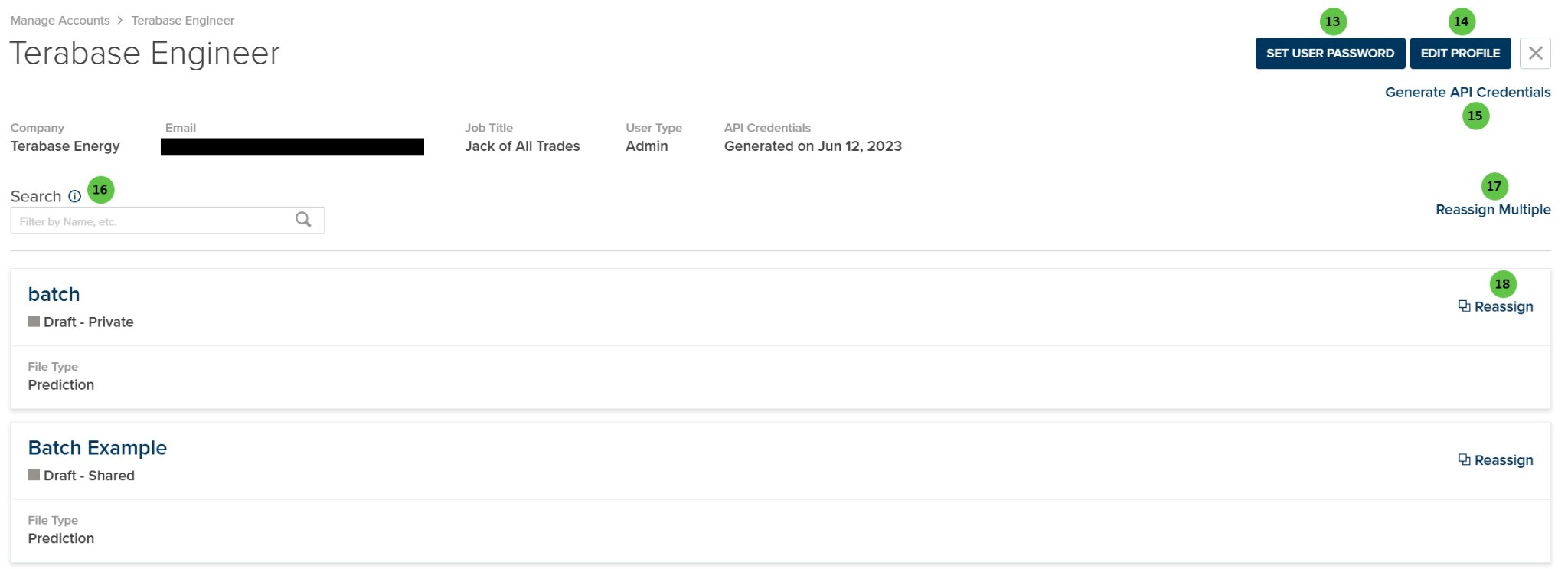
Manage Accounts - User Detail
User Inputs (User Detail)
| # | Input | Type | Units | Description | Related Documentation |
|---|---|---|---|---|---|
| 13 | Set User Password | Button | — | Opens a dialog to set or reset the user’s password. Use this if a user is locked out or needs a password reset. | — |
| 14 | Edit Profile | Button | — | Opens the profile editor to modify the user’s name, email, job title, and user type. | — |
| 15 | Generate API Credentials | Button | — | Generates new API credentials for the user. Warning: This overwrites any existing API credentials for this user. The user will need to update their API integrations with the new credentials. | API Documentation |
| 16 | Search (Files) | Text Field | — | Search for files (projects, predictions) owned by this user by name. | — |
| 17 | Reassign Multiple | Button | — | Opens a bulk reassignment dialog to transfer multiple files to a different user at once. | — |
| 18 | Reassign | Button | — | Reassigns an individual file (project or prediction) to a different user. The new owner will have full control over the file. | — |
- Company — Organization the user belongs to
- Email — User’s email address
- Job Title — User’s job title
- User Type — Permission level (User, Manager, or Admin)
- API Credentials — Status and generation date of API credentials
Company Default Settings
The Company Default Settings page is accessible to all users, with permissions varying by user type:- Admins — Click Edit Default Settings to open the settings editor with full editing capabilities
- Managers and Users — Are directed to a read-only view of the same settings
Default Settings Tabs
| Tab | Description |
|---|---|
| Environmental Conditions | Default values for albedo, soiling, and environmental parameters |
| Power Plant Specs | Default inverter, module, and mounting configuration settings |
| Energy Storage | Default battery storage capacity and dispatch parameters |
| System Detail | Default availability, transformer, and transmission line settings |
| Simulation Defaults | Default model selections for irradiance, temperature, and degradation |
| External Vendor Keys | Company-wide API keys for SolarAnywhere, SolarGIS, and Array Technologies |
| Financial Analysis | Default financial assumptions and discount rates |
| Miscellaneous | Additional default settings |
| Design Pro | Default settings for Design Pro extension |
Company Default Settings provide organization-wide default values that are automatically applied when creating new predictions. Individual predictions can override these defaults as needed.