- 1 Introduction
- 2 Using Voltage Pro
- 2.1 Accessing Voltage Pro
- 2.2 Creating, Editing and Cloning a Project
- 2.3 Creating, Editing and Cloning String Sizing Calculations
- 2.4 Selecting Weather Data
- 2.5 Selecting PV Module Data
- 2.6 Selecting Inverter Data
- 2.7 Modifying Calculation Settings
- 2.8 Running the Analysis
- 2.9 Accessing Results
- 2.10 Safety Factors
- 2.11 Generating Reports
- 2.12 Accessing the Prediction in Plant Predict
- 3 Models & Algorithms
- 3.1 Plant Predict Models & Algorithms
- 3.2 Method 1 Calculation (Simplified Linear Approximation)
- 3.3 Method 2 Calculation (Plant Predict Advanced Simulation)
- 3.4 Default System Configuration
- 3.5 Determination of P100 and P99.5 Voltages
- 3.6 Determination of Open Circuit Cell Temperature
- 3.7 Determination of Safety Factors
1 Introduction
1.1 Purpose
Voltage Pro is a cloud-based application that allows users to calculate the maximum string length (i.e., maximum number of modules in series) for a specific photovoltaic module at a specific project location. The application calculates maximum string length under two different methods:- Method 1 – Simplified Linear Approximation
- Method 2 – Plant Predict Advanced Simulation
1.2 Integration with Plant Predict
The Voltage Pro application is tightly integrated with Plant Predict and is accessible with a PlantPredict license. Voltage Pro leverages the Plant Predict weather, module and inverter databases and uses the Plant Predict performance simulation capabilities to calculate open circuit voltages for each time step of a given prediction. When a Project is created in Voltage Pro, a Project of the same name and of type: StringSize is created in Plant Predict. Similarly, when a calculation is created and run in Voltage Pro, a prediction of the same name is created in Plant Predict. The following diagram provides a simple illustration of the relationship: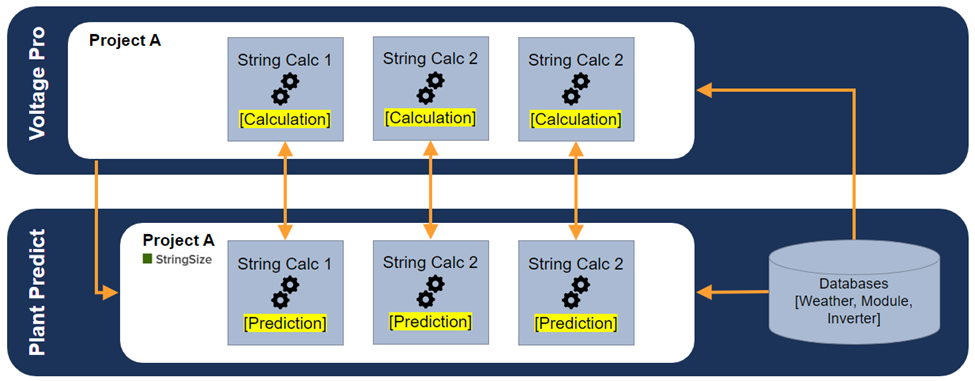
1.3 Codes and Standards Compliance
Several codes and standards accept and provide justification for simulation-based string sizing calculations. However, these codes and standards are generally vague in defining exactly how simulation-based calculations should be performed. Terabase, through consultation with industry stakeholders and review of available research, considers the Voltage Pro application to be compliant with the following codes and standards when used with appropriate input data: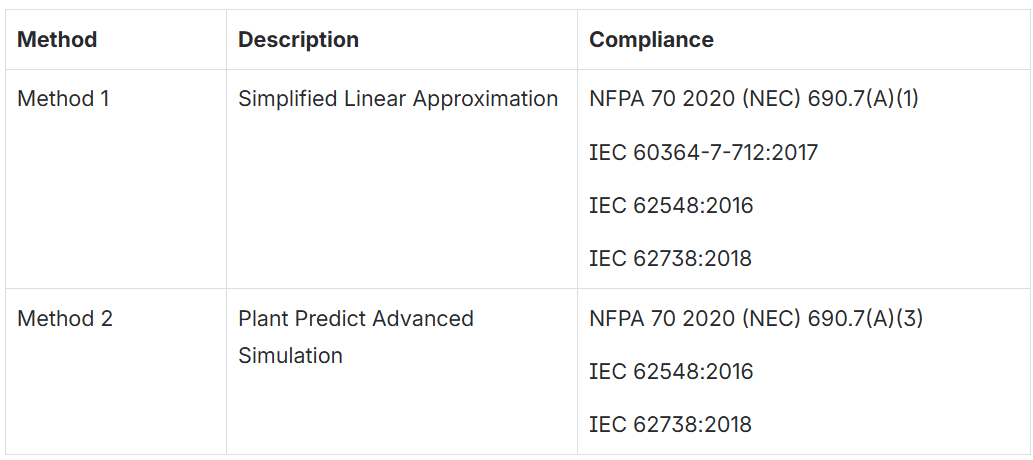
1.4 References
The simulation-based methodology used within Voltage Pro is based in part on the following IEEE Journal of Photovoltaics research: T. Karin and A. Jain, “Photovoltaic String Sizing Using Site-Specific Modeling,” in IEEE Journal of Photovoltaics, vol. 10, no. 3, pp. 888-897, May 2020, doi: 10.1109/JPHOTOV.2020.2969788.1.5 Terms of Use
The use of Voltage Pro is governed by the Plant Predict Terms of Use: Plant Predict Terms of Use2 Using Voltage Pro
2.1 Accessing Voltage Pro
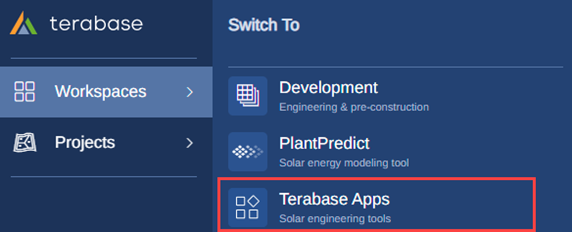
Voltage Pro is bundled with Plant Predict. Pro and Enterprise tier licenses of Plant Predict have full access to Voltage Pro while all other license tiers have read only access. The application may be accessed from within the Plant Predict left navigation panel as follow: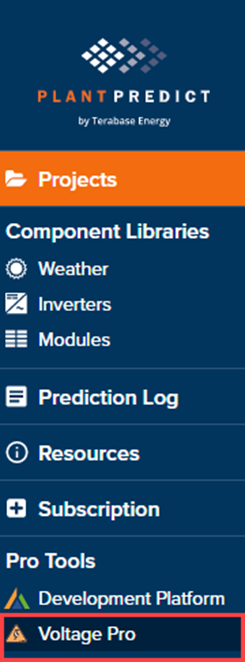
2.2 Creating, Editing and Cloning a Project
Within Voltage Pro, a Project must be created before a string sizing calculation can be performed. To create a new Project, click the Create a New Project button and enter the project name, latitude, and longitude.

2.3 Creating, Editing and Cloning String Sizing Calculations
Once a Project has been created, a new String Sizing Calculation may be created within the Project by clicking the + Add a string calculation button:
2.4 Selecting Weather Data
Weather data is critical to simulation-based string sizing calculations and Voltage Pro makes it easy to pull in weather-related data due to its integration with Plant Predict. From within the calculation page, click the Update button associated with Weather data: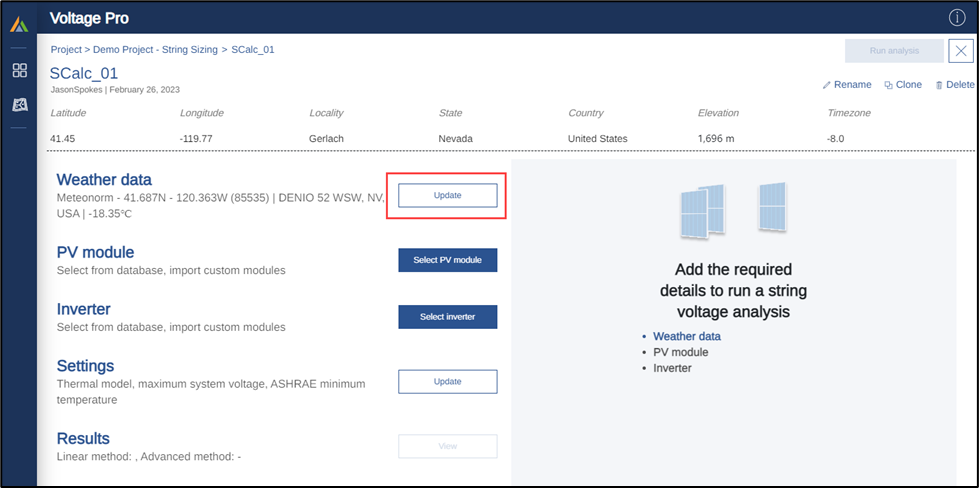
Meteorological data
The Meteorological data tab allows the user to select the weather data file that will be used in the simulation-based calculation. All weather data files accessible to the user from Plant Predict are also accessible within Voltage Pro. The My weather files toggle button limits the weather datasets to only those that are owned by the user within Plant Predict. New weather data files must be added within Plant Predict before they can be loaded into Voltage Pro. Note that Plant Predict supports single year, partial year, and multi-year data as well as hourly and sub-hourly data. Once selected, basic information about the weather dataset selected will be displayed in the input panel.
Extreme annual min. Temperature
The Extreme annual min. Temperature tab allows the user to view the range of months and years of the dataset selected within the Meteorological data tab. It also allows users to deselect or remove certain years from the meteorological data to be used in the simulation. This can be done by deselecting checkbox next to the year and is often done to remove partial years of data. Finally, the average extreme annual min. temperature from the selected years of the meteorological dataset is displayed. This temperature will be used in the calculation of the certain safety factors.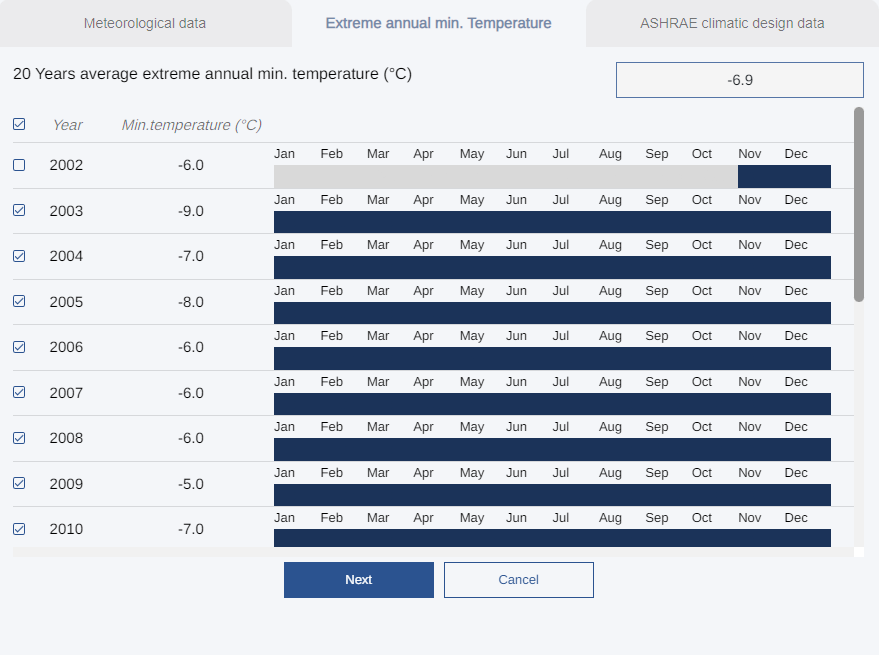
ASHRAE climactic design data
By default, temperature data from the ASHRAE weather station closest to the Project site is pulled into the calculation. Specifically, the extreme annual mean minimum dry bulb temperature is used in both the Method 1 and Method 2 calculations and is displayed within the input panel.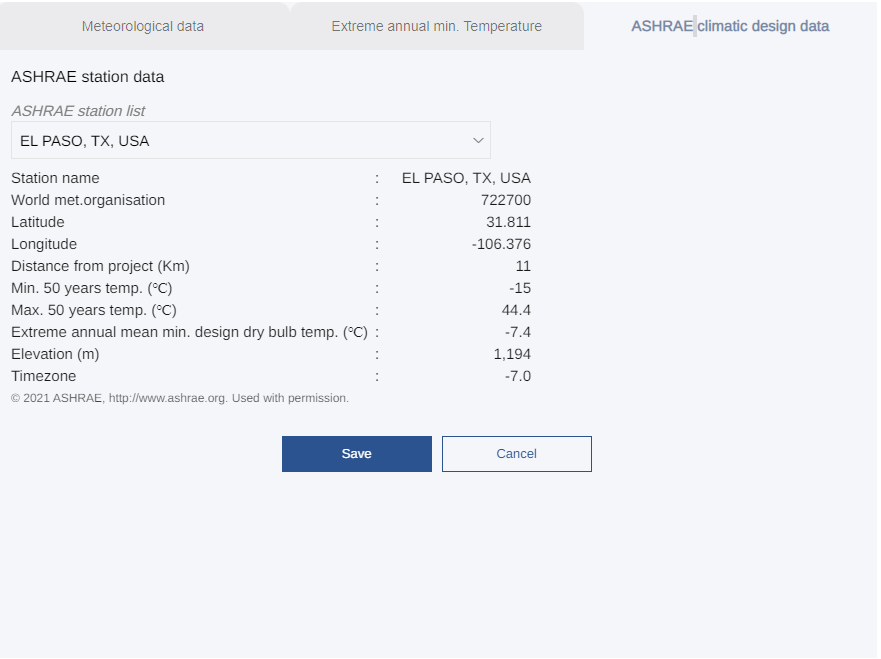
2.5 Selecting PV Module Data
Module data is critical to simulation-based string sizing calculations and Voltage Pro makes it easy to pull in module data due to its integration with Plant Predict. From within the calculation page, click the Select PV module button associated with PV module: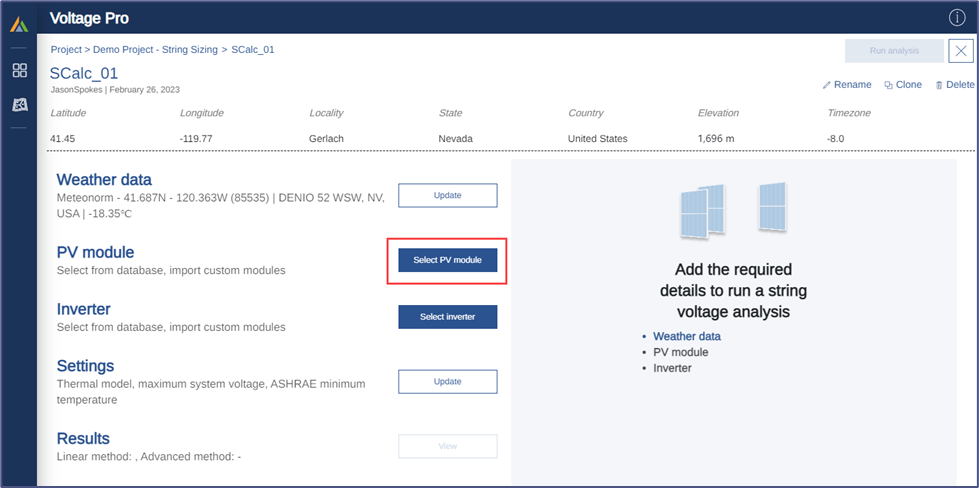

2.6 Selecting Inverter Data
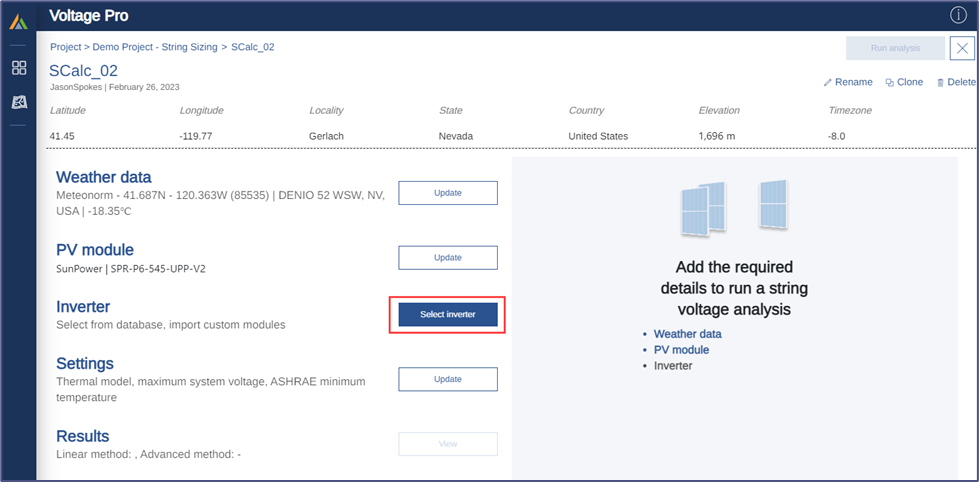
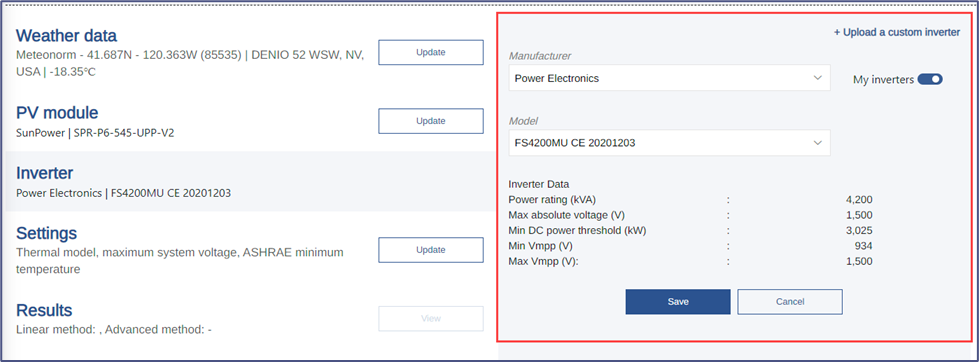
Inverter data is used within Voltage Pro to set the maximum DC system voltage level (although this can be overridden in the calculation Settings). The inverter selected will be used within the Plant Predict simulation but will not impact the open circuit voltage calculation of the PV module. From within the calculation page, click the Select inverter button associated with Inverter: