Overview
Terrain Pro is a cloud-based application that calculates earthwork quantities and supports rack profile optimization for solar array layouts generated by Terabase Design Pro or directly imported from CAD (DXF) and Excel (XLSX) or CSV. The application supports:- Earthwork quantities (cut/fill volumes, disturbed area, max cut/fill depths).
- Heatmaps (cut/fill, original/finish surface).
- Finish grade point file.
- Top-of-pile elevations and reveals.
- Tracker profiles.
- Reports and comparisons.
Integration with Design Pro
Terrain Pro is tightly integrated with Terabase Design Pro and is accessible with a Terabase Plant Predict Pro license. From a Design Pro project, you can launch Terrain Pro directly from the scenario table, which automatically passes pile coordinates and tracker metadata.Standalone use
Starting with v12.3.0, Terrain Pro can import DXF files, and starting with v12.4.0 it can also import XLSX files (e.g., PVCase BOM) and CSV file. These imports allow Terrain Pro to analyze pile layouts and elevation data without going through a Design Pro automatic layout, but importing array layout data generated from different sources.What’s new Sep 4, 2025
- New 2D/3D Viewer (replaces ArcGIS scene view) → [[Link: Use the Viewer]]
- Wind Exposure logic with Pile icon showing the assigned Pile Type → [[Link: Wind Exposure (concept)]], [[Link: Review & Override Pile Types]]
- Export to CAD (layered DXF with CRS handling) → [[Link: Export to CAD]]
Accessing Terrain Pro
Path 1 — Integrated with Design Pro
In Design Pro [link], open your project and select your simulation.- In the scenario table, click the Terrain Pro icon.
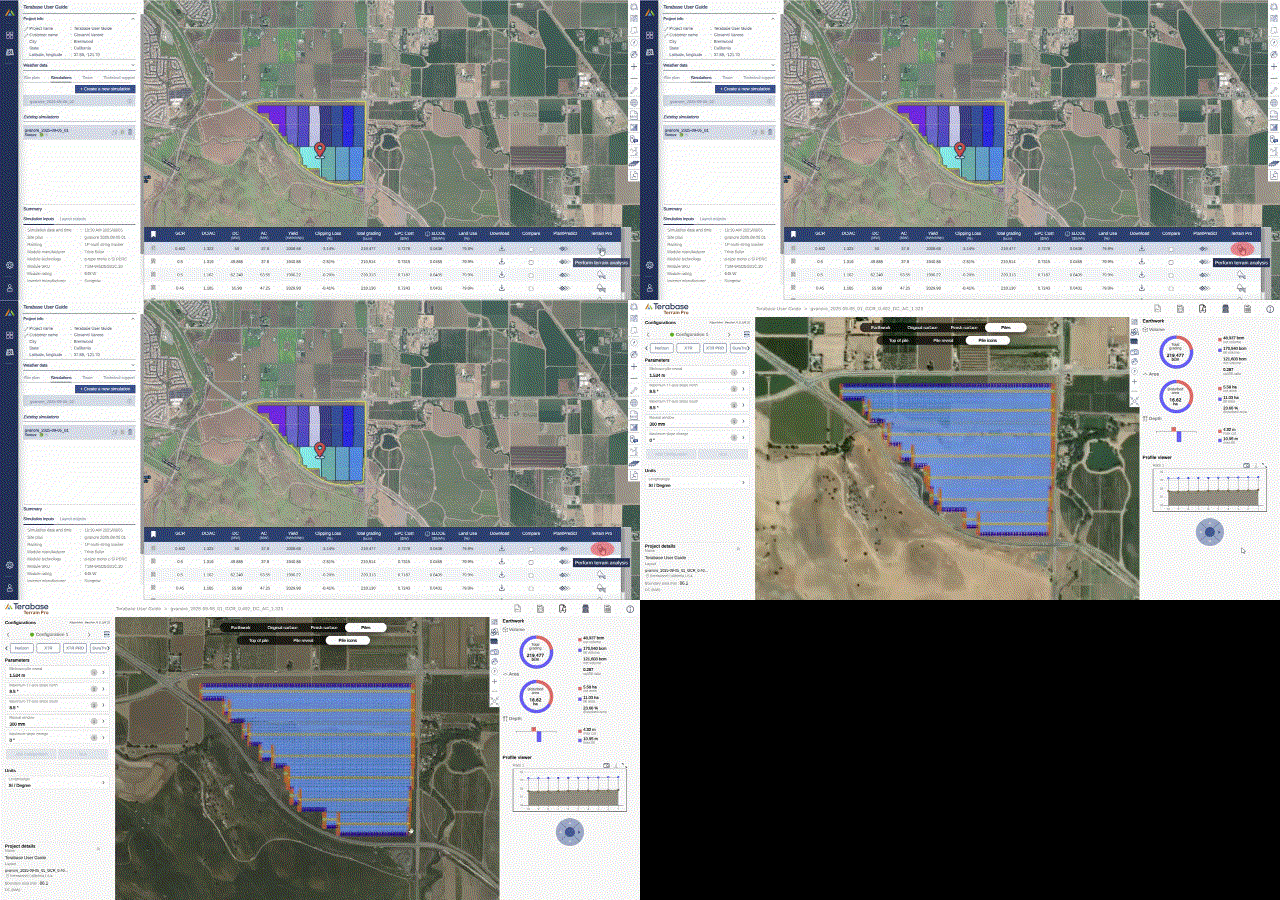
- Design Pro sends pile coordinates and tracker metadata; Terrain Pro opens ready to run.
- Elevation source for the DP layout is listed in the report (see Appendix). Best when: your source of truth is Design Pro and you want one‑click terrain analysis.
Path 2 — Standalone application
From the Pro tools page [link] click the Terrain Pro icon to open the standalone landing page.
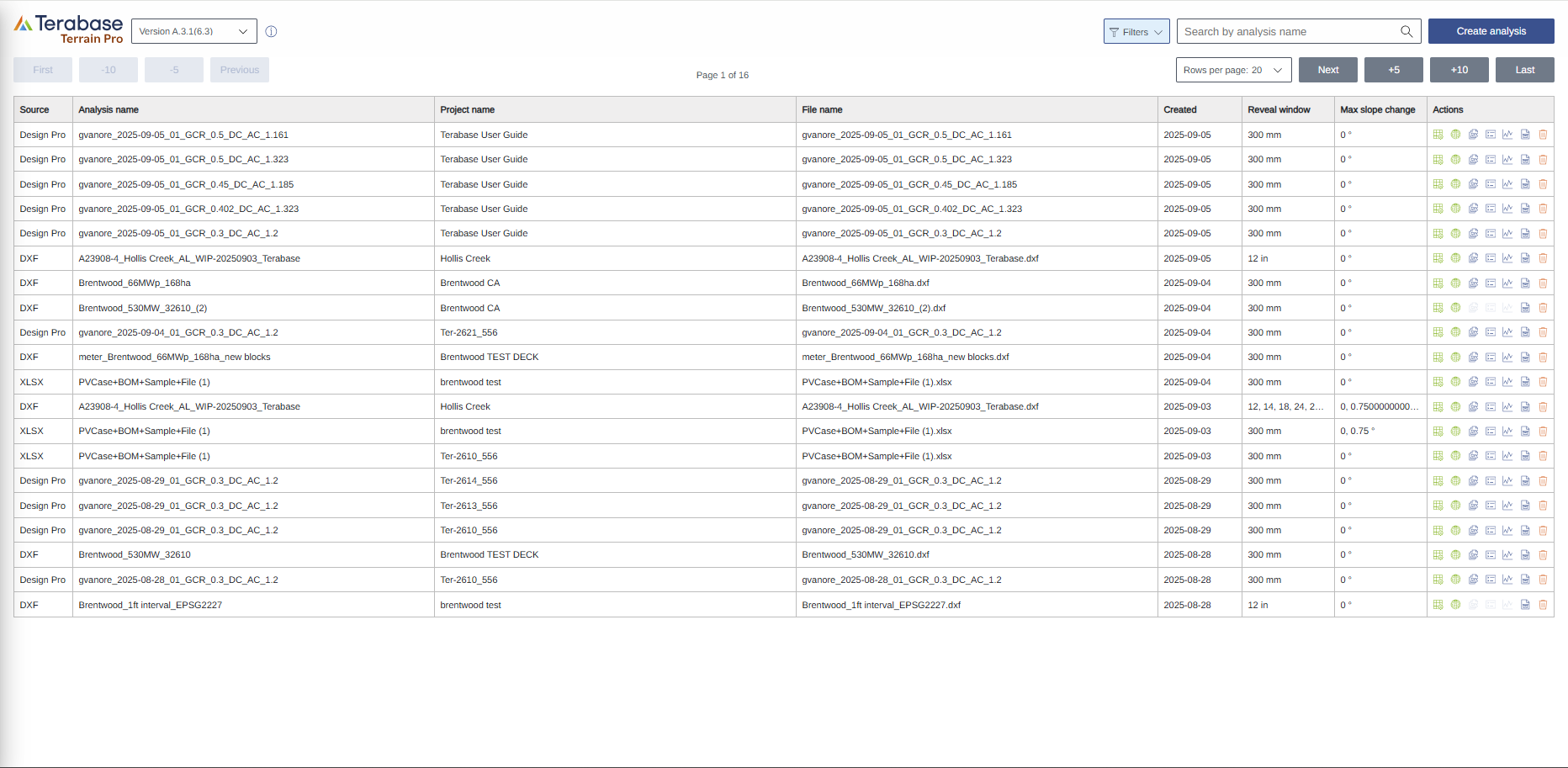
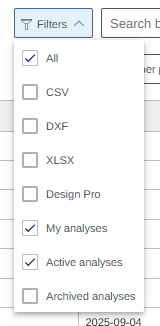
Opening existing analysis
To access the Terrain Pro viewer/configuration page go to the Actions column and click on the “Launch Terrain Pro viewer” icon
Create analysis
- Click Create Analysis then either:
- Select an existing project and upload new data, or
- Create a new project and set its location.
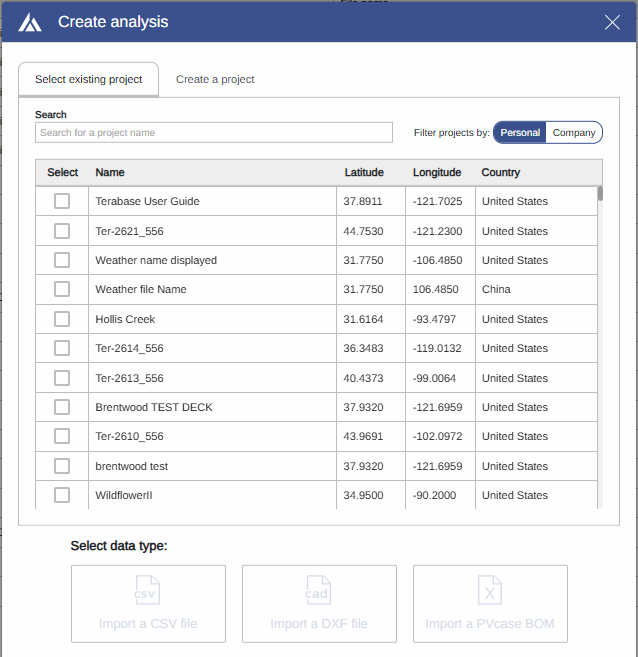

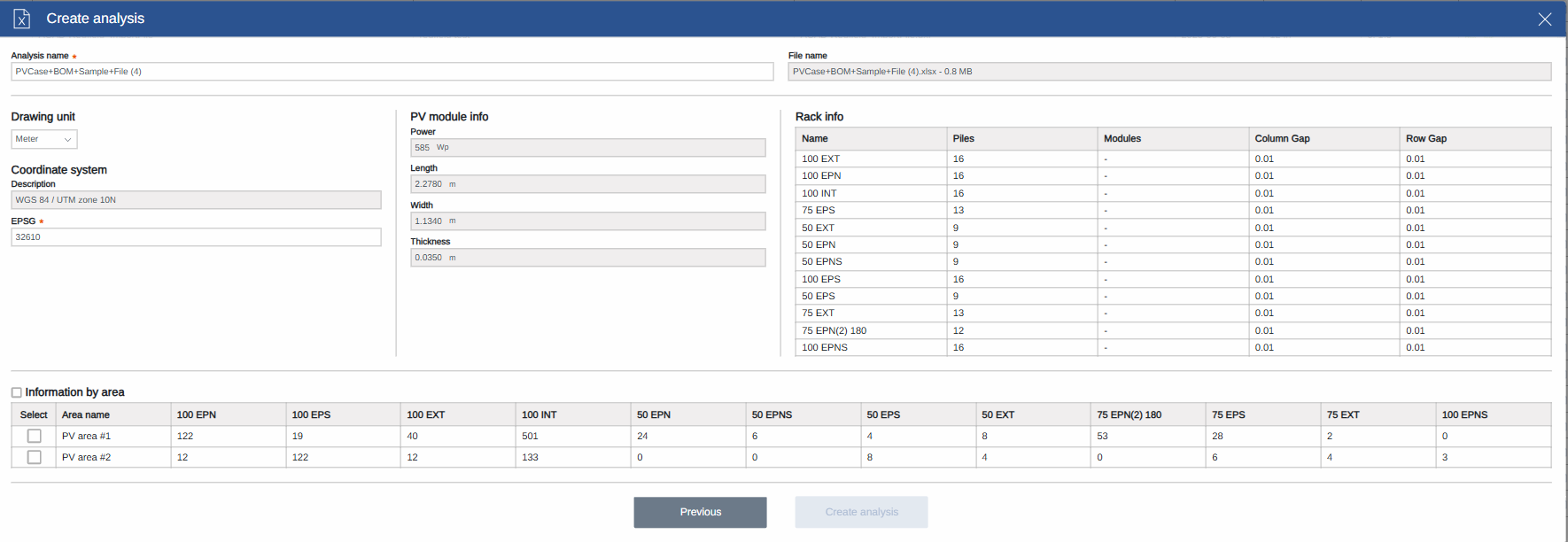
- Choose which type of file to import

- CSV (v12.4.0+) — Piles coordinates, elevations and rack Id
- DXF (v12.3.0+) — CAD layout & topographic polylines
- XLSX (v12.4.0+) — Piles & elevations + rack config (PVCase BOM supported)
Import CSV file
- Click Create analysis. After selecting an existing project or creating a new one, click on Import CSV and choose your file:
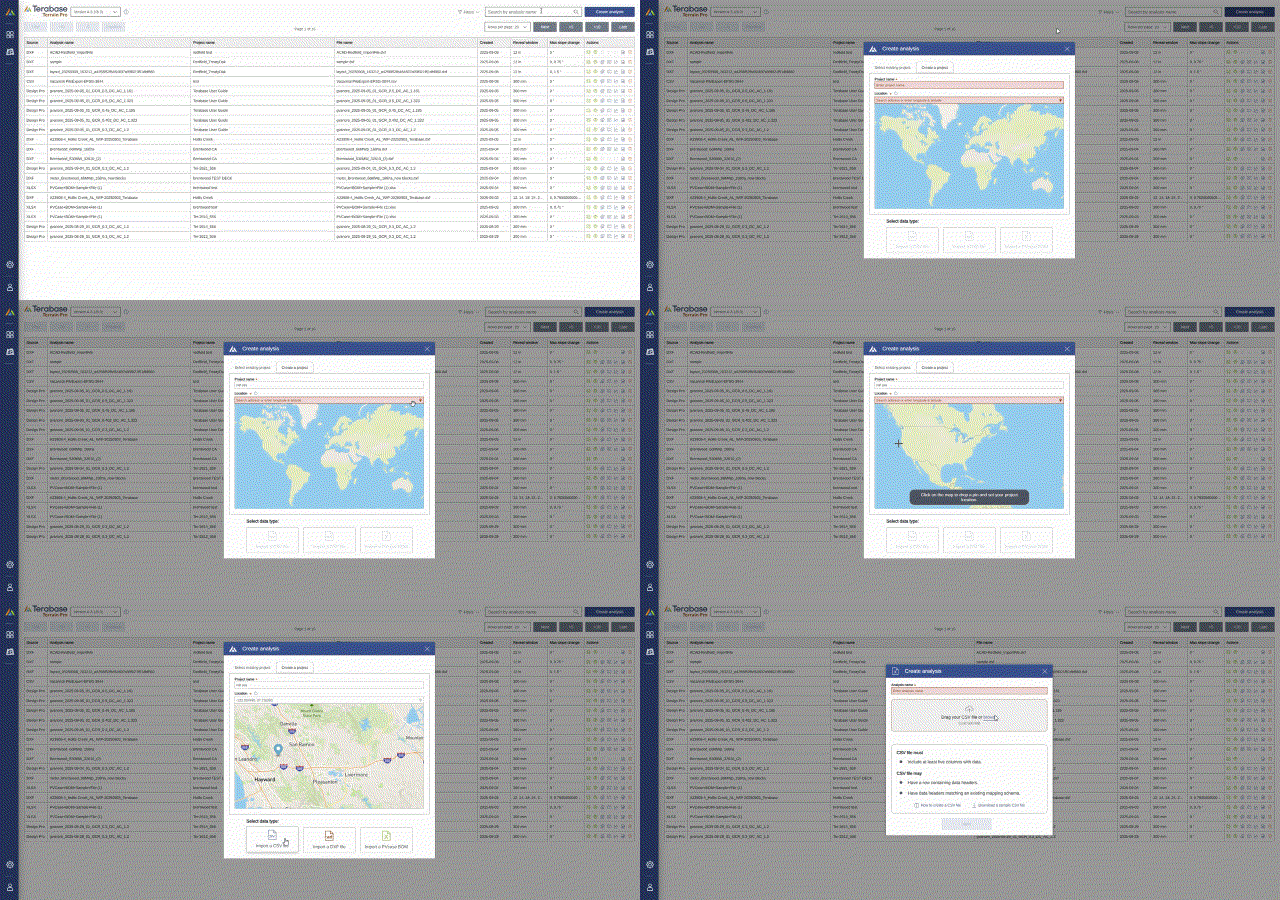
- Once the file is selected, Terrain Pro analyzes it and checks whether the required fields are present.
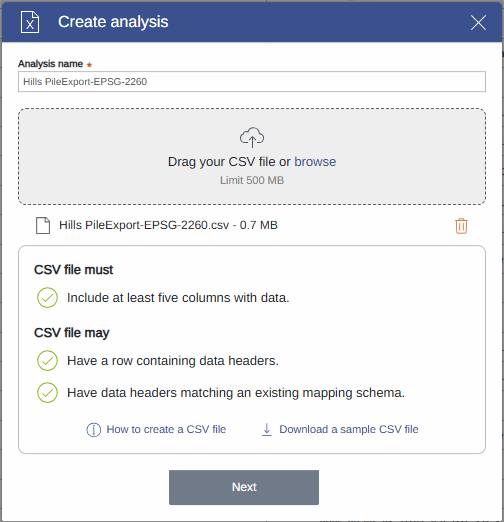
- If the minimum requirements are satisfied, the Next button becomes active. You can then proceed to the next page, where you can:
- Specify the data unit (meters or feet).
- Provide the coordinate system EPSG code.
- Verify that the file header matches any existing configuration previously imported and validated.
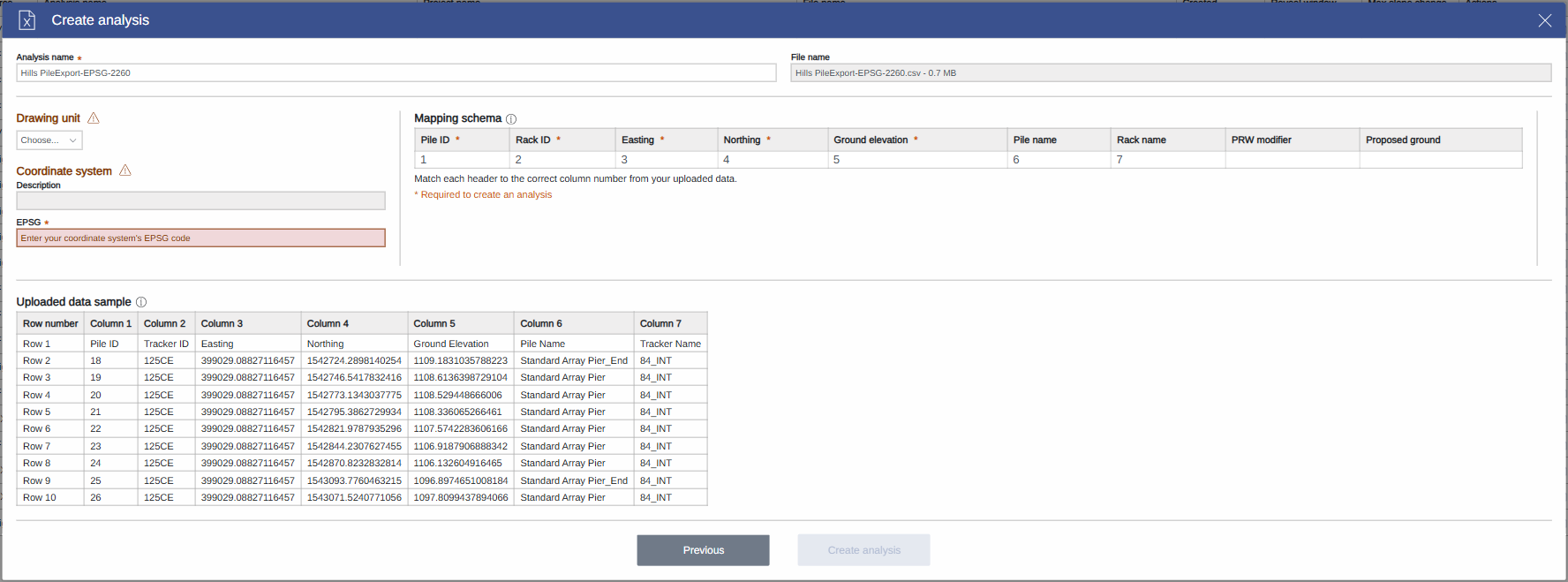
- If the dataset is missing a header, or if the header does not match any existing schema, you can manually map the available fields to the required data fields (such as Pile ID, Rack ID, Easting, Northing, Ground elevation).
Import DXF file
-
Click Create Analysis, then choose Import DXF and select your file.
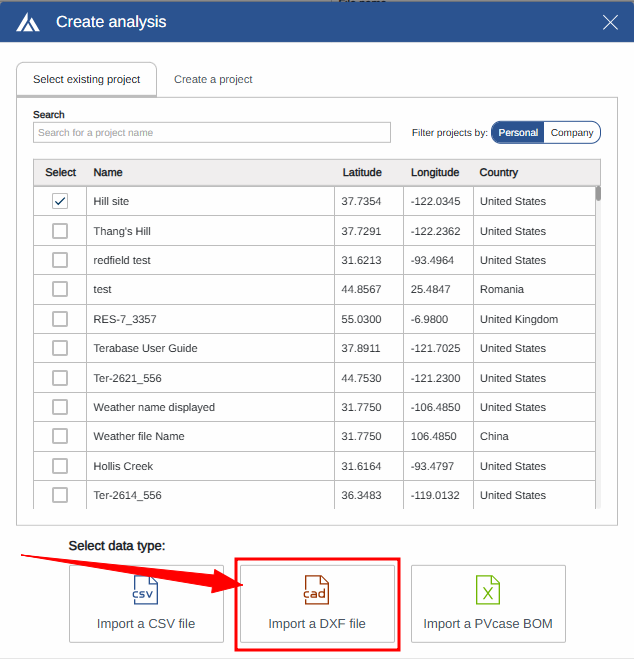
- Once uploaded, Terrain Pro validates the file to ensure it meets the required conditions:
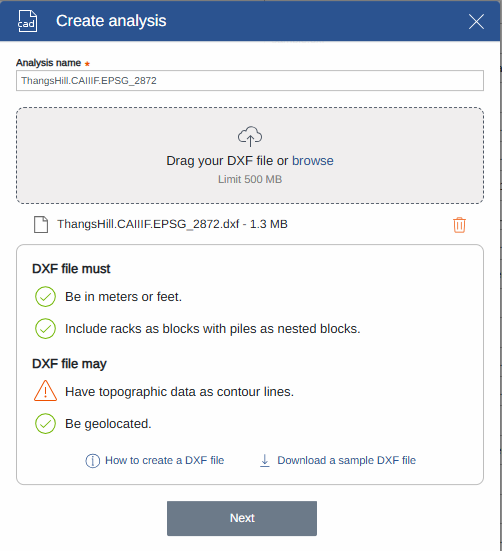
- Unit compatibility: The file must use meters (SI) or feet (Imperial).
- Block structure: Racks must be represented as CAD blocks, with piles nested as sub-blocks. Terrain Pro automatically detects common names like pile, post, column, or pier, but you can remap custom names if needed. Blocks are read accurately even if rotated, scaled, or mirrored.
- Elevation data: Topographic data must be represented as polylines with valid elevation values, typically as
LWPOLYLINE. These are used to build the Triangular Irregular Network (TIN) that defines the surface. Only relevant elevation layers are processed; non-terrain data such as overhead lines is ignored. - Coordinate system (EPSG code): If provided in the DXF, Terrain Pro uses it to geolocate the project and overlay heat maps, contours, and data correctly. If no EPSG is present, the analysis still runs, but geolocation may be less accurate.
- After validation, the Next button becomes active. You can then select which elevation layers to use for generating the TIN and confirm which blocks represent piles and racks before proceeding to the analysis.
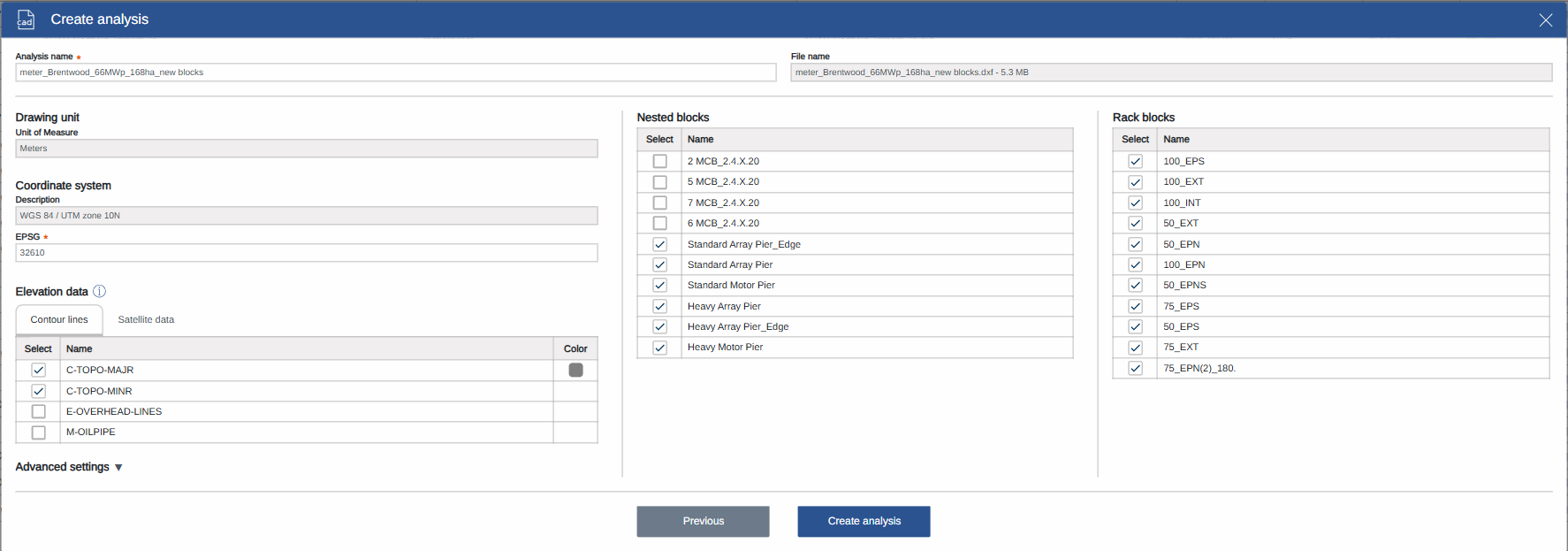
Use Satellite elevation data (DXF only)
In the DXF validation screen you can replace (or supply) elevation data using Satellite data from the datasets listed in the Appendix.- Open the Satellite data tab
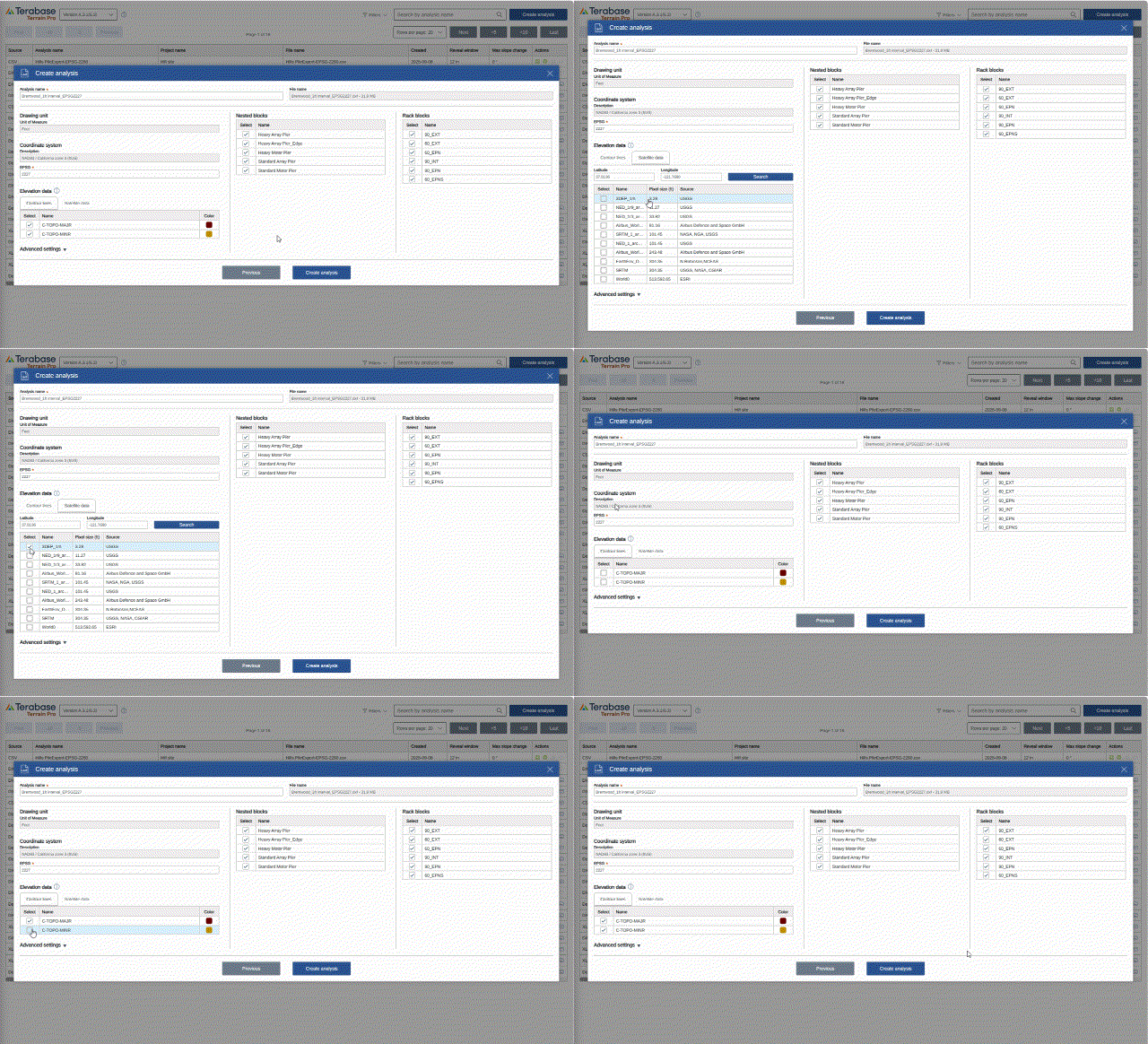
- Choose your scenario
- Replace DXF elevations: If your DXF already contains elevation polylines but you prefer DEM/satellite data, select Use satellite data instead of DXF polylines.
- No elevation in DXF: If the DXF has no elevation polylines, select Use satellite data to build the surface.
- Geolocate the project
- If the DXF includes a valid EPSG code, Terrain Pro will locate the project automatically.
- If no EPSG is present, enter the latitude and longitude of a known point within the site to locate the project and fetch available elevation datasets for that area.
- Select an elevation dataset
- Terrain Pro lists the available DEM/satellite sources for the project location (see Appendix: Elevation Data Sources).
- Choose the dataset that best fits your needs. In parts of the United States, coverage with up to ~1 m accuracy is available.
Import XLSX file
- Click Create Analysis, then choose Import XLSX and select your file.
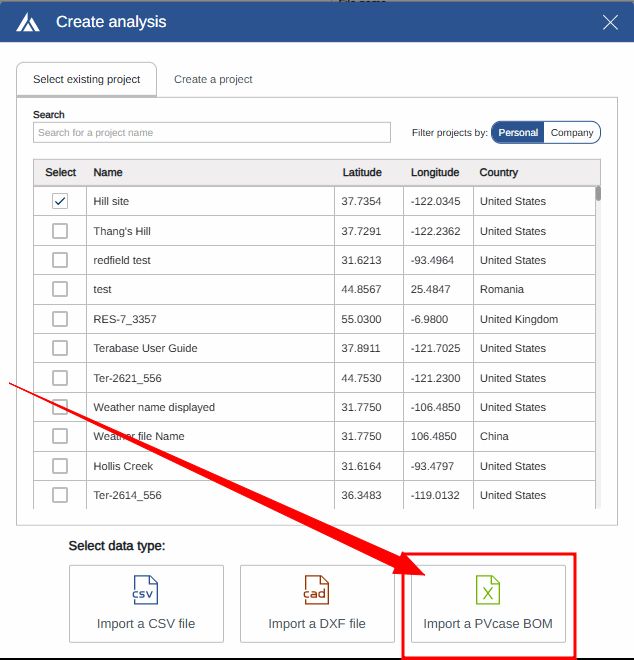
- After upload, Terrain Pro analyzes the workbook and validates the required content:
- A Piles table with at minimum Pile ID, Easting, Northing, and Ground elevation.
- (Optional) Racks / configuration tables and layout/module metadata.
- PVCase BOM files are recognized; detected sheets and columns are auto‑mapped when possible.

- If the minimum requirements are satisfied, the Next button becomes active. On the next screen you can:
- Specify the distance units (meters or feet).
- Provide the coordinate system (EPSG code) for geolocation (recommended).
- Select the area for which import the data (if the dataset is divided in areas)
Configurations
By opening the input parameters containers, the user can add new parameters and the application will automatically create a new configuration. More than one parameter can be changed to customize the configuration before hitting the button run to perform the terrain analysis.Configurations - INSERT VIDEO1 - CONFIGURATIONSSSSSSSSSS
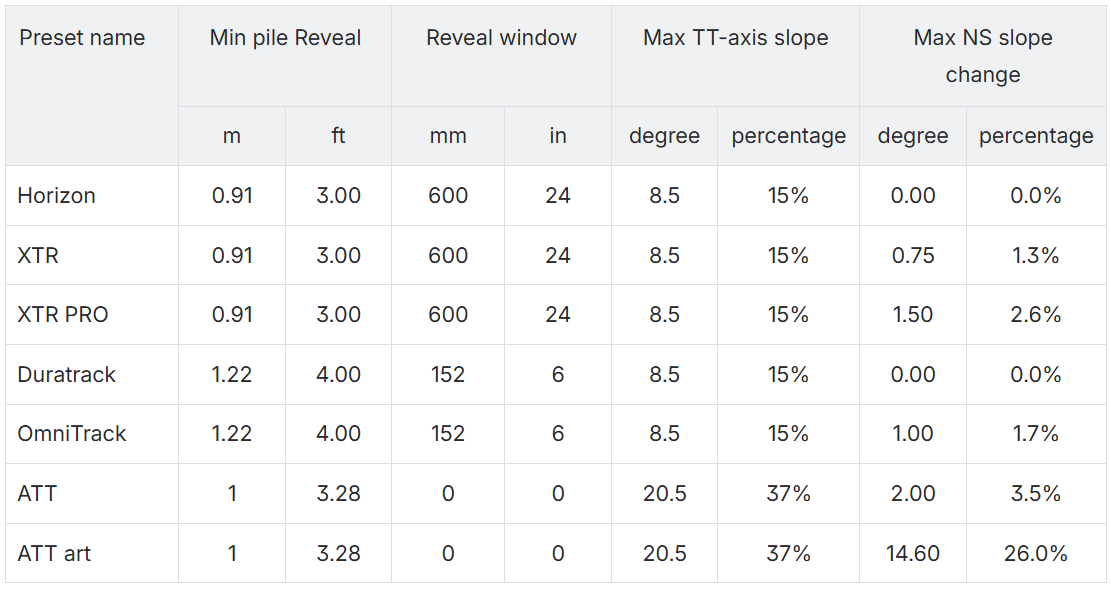
Predefined rack configuration parameters
In Terrain Pro’s configuration page, a banner has been added above the input parameters allowing the users to chose preselect input parameters for their configurations.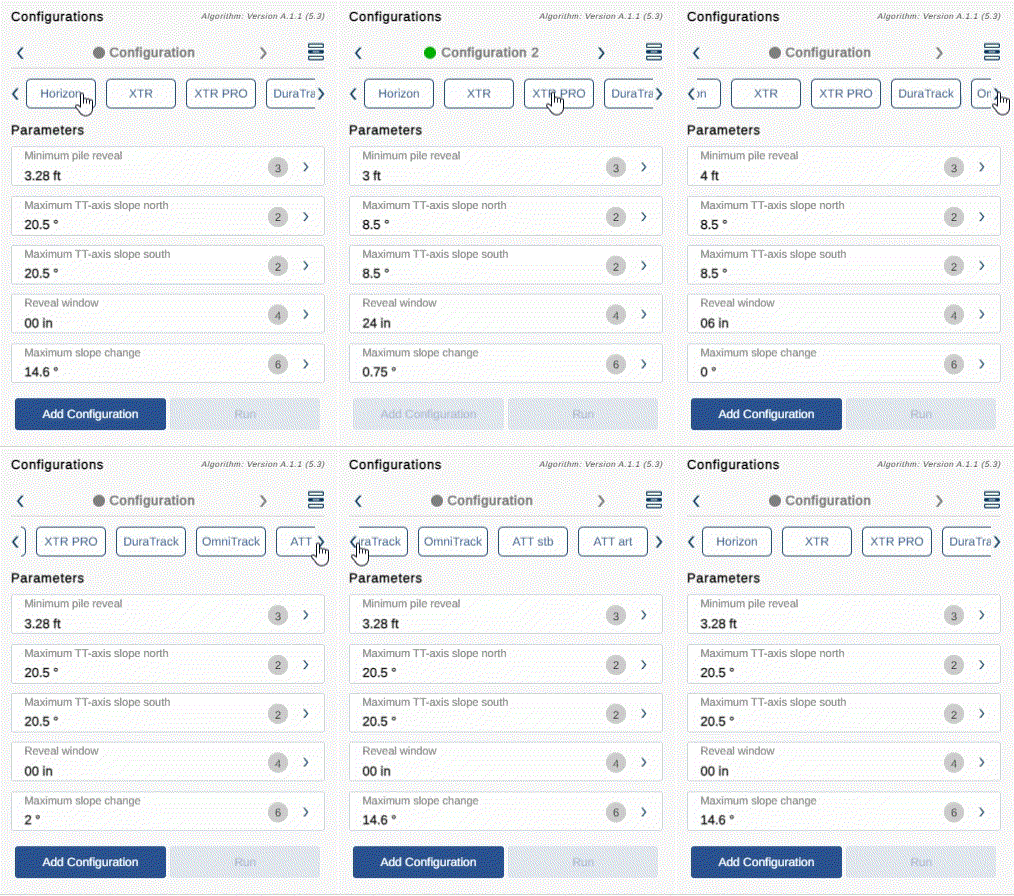
Visualizing the input/output layer
Once a configuration is completed, the application will show the pile assignment based on the wind exposure analysis performed on the layout.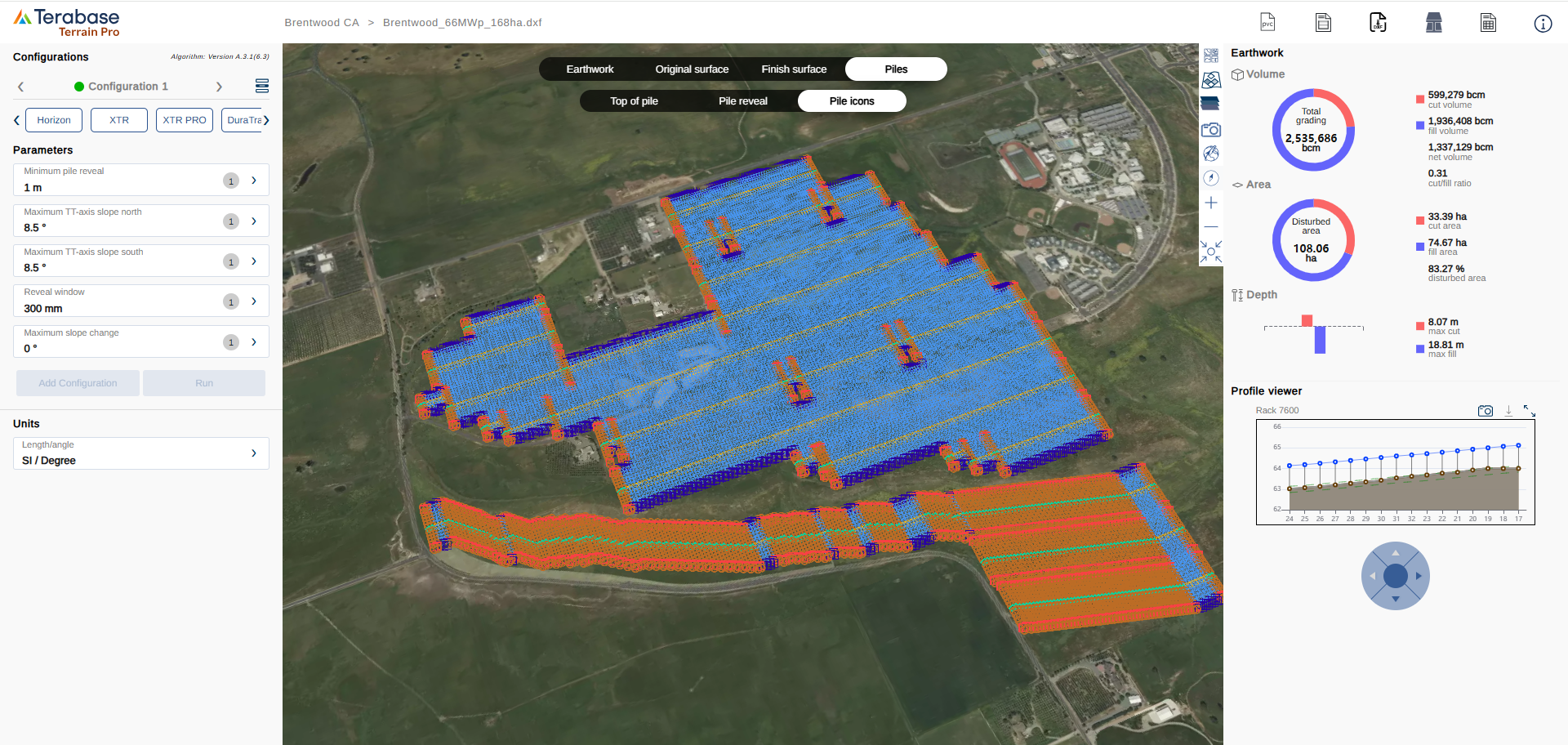
insert INSERT VIDEO1 - CONFIGURATIONSSSSSSSSSS
Earthwork outputs and tracker profile
The earthwork outputs are calculated at every run and are visible on the right menu on the screen.The tracker profile preview is available on the bottom of the right menu and can be expanded to full screen.
The tracker profile snapshot and pile data can be downloaded both from the preview and form the expanded tracker view.
insert INSERT VIDEO2 - CONFIGURATIONSSSSSSSSSS
Configuration’s list and comparison
To compare different configuration, the user can open the configuration list menu and select up to four configuration to compare:insert INSERT VIDEO3 - CONFIGURATIONSSSSSSSSSS
Outputs
For every run configuration, Terrain Pro delivers the following outputs:- Earthwork heat map
- Earthwork cut/fill map
- Original surface heat map
- Finish surface heat map
- Top of the pile elevation map
- Pile reveal window map
- Pile type based on rack wind exposure
- Earthwork cut and fill volume quantities
- Earthwork cut and fill area quantities
- Max cut and max fill depth
- Tracker profile
- Terrain analysis report
- Terrain analysis comparison report
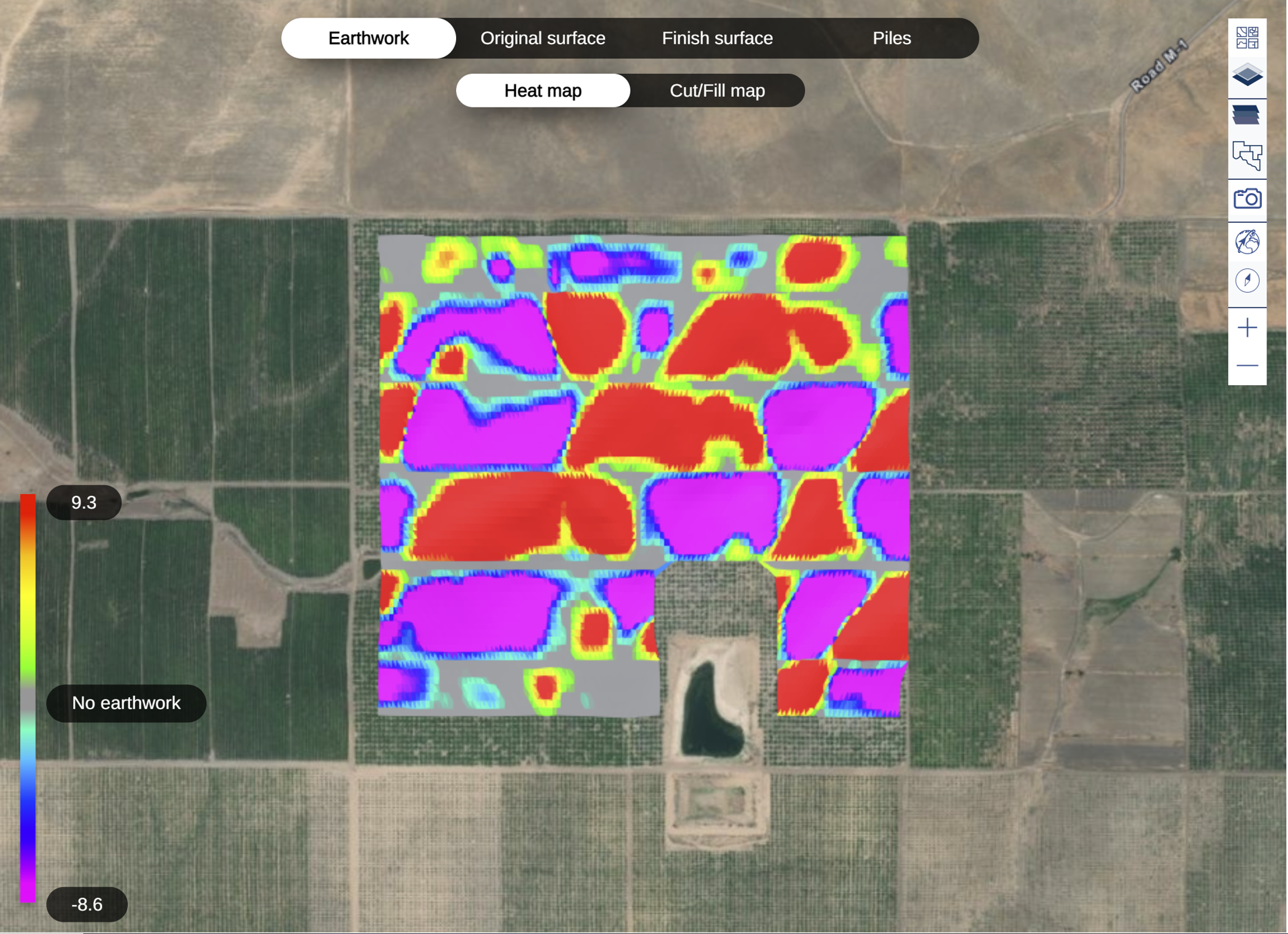
Earthwork heat map
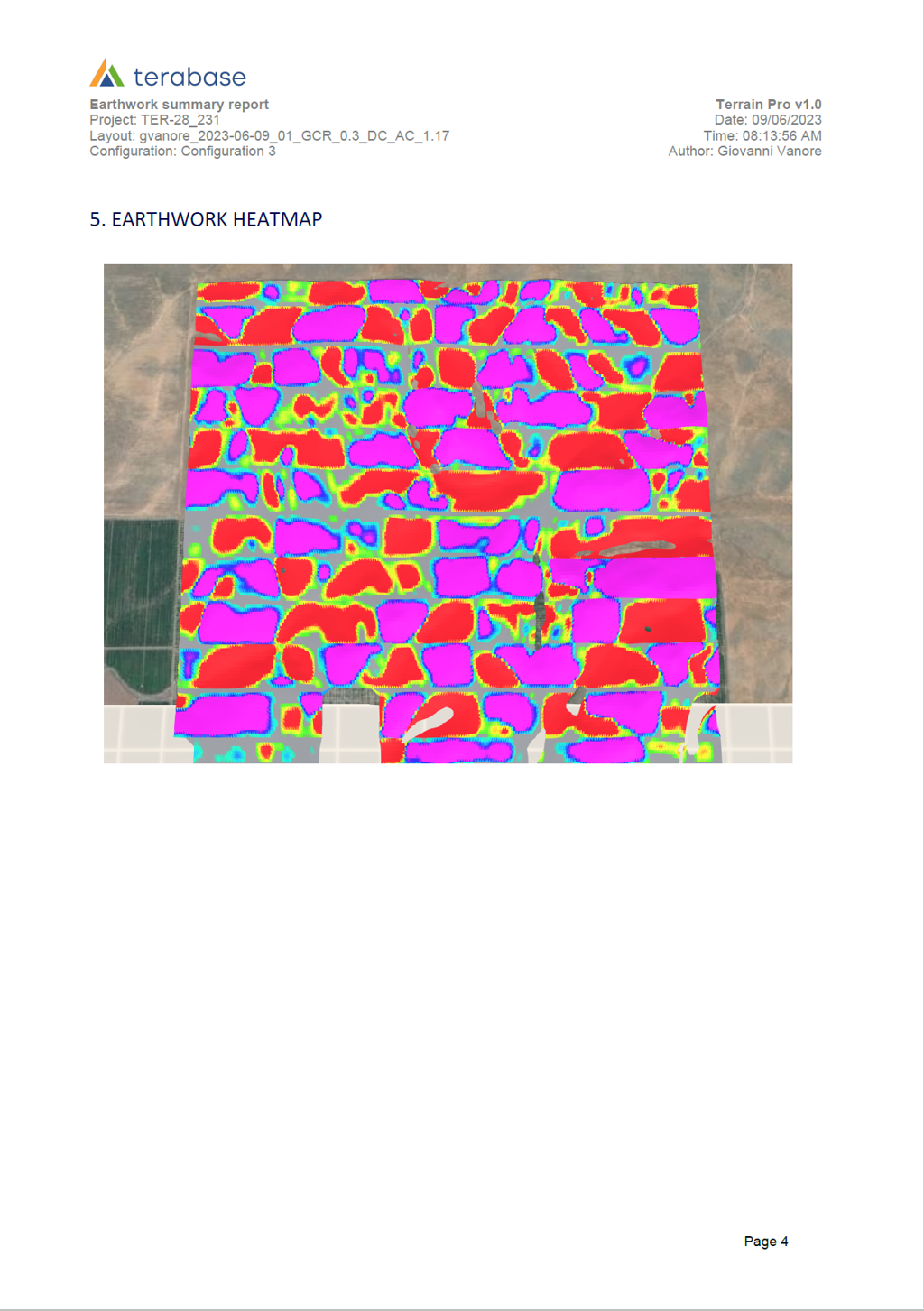
The earthwork heat map represent on the screen the area where cut and fill is required.The cut and fill area are represented using a gradient scale. The area with no earthwork are represented in gray.
Earthwork cut and fill map
The earthwork cu/fill map shows the area where cut and fill is required, without showing the magnitude of the grading.
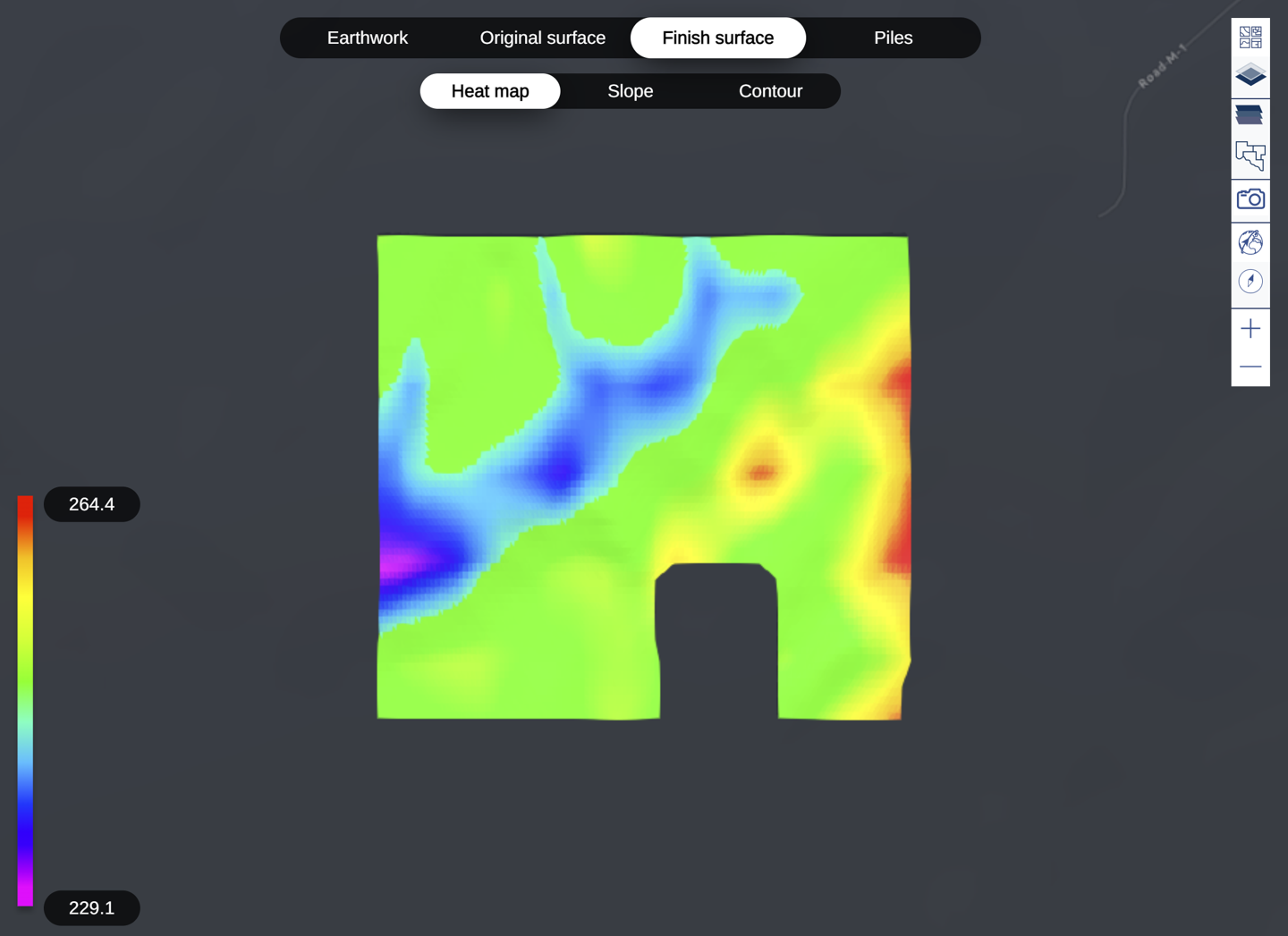
Original and Finish surface heat map
The original and finish surface heat map represent the elevation of the original surface extracted from the Design Pro application and the finish surface calculated by Terrain Pro.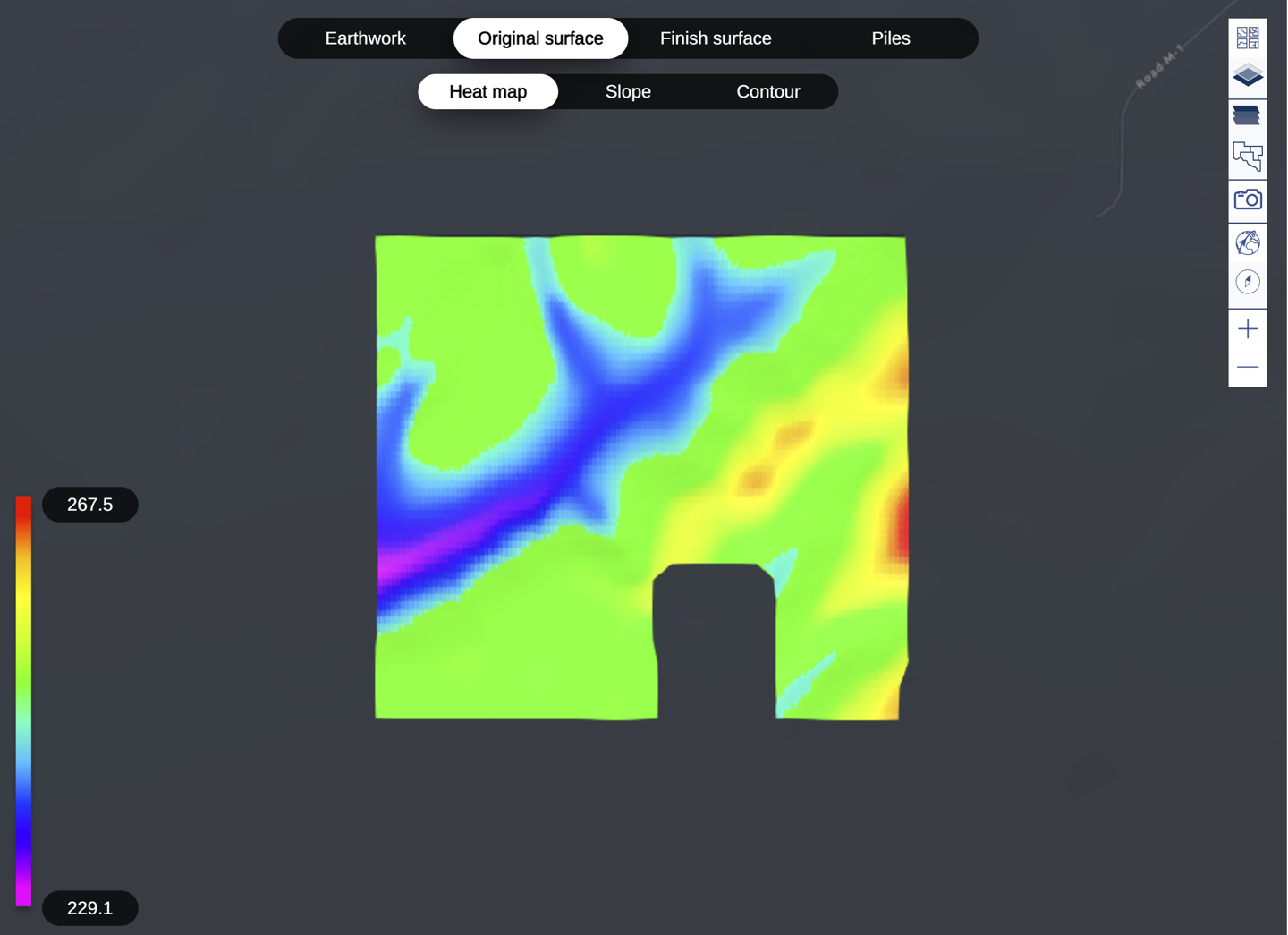
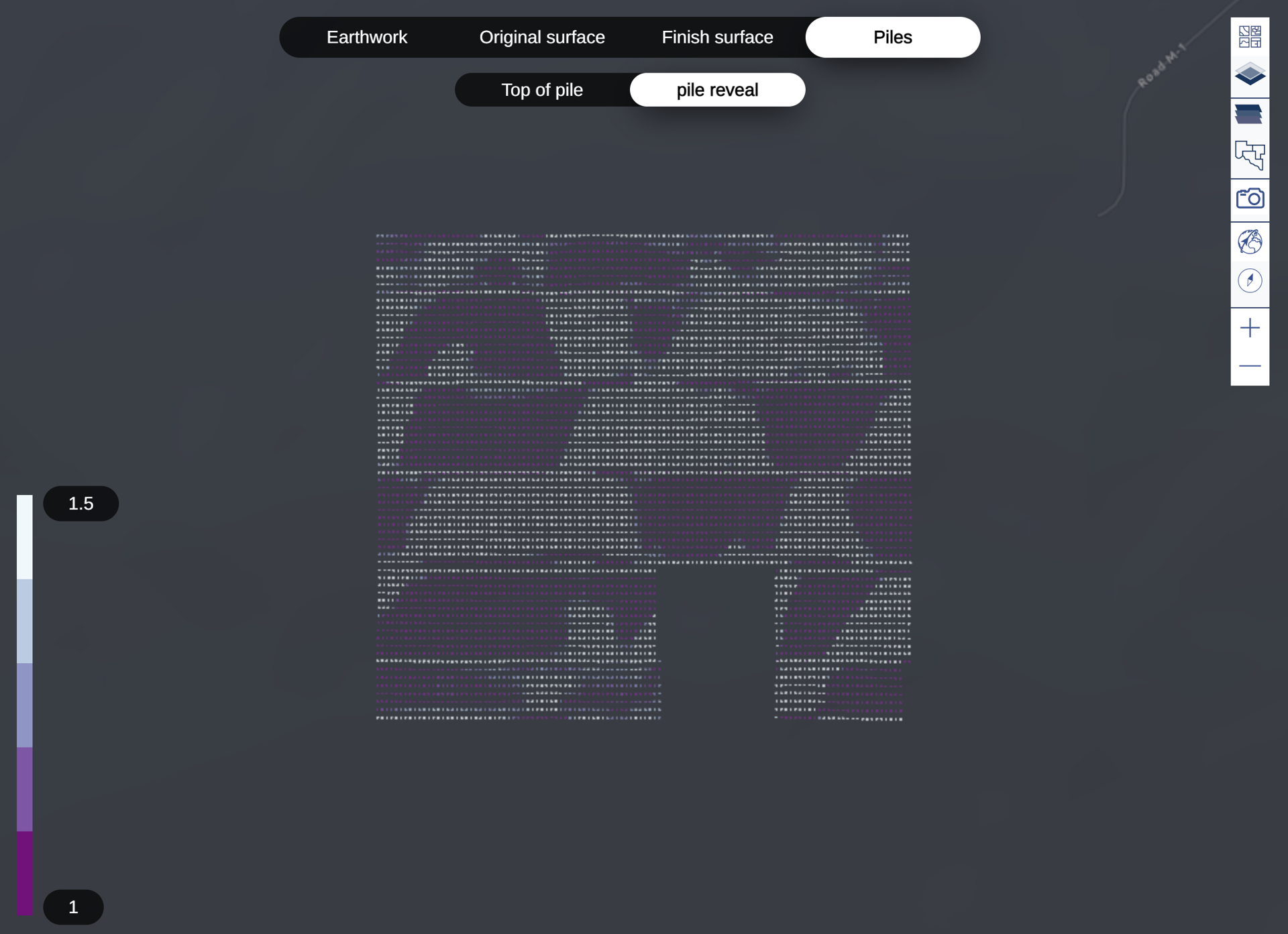
Top of pile elevation and pile reveal map
The top of pile elevation and pile reveal map represent respectively the elevation above the finish surface of the top of the piles, and the reveal window value of every pile above the finish surface.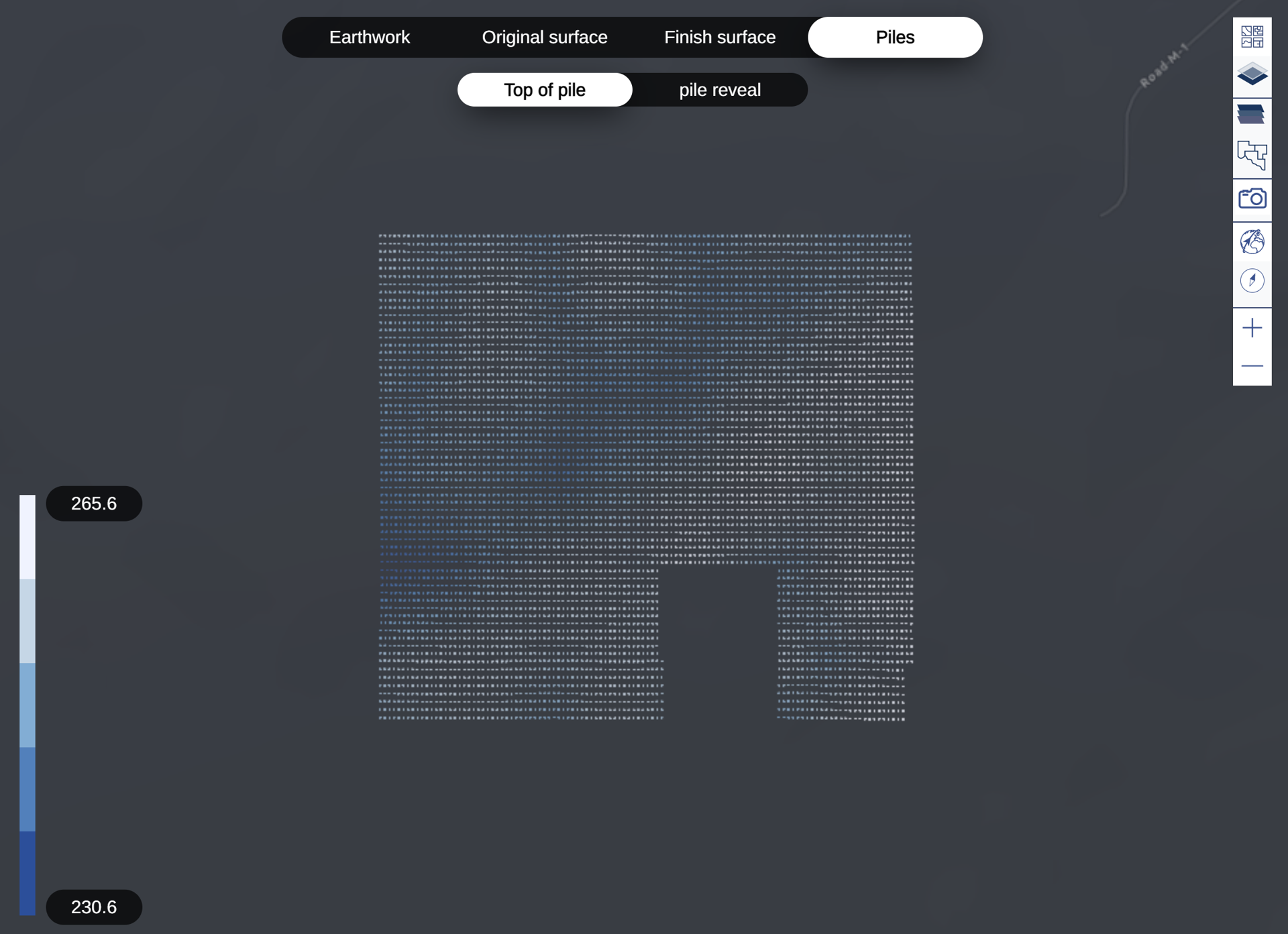
Earthwork cut and fill volume quantities
On the right menu, for every completed configuration are available the cut and fill volume in bcm (bank cubic meter) or bcy (bank cubic yard). The net volume is the difference between the fill volume and cut volume (Net volume) = (fill volume) - (cut volume) The cut/fill ratio is the ratio between cut volume and fill volume. The total grading represents the total grading required on the site summing the fill volume and the absolute value of the cut volume: (Total grading) = (fill volume) + Abs(cut volume)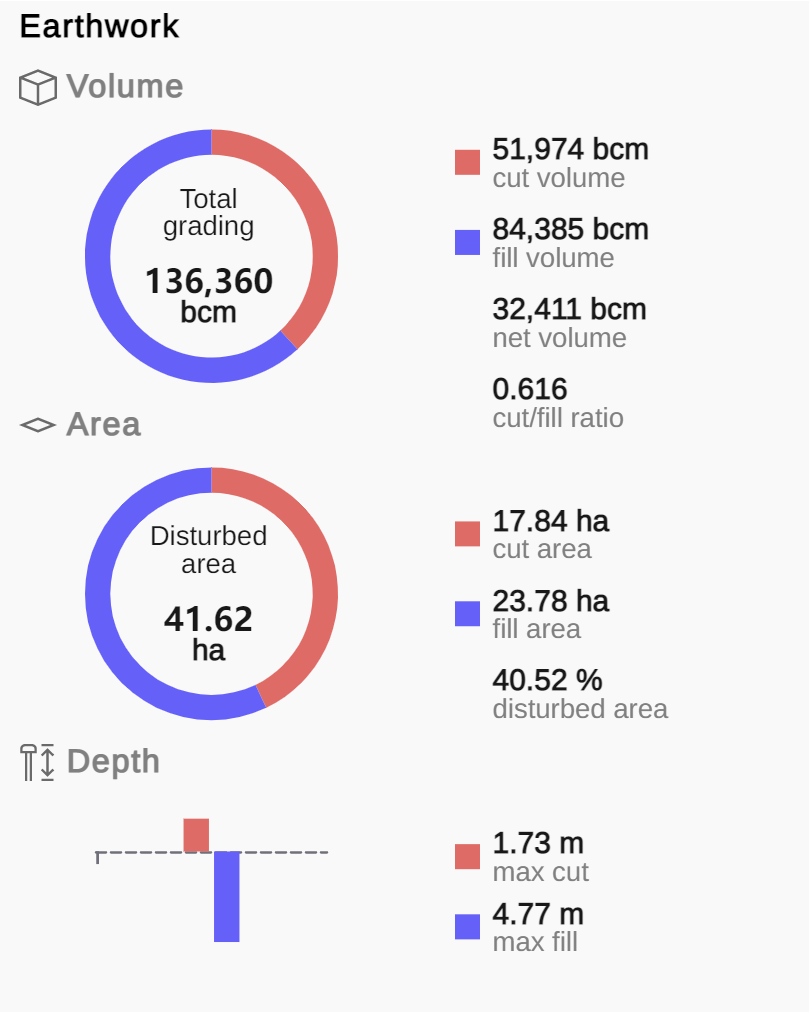
Earthwork cut and fill area quantities
Similarly in the area section, are available the cut area and fill area in ha or ac, depending on the project unit. The disturbed area is sum of the cut and fill area: (Disturbed area) = (cut area) + (fill area) the percentage of disturbed area is the ratio between the disturbed area and the array area represented in percentage value.Max cut and max fill depth
The max cut and max fill indicate the max depth of cut and fill at the pile level.Tracker profile
For every tracker is available the tracker profile as a miniature/preview in the right menu and by clicking on its expand icon, the profile will open in a popup window on the center of the browser. The tracker profile shows the pile id, the existing grade and the finish grade, the top of the pile and the rack profile.The reveal window is also represented by two dashed green line. The data is also available in numeric format to visualize and download.
The tracker profile can be downloaded also as picture.
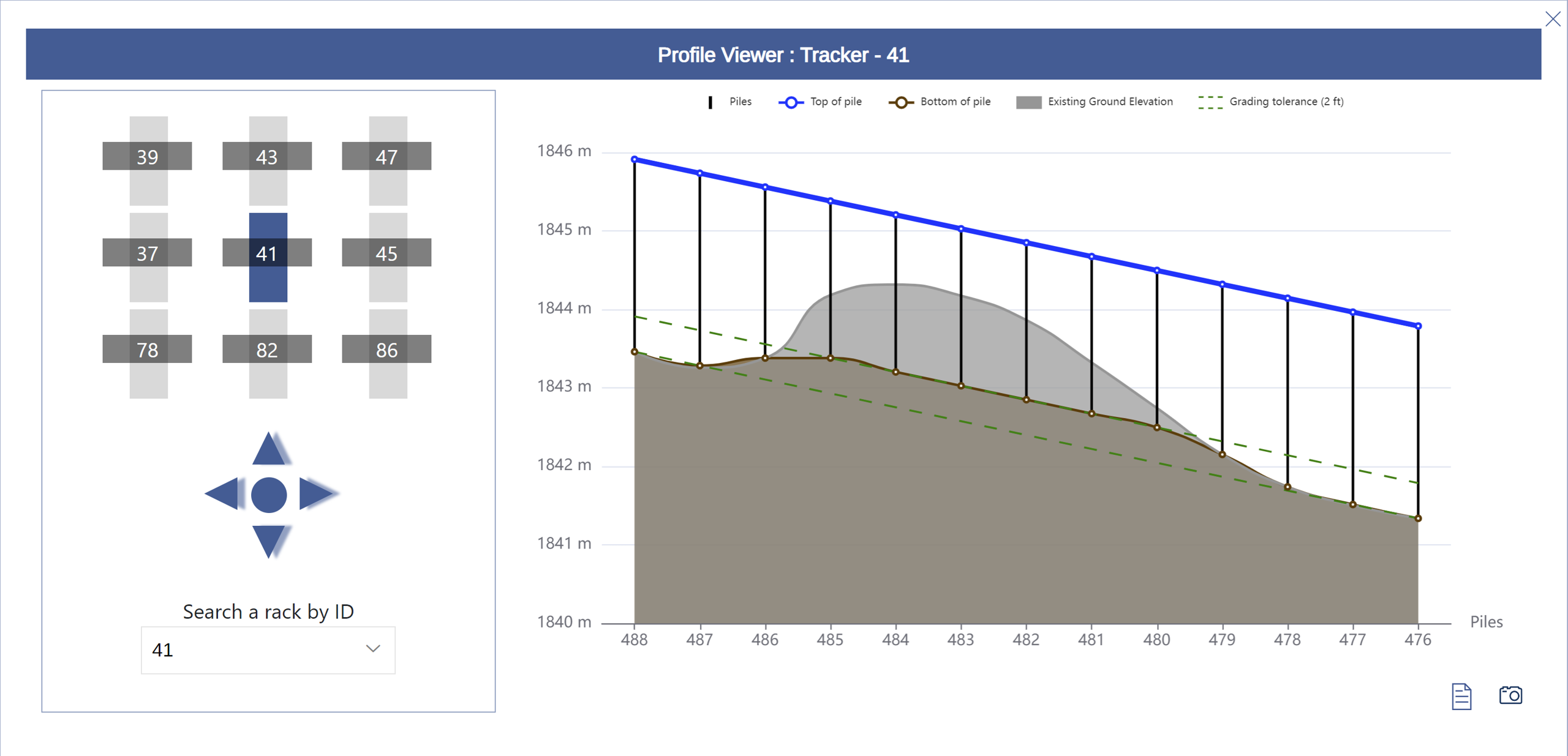
Terrain analysis report
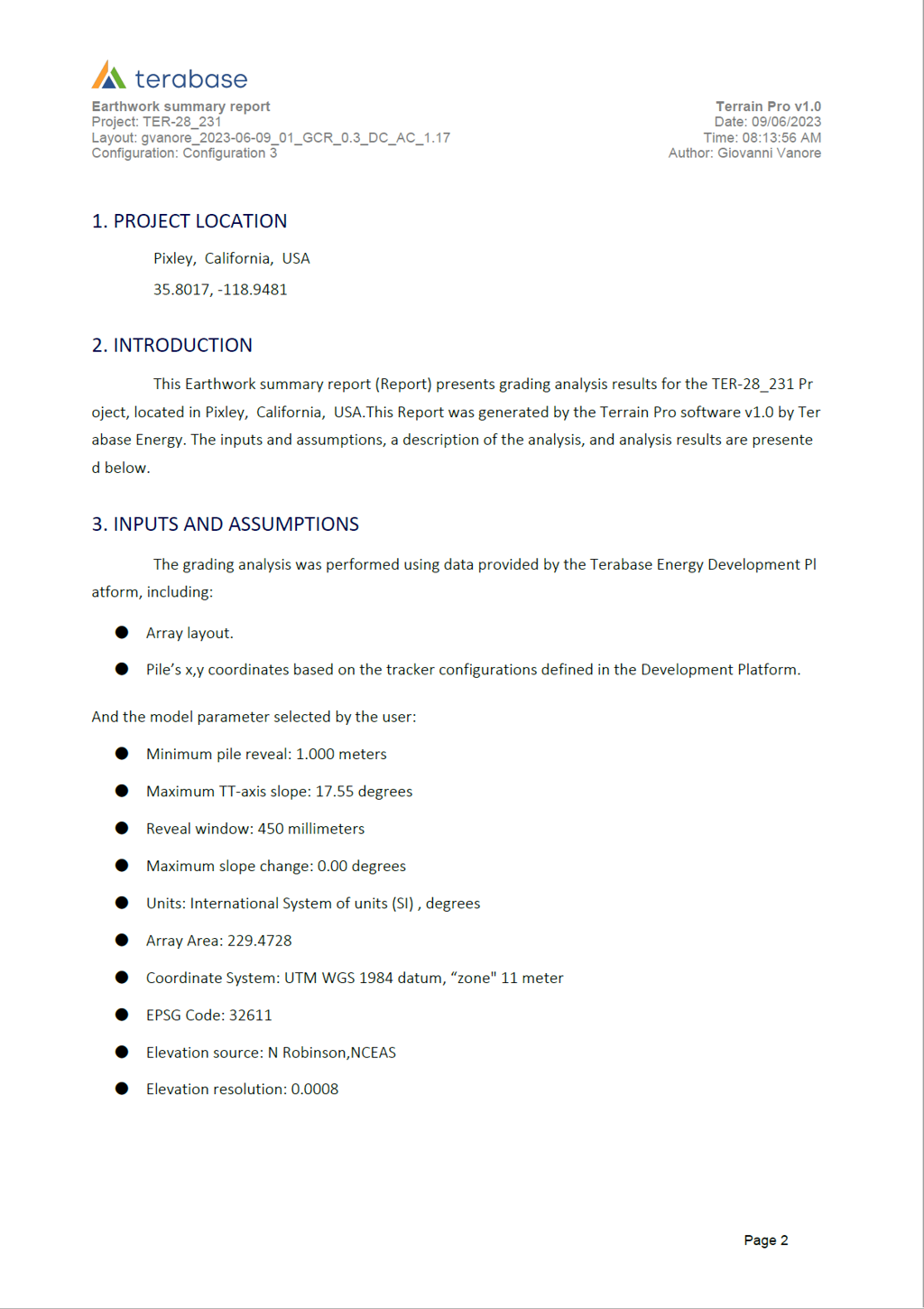
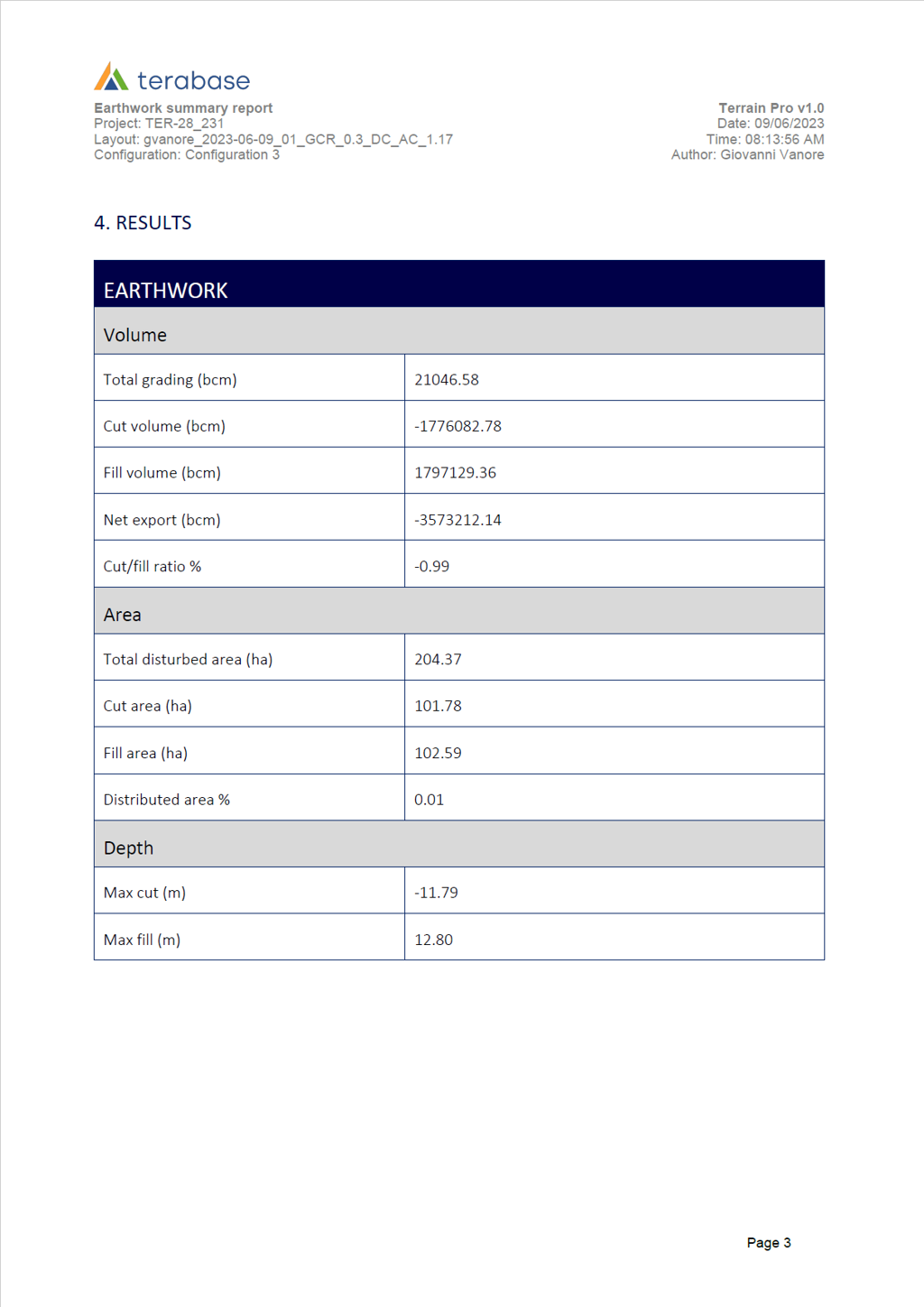
By clicking on the button “Generate report” an earthwork summary report for the configuration visualized on the screen is generated and downloaded on the user computer in pdf format. The report includes:- The input parameters.
- The coordinate system and the elevation source for the DP layout.
- The earthwork outputs.
- A snapshot of the earthwork heat map.
Terrain analysis comparison report
The terrain analysis comparison report, allows the user to compare side by side up to four configurations created in Terrain Pro.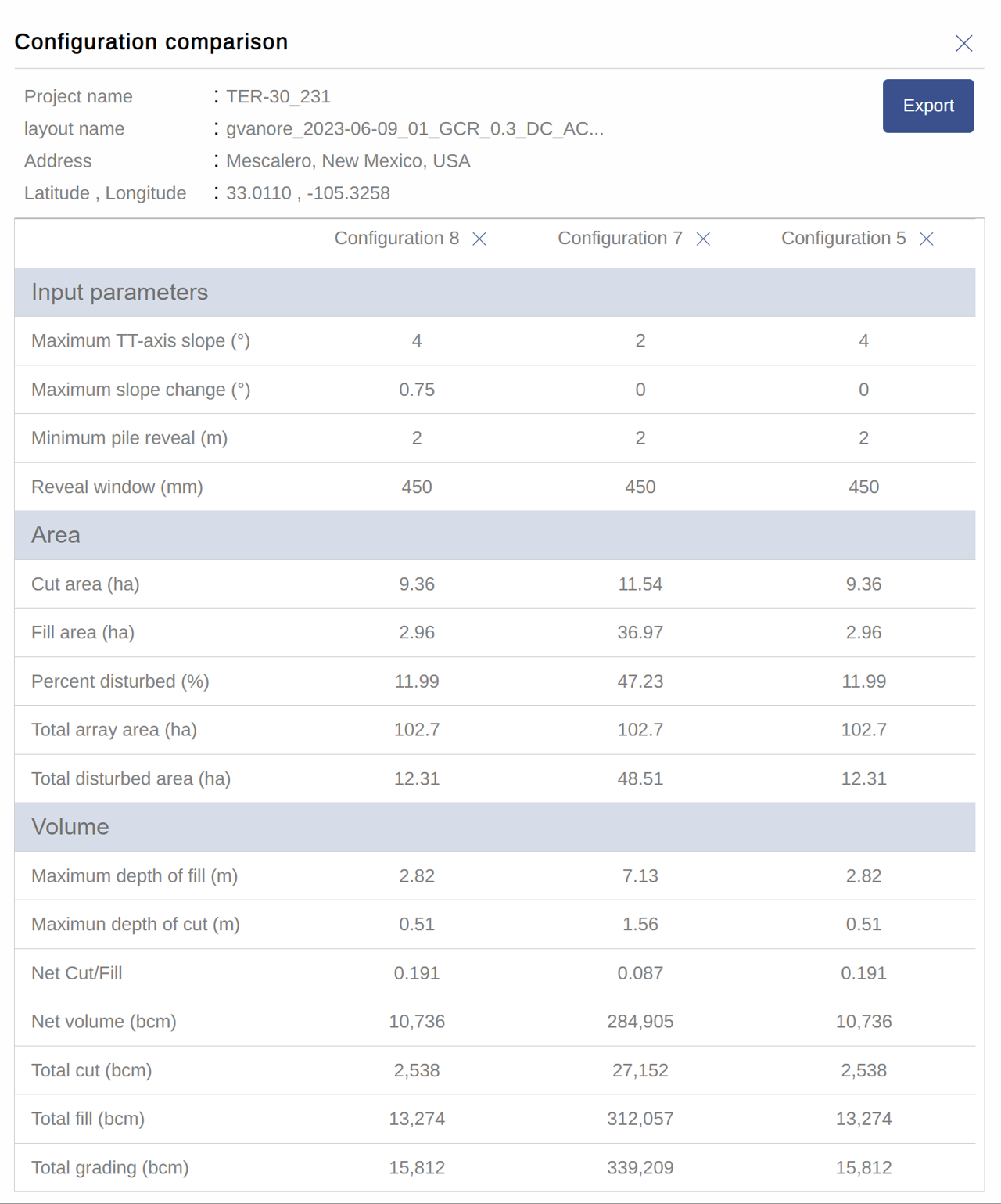
Download pile’s data
Clicking on the Download button on the top right corner of the screen, the file’s data will be downloaded, in csv format, on the user’s device.The data will include the following information for every pile:
- PileID
- Easting
- Northing
- Existing Grade
- Finish Grade
- Pile Reveal
- Top of Pile
Generate summary report
Clicking on the Generate report button on the top right corner of the screen, the Terrain Pro will be generated and downloaded, in pdf format, on the user’s device.The report is generated on the fly, so few seconds are required to create a snapshot of the earthwork heatmap to be added to the last page of the report. The generation of the report takes between 20 to 30 seconds, because the application is rendering the earthwork heat map in the back. please don’t perform other actions while generating the report.
PVC file
The PVC file available for every completed configuration can be used for shade analysis in PlantPredict 3DPile configurator
The link to the pile configurator will open the Terrain Pro extension pushing the pile data from the configuration directly to the application, allowing the user to perform the pile binning and estimate the quantity of steel in the configuration - Click here for the Pile configurator user guide.Units
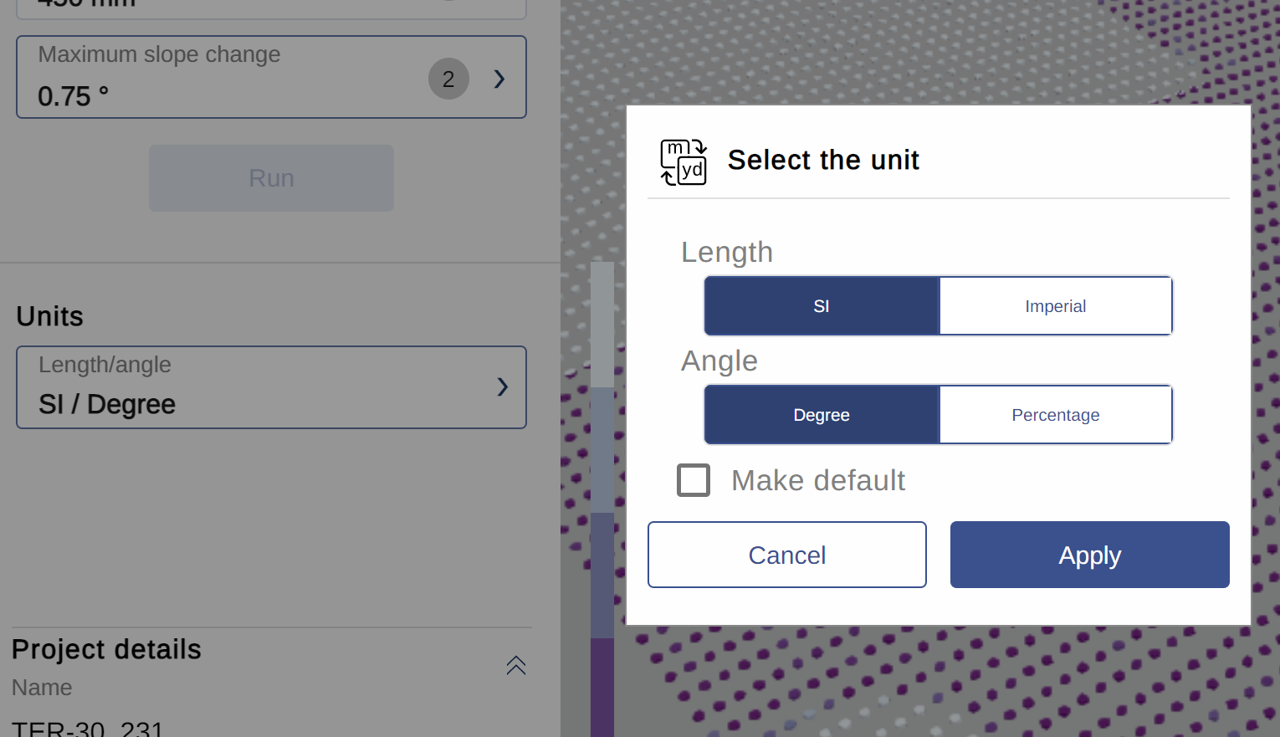
The units used on Terrain Pro for the length and the angle can be changed by opening the Unit container and selecting the preferred unit combination