Step 1: Get your API credentials
Once you’ve logged into PlantPredict, if you can see the gear icon at the bottom left corner of the page, you are an Admin user capable of generating your own API credentials (as well as other team member credentials) and should proceed to Step 1a. If you cannot see the gear icon, proceed to Step 1b.
Step 1a: Generate API credentials yourself
Click the gear icon to open your Company Account Management page. Search for the user’s name that you want to create API credentials for and click that name. Click the Generate API Credentials button in the upper right corner of page and click Continue at the Warning prompt.
Step 1b: Request API credentials from your PlantPredict company admin
You’ll need to request API credentials from your Company Admin. Ask them to follow Step 1a to generate credentials on your behalf.Step 2: Install Python and set up an IDE
If you do not already have a working python IDE (Integrated Development Environment) configured, we recommend setting one up as this can make developing, running and debugging your code easier and more efficient. You can choose to install a local IDE or use a web-based IDE. Installing a local IDE will require you to install python on your machine: https://www.python.org/. From there, you can either use the IDE that comes packaged within python (IDLE) or download an alternative IDE such as Visual Studio Code (code.visualstudio.com), Pycharm (jetbrains.com/pycharm) or many others. Alternatively, you can use a web-based IDE which allows you to develop, run and debug python code without having to install python locally. There are many web-based IDEs to choose from including Python Online (pythononline.net), Github Codespaces (github.com/codespaces), Replit (replit.com) and many others.Step 3: Set up a virtual environment (Optional)
If you are planning to work on multiple software projects / applications and are working within a local IDE, we recommend setting up a virtual environment for each project. This helps to keep package and library dependencies isolated between your different projects. Feel free to skip this step if this is not important or if you’re using a web-based IDE (which typically manages environments and package dependency isolation for you in the background).Step 4: Install the PlantPredict Python SDK package
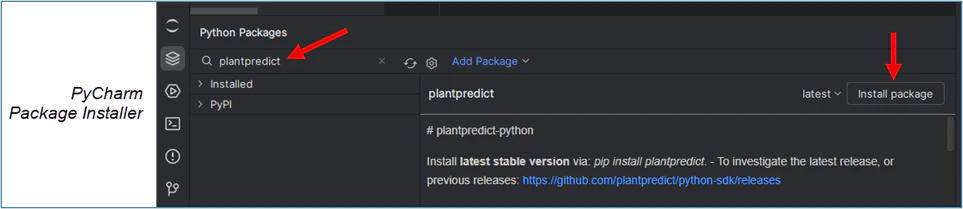
Use the package installer that comes with your IDE to search for and install ‘plantpredict’ or use the ‘pip install’ command at the command line to do the same. See this guide for more help on installing packages within python: (https://packaging.python.org/en/latest/tutorials/installing-packages/)
Step 5: Test your SDK connection
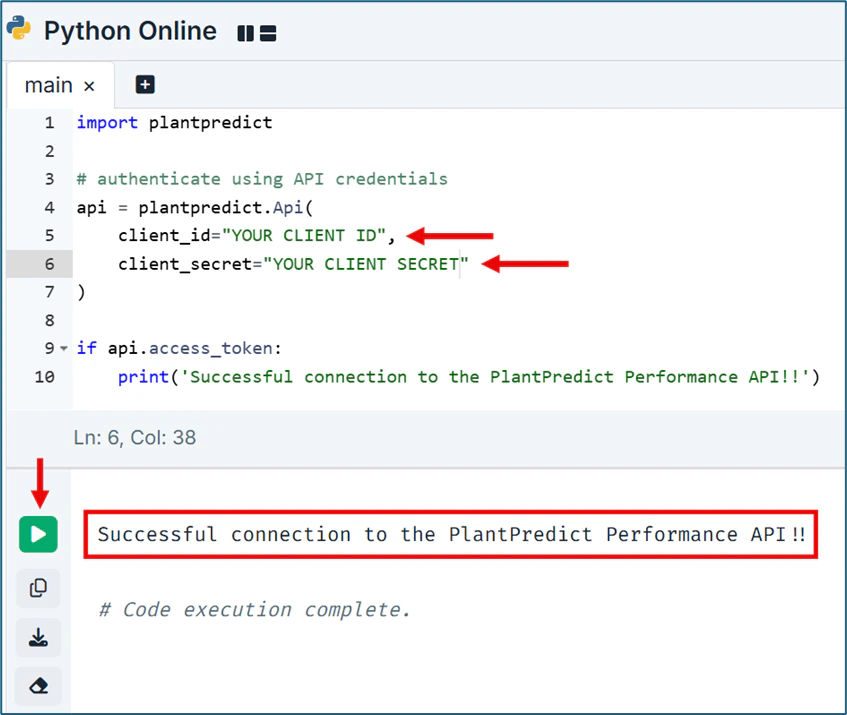
Enter the code snippet from the screenshot below, replacing the Client ID and Client Secret strings with your personal Client ID and Client Secret. Press the Run button and verify the successful connection message displays in the output console.