> ## Documentation Index
> Fetch the complete documentation index at: https://docs.plantpredict.com/llms.txt
> Use this file to discover all available pages before exploring further.

# Time Series Data

> Upload optional time-varying data to override calculated values or provide operational constraints

The Time Series Data page allows you to upload optional time-varying data that can override PlantPredict calculated values or provide time-dependent constraints during energy predictions.

<Note>
  Time Series Data is **optional**. If no data is uploaded, PlantPredict uses its internal models to calculate all time-varying parameters.
</Note>

***

## Empty State

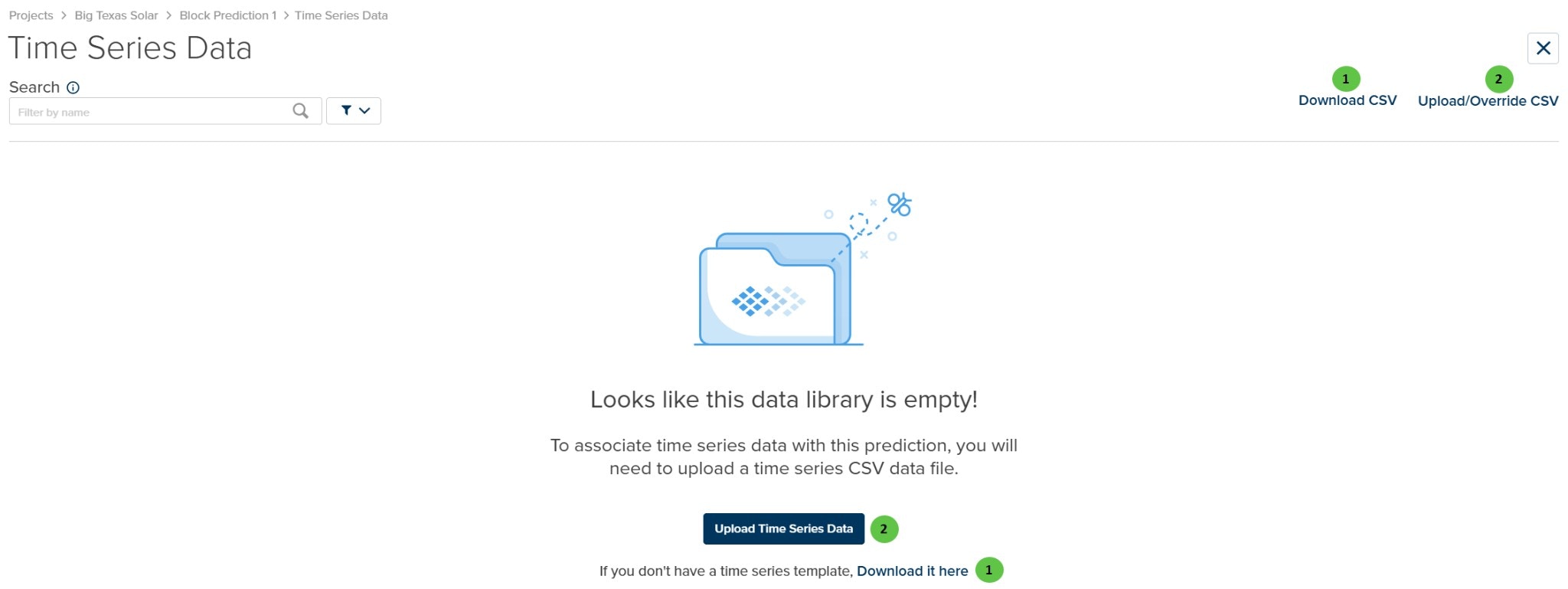
When no time series data has been uploaded, the page displays an empty state with options to download a template or upload data.

<Frame caption="Time Series Data - Empty State">
  <img src="https://mintcdn.com/terabaseenergy/Y_5BWgrM8Na4aOU0/images/time-series-data-empty-ui.png?fit=max&auto=format&n=Y_5BWgrM8Na4aOU0&q=85&s=12939f3701070a60c4a2f2957de25b7a" alt="Time Series Data Empty State" width="2048" height="769" data-path="images/time-series-data-empty-ui.png" />
</Frame>

### User Inputs (Empty State)

<table>
  <colgroup>
    <col style={{width: "4%"}} />

    <col style={{width: "22%"}} />

    <col style={{width: "10%"}} />

    <col style={{width: "6%"}} />

    <col style={{width: "40%"}} />

    <col style={{width: "18%"}} />
  </colgroup>

  <thead>
    <tr>
      <th>#</th>
      <th>Input</th>
      <th>Type</th>
      <th>Units</th>
      <th>Description</th>
      <th>Related Documentation</th>
    </tr>
  </thead>

  <tbody>
    <tr>
      <td>**1**</td>
      <td>**Download CSV**</td>
      <td>Button</td>
      <td>—</td>
      <td>Download a CSV template file formatted for time series data upload. The template includes the required timestamp format and column structure.</td>
      <td>—</td>
    </tr>

    <tr>
      <td>**2**</td>
      <td>**Upload/Override CSV**</td>
      <td>Button</td>
      <td>—</td>
      <td>Upload a CSV file containing time series data. If data already exists, this will override it with the new upload.</td>
      <td>—</td>
    </tr>
  </tbody>
</table>

***

## Loaded State

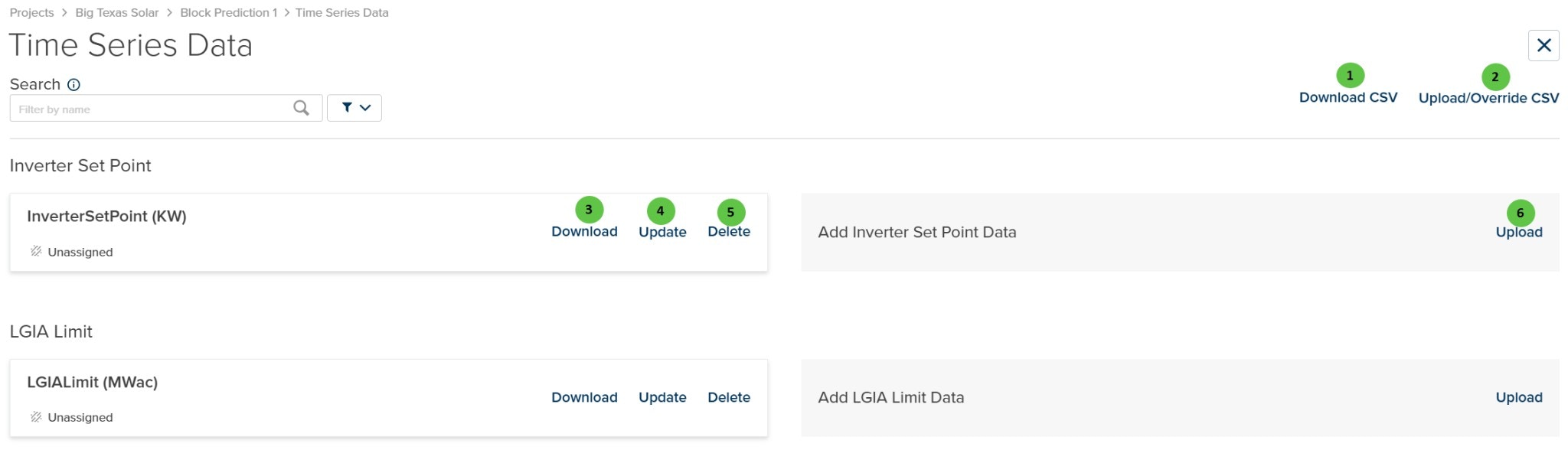
Once time series data has been uploaded, the page displays data cards organized by parameter type.

<Frame caption="Time Series Data - With Data Uploaded">
  <img src="https://mintcdn.com/terabaseenergy/Y_5BWgrM8Na4aOU0/images/time-series-data-loaded-ui.png?fit=max&auto=format&n=Y_5BWgrM8Na4aOU0&q=85&s=551bc77a0890e38590345dbc4312ee6d" alt="Time Series Data Loaded" width="2048" height="588" data-path="images/time-series-data-loaded-ui.png" />
</Frame>

### User Inputs (Loaded State)

<table>
  <colgroup>
    <col style={{width: "4%"}} />

    <col style={{width: "22%"}} />

    <col style={{width: "10%"}} />

    <col style={{width: "6%"}} />

    <col style={{width: "40%"}} />

    <col style={{width: "18%"}} />
  </colgroup>

  <thead>
    <tr>
      <th>#</th>
      <th>Input</th>
      <th>Type</th>
      <th>Units</th>
      <th>Description</th>
      <th>Related Documentation</th>
    </tr>
  </thead>

  <tbody>
    <tr>
      <td>**1**</td>
      <td>**Download CSV**</td>
      <td>Button</td>
      <td>—</td>
      <td>Download a CSV template or the currently uploaded data.</td>
      <td>—</td>
    </tr>

    <tr>
      <td>**2**</td>
      <td>**Upload/Override CSV**</td>
      <td>Button</td>
      <td>—</td>
      <td>Upload new time series data or override existing data.</td>
      <td>—</td>
    </tr>

    <tr>
      <td>**3**</td>
      <td>**Download** (per data set)</td>
      <td>Button</td>
      <td>—</td>
      <td>Download the specific time series data set as a CSV file.</td>
      <td>—</td>
    </tr>

    <tr>
      <td>**4**</td>
      <td>**Update** (per data set)</td>
      <td>Button</td>
      <td>—</td>
      <td>Update or replace the data for this specific time series parameter.</td>
      <td>—</td>
    </tr>

    <tr>
      <td>**5**</td>
      <td>**Delete** (per data set)</td>
      <td>Button</td>
      <td>—</td>
      <td>Delete the time series data set.</td>
      <td>—</td>
    </tr>

    <tr>
      <td>**6**</td>
      <td>**Upload** (add new data)</td>
      <td>Button</td>
      <td>—</td>
      <td>Upload a new data set for the specified parameter type.</td>
      <td>—</td>
    </tr>
  </tbody>
</table>

***

## Available Time Series Parameters

The following time series parameters can be uploaded:

| Parameter                      | Units       | Applied To           | Description                                                     |
| ------------------------------ | ----------- | -------------------- | --------------------------------------------------------------- |
| **Inverter Setpoint**          | kW          | Individual Inverters | Fixed power setpoint for inverter output                        |
| **Inverter Derate**            | Ratio (0–1) | Individual Inverters | Derate factor applied to inverter capacity                      |
| **LGIA Limit**                 | MWac        | Power Plant System   | Large Generator Interconnection Agreement limit for grid export |
| **Module Surface Temperature** | °C          | Individual DC Fields | Override calculated module temperature                          |
| **Tracking Angle**             | Degrees     | Individual DC Fields | Fixed tracker rotation angle (overrides tracking algorithm)     |
| **IMPP Adjustment**            | A           | Individual Inverters | Current adjustment at maximum power point                       |
| **VMPP Adjustment**            | V           | Individual Inverters | Voltage adjustment at maximum power point                       |

<Info>
  **Assignment Required:** After uploading time series data, each data set must be assigned to the appropriate DC Field, Inverter, or Power Plant System. Unassigned data will not be used in predictions.
</Info>

***

## Workflow

### Uploading Time Series Data

1. Click **Download CSV** to get the template file
2. Fill in your time series data following the template format
3. Click **Upload/Override CSV** to upload your data
4. Review the uploaded data cards
5. Assign each data set to the appropriate component (DC Field, Inverter, or System)

### Managing Existing Data

* **Download**: Export the current data for review or modification
* **Update**: Replace the data with an updated file
* **Delete**: Remove the time series data set

***

## Data Format Requirements

Time series data must match the timestamps in your weather file:

* **Timestamp Format**: ISO 8601 format (e.g., `2024-01-01T00:00:00`)
* **Interval**: Must match the weather file time step (typically hourly)
* **Coverage**: Data should span the full prediction period

<Warning>
  Time series data timestamps must align with the weather file timestamps. Misaligned data may cause prediction errors or be ignored.
</Warning>

***

## Related Features

<Note>
  **3D Tracker Rotations**: Time series data for 3D tracker rotation angles is uploaded separately on the [3D Scene Overview](/user-guide/ui/3d-scene-overview) page, not on this Time Series Data page.
</Note>

See also:

* [Inverter](/user-guide/ui/power-plant-builder-inverter) — Inverter configuration including setpoints and derates
* [DC Field - Losses](/user-guide/ui/power-plant-builder-dc-field-losses) — DC Field loss parameters
* [System Details](/user-guide/ui/system-details) — System-level constraints and limits