| **1** |
**Search** |
Text Field |
— |
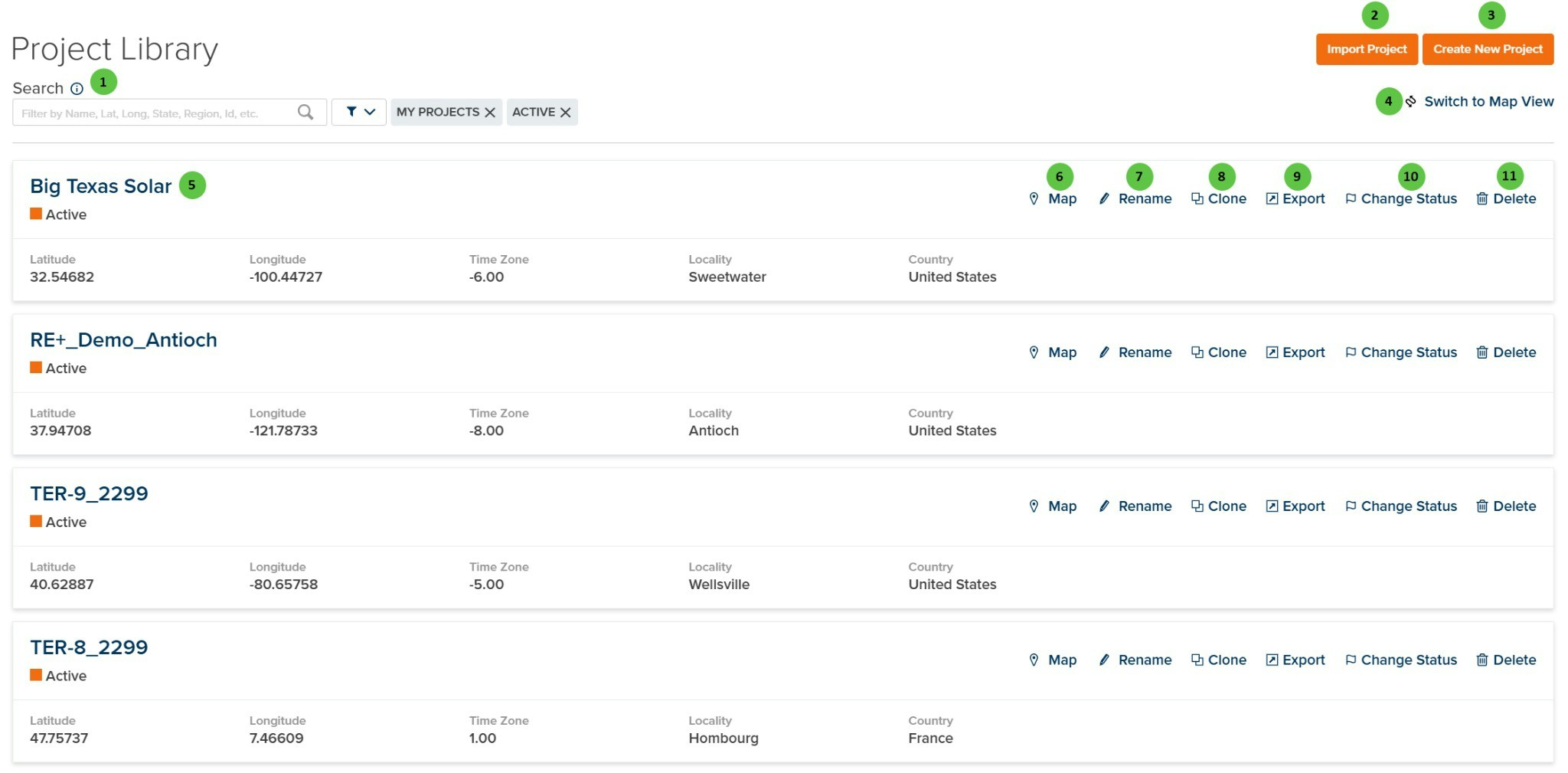
Search for projects by name, latitude, longitude, state, region, ID, or other attributes. Filter toggles allow filtering by ownership (e.g., My Projects) and status (e.g., Active, Draft, Retired). |
— |
| **2** |
**Import Project** |
Button |
— |
Import a project from an exported project file. Use this to restore projects or transfer projects between PlantPredict accounts. |
— |
| **3** |
**Create New Project** |
Button |
— |
Opens the Create New Project page where you define the project name, location, and initial settings. |
[Create New Project](/user-guide/ui/create-new-project) |
| **4** |
**Switch to Map View** |
Button |
— |
Toggles between list view and map view. Map view displays project locations geographically, allowing you to visually browse projects by region. |
— |
| **5** |
**Project Card** |
Interactive |
— |
Click on a project card to open the project and view its predictions. Each card displays the project name, status, and location details. |
[Predictions Library](/user-guide/ui/predictions) |
| **6** |
**Map** (per project) |
Button |
— |
Opens a map view showing the geographic location of the selected project. |
— |
| **7** |
**Rename** (per project) |
Button |
— |
Rename the project. Opens a dialog to enter a new project name. |
— |
| **8** |
**Clone** (per project) |
Button |
— |
Create a copy of the project including all predictions and settings. Useful for creating variations or backups of existing projects. |
— |
| **9** |
**Export** (per project) |
Button |
— |
Export the project to a file. The exported file can be imported into another PlantPredict account or used as a backup. |
— |
| **10** |
**Change Status** (per project) |
Button |
— |
Change the status of the project. Available statuses: **Draft Private** (visible only to creator), **Draft Shared** (visible to company), **Active** (approved for use), **Retired** (archived). |
— |
| **11** |
**Delete** (per project) |
Button |
— |
Permanently delete the project and all associated predictions. This action cannot be undone. |
— |
 ## Overview
The Project Library displays all projects accessible to you, including:
* **My Projects** — Projects you have created or own
* **Shared Projects** — Projects shared by other users in your organization
Each project card displays key location information:
* **Latitude** — Project latitude coordinate
* **Longitude** — Project longitude coordinate
* **Time Zone** — UTC offset for the project location
* **Locality** — City or locality name
* **Country** — Country where the project is located
***
## User Inputs
## Overview
The Project Library displays all projects accessible to you, including:
* **My Projects** — Projects you have created or own
* **Shared Projects** — Projects shared by other users in your organization
Each project card displays key location information:
* **Latitude** — Project latitude coordinate
* **Longitude** — Project longitude coordinate
* **Time Zone** — UTC offset for the project location
* **Locality** — City or locality name
* **Country** — Country where the project is located
***
## User Inputs