> ## Documentation Index
> Fetch the complete documentation index at: https://docs.plantpredict.com/llms.txt
> Use this file to discover all available pages before exploring further.

# User Profile

> View user profile information, configure weather provider API keys, and set accessibility options

The Profile page provides user-specific settings organized across three tabs. While most PlantPredict settings are configured at the company level, this page allows individual users to view their profile information, configure personal weather provider API credentials, and select accessibility options for graph display.

<Note>
  Profile Information on the About tab is configured during new user registration and can only be edited by the Company Admin within the [Company Settings](/user-guide/ui/company-settings) page.
</Note>

***

## About

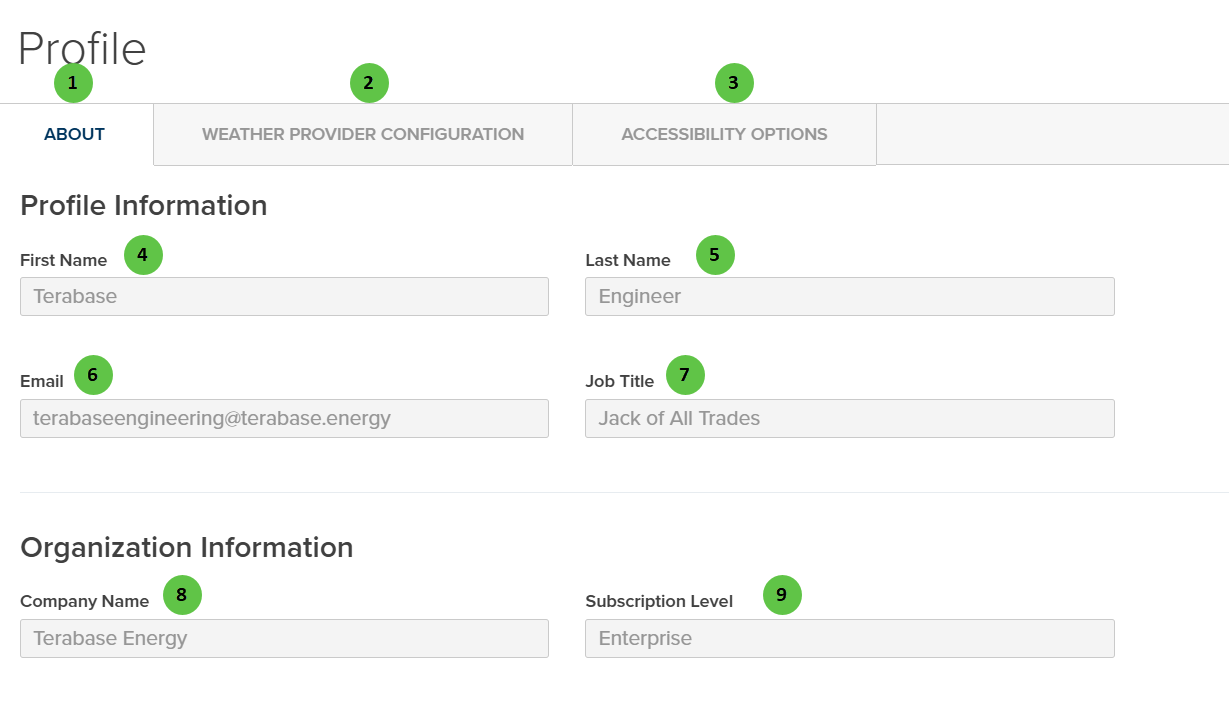
The About tab displays your profile and organization information. These fields are read-only for standard users.

<Frame caption="Profile - About">
  <img src="https://mintcdn.com/terabaseenergy/ONH-4lLjiP1nM7I3/images/profile-about-ui.png?fit=max&auto=format&n=ONH-4lLjiP1nM7I3&q=85&s=94abfffc15afdeada2ab8fae91f8d962" alt="Profile About Tab" width="1229" height="727" data-path="images/profile-about-ui.png" />
</Frame>

### User Inputs (About)

<table>
  <colgroup>
    <col style={{width: "4%"}} />

    <col style={{width: "18%"}} />

    <col style={{width: "10%"}} />

    <col style={{width: "6%"}} />

    <col style={{width: "44%"}} />

    <col style={{width: "18%"}} />
  </colgroup>

  <thead>
    <tr>
      <th>#</th>
      <th>Input</th>
      <th>Type</th>
      <th>Units</th>
      <th>Description</th>
      <th>Related Documentation</th>
    </tr>
  </thead>

  <tbody>
    <tr>
      <td>**1**</td>
      <td>**About** (Tab)</td>
      <td>Tab</td>
      <td>—</td>
      <td>Currently selected tab. Displays user profile and organization information.</td>
      <td>—</td>
    </tr>

    <tr>
      <td>**2**</td>
      <td>**Weather Provider Configuration** (Tab)</td>
      <td>Tab</td>
      <td>—</td>
      <td>Navigate to configure user-specific API credentials for third-party weather data providers.</td>
      <td>—</td>
    </tr>

    <tr>
      <td>**3**</td>
      <td>**Accessibility Options** (Tab)</td>
      <td>Tab</td>
      <td>—</td>
      <td>Navigate to configure display accessibility settings including color palette selection.</td>
      <td>—</td>
    </tr>

    <tr>
      <td>**4**</td>
      <td>**First Name**</td>
      <td>Display</td>
      <td>—</td>
      <td>User's first name as registered. **Read-only** — contact your Company Admin to update.</td>
      <td>—</td>
    </tr>

    <tr>
      <td>**5**</td>
      <td>**Last Name**</td>
      <td>Display</td>
      <td>—</td>
      <td>User's last name as registered. **Read-only** — contact your Company Admin to update.</td>
      <td>—</td>
    </tr>

    <tr>
      <td>**6**</td>
      <td>**Email**</td>
      <td>Display</td>
      <td>—</td>
      <td>User's email address used for login and notifications. **Read-only** — contact your Company Admin to update.</td>
      <td>—</td>
    </tr>

    <tr>
      <td>**7**</td>
      <td>**Job Title**</td>
      <td>Display</td>
      <td>—</td>
      <td>User's job title within the organization. **Read-only** — contact your Company Admin to update.</td>
      <td>—</td>
    </tr>

    <tr>
      <td>**8**</td>
      <td>**Company Name**</td>
      <td>Display</td>
      <td>—</td>
      <td>Name of the organization associated with this account. **Read-only**.</td>
      <td>—</td>
    </tr>

    <tr>
      <td>**9**</td>
      <td>**Subscription Level**</td>
      <td>Display</td>
      <td>—</td>
      <td>Current PlantPredict subscription tier (e.g., Enterprise, Professional). Determines available features and API access. **Read-only**.</td>
      <td>—</td>
    </tr>
  </tbody>
</table>

***

## Weather Provider Configuration

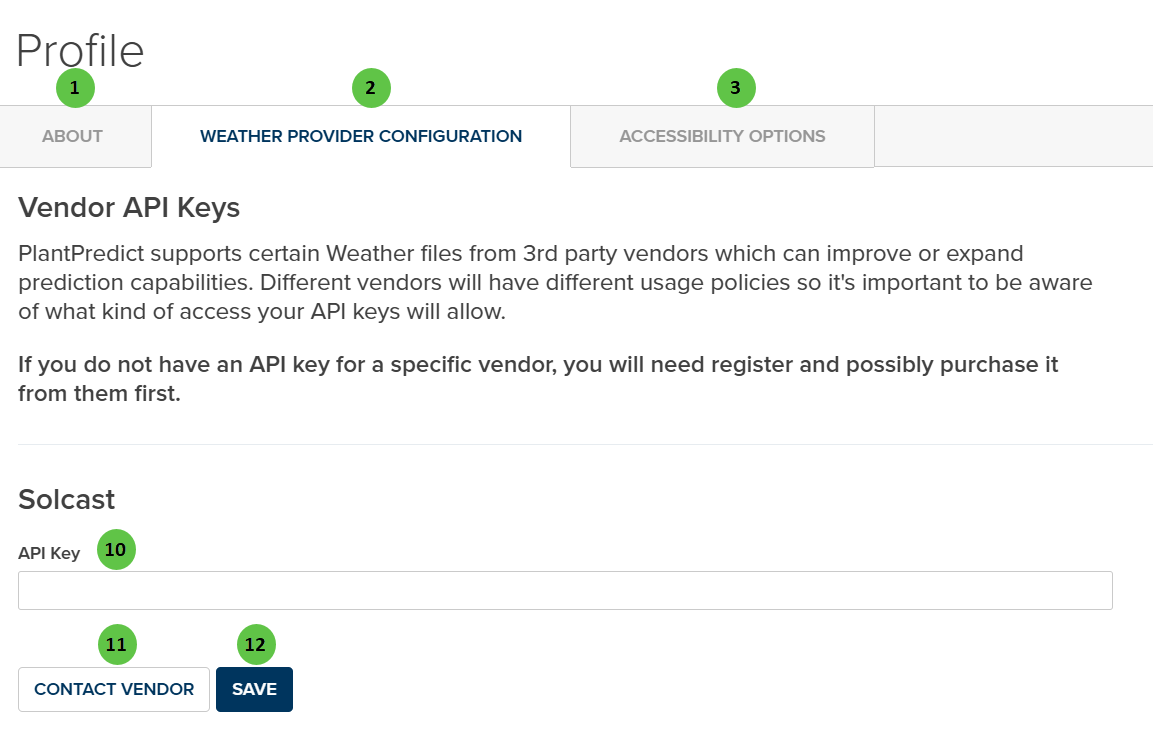
The Weather Provider Configuration tab allows you to enter user-specific API credentials for third-party weather data providers. These credentials enable direct download of weather files within PlantPredict.

<Frame caption="Profile - Weather Provider Configuration">
  <img src="https://mintcdn.com/terabaseenergy/ONH-4lLjiP1nM7I3/images/profile-weather-ui.png?fit=max&auto=format&n=ONH-4lLjiP1nM7I3&q=85&s=b2f531dcd920e64ef157c6ac7542a917" alt="Profile Weather Provider Configuration Tab" width="1153" height="746" data-path="images/profile-weather-ui.png" />
</Frame>

<Info>
  Company-wide API credentials can be configured by the Company Admin in the [Company Settings](/user-guide/ui/company-settings) page.
</Info>

### User Inputs (Weather Provider Configuration)

<table>
  <colgroup>
    <col style={{width: "4%"}} />

    <col style={{width: "18%"}} />

    <col style={{width: "10%"}} />

    <col style={{width: "6%"}} />

    <col style={{width: "44%"}} />

    <col style={{width: "18%"}} />
  </colgroup>

  <thead>
    <tr>
      <th>#</th>
      <th>Input</th>
      <th>Type</th>
      <th>Units</th>
      <th>Description</th>
      <th>Related Documentation</th>
    </tr>
  </thead>

  <tbody>
    <tr>
      <td>**10**</td>
      <td>**API Key** (Solcast)</td>
      <td>Text Field</td>
      <td>—</td>
      <td>Enter your Solcast API key to enable direct weather data downloads from Solcast. If you do not have an API key, you will need to register with the vendor and possibly purchase access.</td>
      <td>—</td>
    </tr>

    <tr>
      <td>**11**</td>
      <td>**Contact Vendor**</td>
      <td>Button</td>
      <td>—</td>
      <td>Opens the vendor's website to register for API access or learn more about their weather data services.</td>
      <td>—</td>
    </tr>

    <tr>
      <td>**12**</td>
      <td>**Save**</td>
      <td>Button</td>
      <td>—</td>
      <td>Saves the entered API key to your user profile. The key is securely stored and used for subsequent weather data requests.</td>
      <td>—</td>
    </tr>
  </tbody>
</table>

***

## Accessibility Options

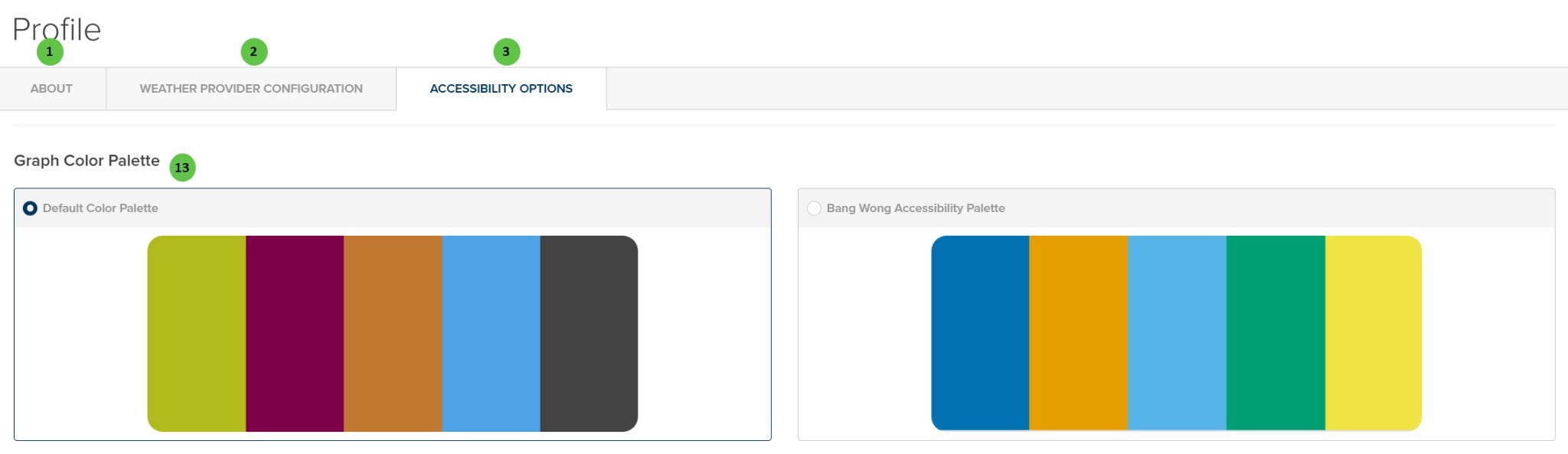
The Accessibility Options tab provides display customization settings to improve usability for users with visual impairments or color vision deficiencies.

<Frame caption="Profile - Accessibility Options">
  <img src="https://mintcdn.com/terabaseenergy/ONH-4lLjiP1nM7I3/images/profile-accessibility-ui.png?fit=max&auto=format&n=ONH-4lLjiP1nM7I3&q=85&s=c39ecbdcb6ac98cf3d3e541a54a8635c" alt="Profile Accessibility Options Tab" width="2048" height="593" data-path="images/profile-accessibility-ui.png" />
</Frame>

### User Inputs (Accessibility Options)

<table>
  <colgroup>
    <col style={{width: "4%"}} />

    <col style={{width: "18%"}} />

    <col style={{width: "10%"}} />

    <col style={{width: "6%"}} />

    <col style={{width: "44%"}} />

    <col style={{width: "18%"}} />
  </colgroup>

  <thead>
    <tr>
      <th>#</th>
      <th>Input</th>
      <th>Type</th>
      <th>Units</th>
      <th>Description</th>
      <th>Related Documentation</th>
    </tr>
  </thead>

  <tbody>
    <tr>
      <td>**13**</td>
      <td>**Graph Color Palette**</td>
      <td>Radio Button</td>
      <td>—</td>
      <td>Select the color palette used for charts and graphs throughout PlantPredict. **Default Color Palette** uses standard colors. **Bang Wong Accessibility Palette** uses a colorblind-friendly palette designed for users with color vision deficiencies.</td>
      <td>—</td>
    </tr>
  </tbody>
</table>