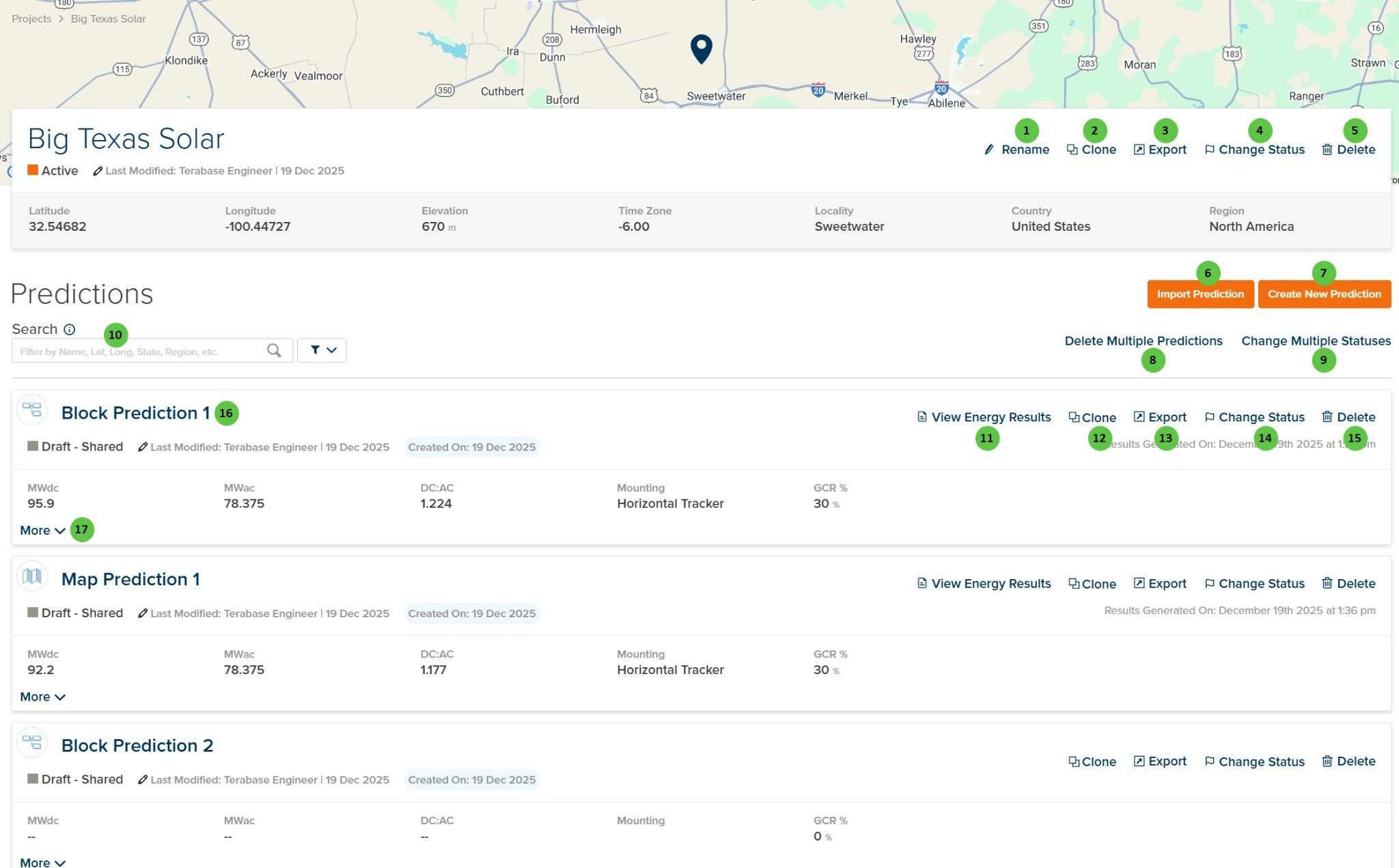
| **1** |
**Rename** |
Button |
— |
Opens a dialog to rename the current project. |
— |
| **2** |
**Clone** (Project) |
Button |
— |
Creates a copy of the entire project, including all predictions and configurations. |
— |
| **3** |
**Export** (Project) |
Button |
— |
Exports the project data to a downloadable file format. |
— |
| **4** |
**Change Status** (Project) |
Button |
— |
Opens a dialog to change the project status (e.g., Draft, Active, Archived). |
— |
| **5** |
**Delete** (Project) |
Button |
— |
Deletes the entire project and all associated predictions. This action requires confirmation. |
— |
| **6** |
**Import Prediction** |
Button |
— |
Opens the import dialog to import a prediction from an external file into the current project. |
— |
| **7** |
**Create New Prediction** |
Button |
— |
Opens the prediction creation wizard to define a new prediction within the current project. |
— |
| **8** |
**Delete Multiple Predictions** |
Button |
— |
Enables multi-select mode to delete multiple predictions at once. |
— |
| **9** |
**Change Multiple Statuses** |
Button |
— |
Enables multi-select mode to change the status of multiple predictions at once. |
— |
| **10** |
**Search** |
Search Field |
— |
Filters the predictions list by name, latitude, longitude, state, region, or other attributes. Use the filter icon to access advanced filtering options. |
— |
| **11** |
**View Energy Results** |
Button |
— |
Opens the prediction results page to view energy production estimates, loss tree, and detailed outputs. Only available for predictions that have been run. |
[Summary Results](/user-guide/results/summary-results) |
| **12** |
**Clone** (Prediction) |
Button |
— |
Creates a copy of the selected prediction within the same project. |
— |
| **13** |
**Export** (Prediction) |
Button |
— |
Exports the selected prediction data to a downloadable file format. |
— |
| **14** |
**Change Status** (Prediction) |
Button |
— |
Opens a dialog to change the status of the selected prediction (e.g., Draft, Shared, Active). |
— |
| **15** |
**Delete** (Prediction) |
Button |
— |
Deletes the selected prediction. This action requires confirmation. |
— |
| **16** |
**Prediction Name** |
Link |
— |
Click the prediction name to open and edit the prediction configuration. |
[Prediction Overview](/user-guide/ui/prediction-overview) |
| **17** |
**More** |
Button |
— |
Expands the prediction card to show additional details and metadata. |
— |
 ## Overview
The Predictions page is organized into three main sections:
1. **Project Header** — Displays the project name, status, location details (latitude, longitude, elevation, time zone, locality, country, region), and provides project-level action buttons.
2. **Predictions Toolbar** — Contains buttons to import or create new predictions, delete multiple predictions, change multiple statuses, and search/filter the predictions list.
3. **Predictions List** — Displays all predictions within the project with summary information (MWdc, MWac, DC:AC ratio, mounting type, GCR%) and individual prediction action buttons.
***
## User Inputs
## Overview
The Predictions page is organized into three main sections:
1. **Project Header** — Displays the project name, status, location details (latitude, longitude, elevation, time zone, locality, country, region), and provides project-level action buttons.
2. **Predictions Toolbar** — Contains buttons to import or create new predictions, delete multiple predictions, change multiple statuses, and search/filter the predictions list.
3. **Predictions List** — Displays all predictions within the project with summary information (MWdc, MWac, DC:AC ratio, mounting type, GCR%) and individual prediction action buttons.
***
## User Inputs