| **1** |
**Block** (Hierarchy) |
Button |
— |
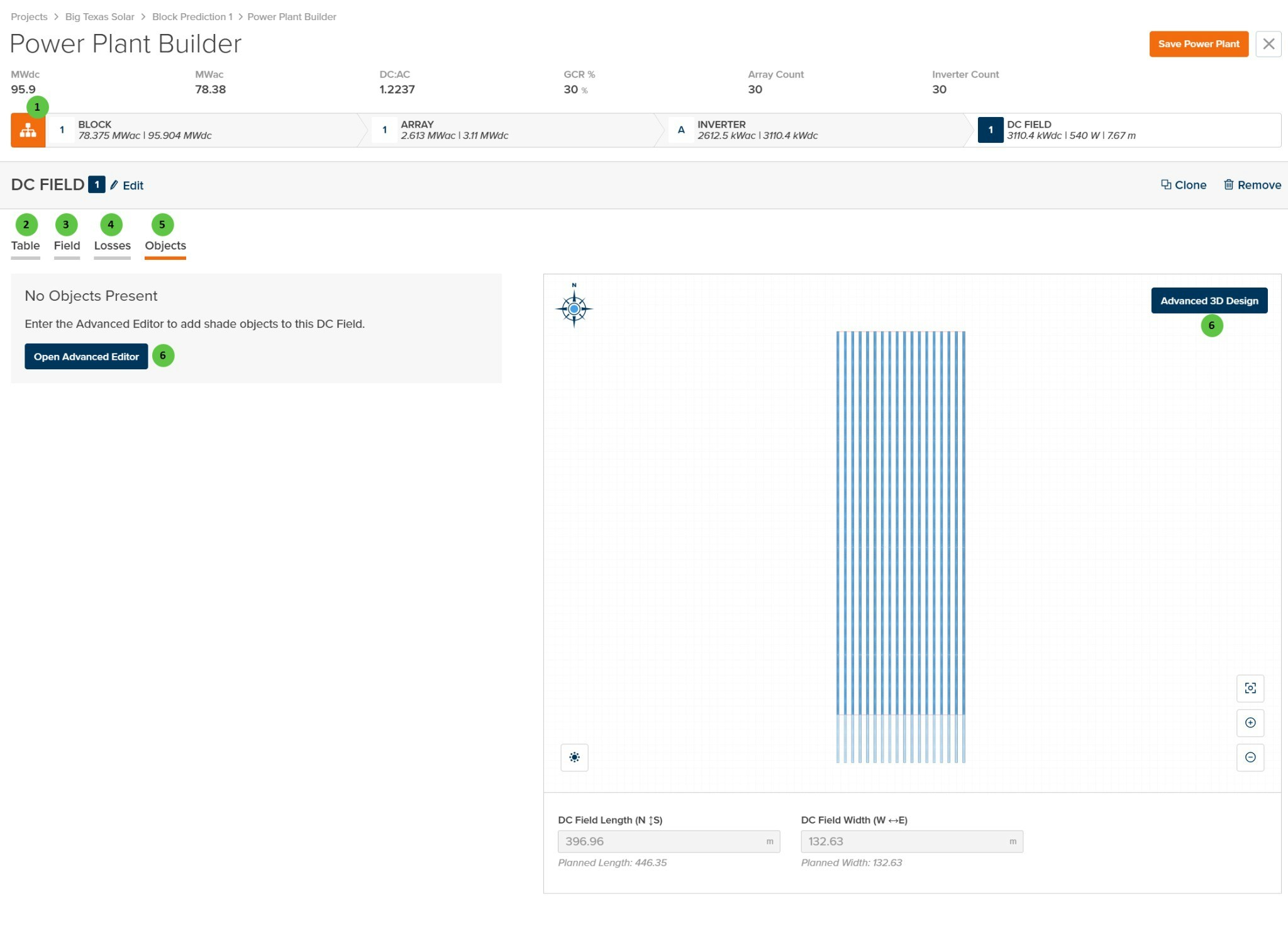
Toggle view to show the Block-level hierarchy bar displaying system summary: MWdc, MWac, DC:AC ratio, GCR, Array Count, and Inverter Count. |
[Block Overview](/user-guide/ui/power-plant-builder-block) |
| **2** |
**Table** (Tab) |
Tab |
— |
Navigate to the Table tab to configure module selection, mounting type, and table geometry. |
[Table](/user-guide/ui/power-plant-builder-dc-field-table) |
| **3** |
**Field** (Tab) |
Tab |
— |
Navigate to the Field tab to configure string count, layout arrangement, terrain, and field-level settings. |
[Field](/user-guide/ui/power-plant-builder-dc-field-field) |
| **4** |
**Losses** (Tab) |
Tab |
— |
Navigate to the Losses tab to configure DC field losses including mismatch, wiring losses, and thermal model parameters. |
[Losses](/user-guide/ui/power-plant-builder-dc-field-losses) |
| **5** |
**Objects** (Tab) |
Tab |
— |
Currently selected tab. Contains the legacy 3D shading objects configuration for this DC Field. |
— |
| **6** |
**Open Advanced Editor / Advanced 3D Design** |
Button |
— |
Opens the legacy 3D shade object editor for this DC Field. Both buttons perform the same action. Use this editor to add, modify, or remove near-field shading objects such as buildings, trees, or poles. **Note:** This is a legacy workflow; consider using the plant-level 3D Scene for new projects. |
[3D Shading](/models/shading/3d_shading_dc_field) |
 ## Overview
The DC Field - Objects page is organized into the following sections:
1. **DC Field Header** — Shows the DC Field identifier with Edit, Clone, and Remove buttons.
2. **Tab Navigation** — Access different aspects of DC Field configuration: Table, Field, Losses, and Objects.
3. **Objects Panel** — Displays any configured shade objects for this DC Field. When no objects are present, provides a prompt to open the Advanced Editor.
4. **DC Field Visualization** — Preview of the field layout with the Advanced 3D Design access button.
***
## User Inputs
## Overview
The DC Field - Objects page is organized into the following sections:
1. **DC Field Header** — Shows the DC Field identifier with Edit, Clone, and Remove buttons.
2. **Tab Navigation** — Access different aspects of DC Field configuration: Table, Field, Losses, and Objects.
3. **Objects Panel** — Displays any configured shade objects for this DC Field. When no objects are present, provides a prompt to open the Advanced Editor.
4. **DC Field Visualization** — Preview of the field layout with the Advanced 3D Design access button.
***
## User Inputs