> ## Documentation Index
> Fetch the complete documentation index at: https://docs.plantpredict.com/llms.txt
> Use this file to discover all available pages before exploring further.

# Company Settings

> Admin-only page for managing users, invitations, API credentials, and company default settings

The Company Settings area provides access to user management and company-wide default settings. Access varies by user type:

<Note>
  **Access by User Type:**

  * **Admin users** — Full access to user management (shown below) and can **edit** Company Default Settings
  * **Manager and User types** — Cannot access user management; are directed to a **read-only view** of Company Default Settings
</Note>

## Admin Privileges

Admin users have the following special capabilities:

1. **Invite new users** — Send registration invitations to new team members
2. **Edit existing user profiles** — Modify user information including name, email, job title, and user type
3. **Generate API credentials** — Create API keys for users to access the PlantPredict API
4. **Reassign predictions** — Transfer ownership of predictions between users
5. **Set/Reset user passwords** — Manage user authentication credentials
6. **Edit Company Default Settings** — Configure organization-wide default values

<Warning>
  The Account Management and User Detail views shown below are **Admin-only**. Non-admin users cannot access these views.
</Warning>

***

## Account Management

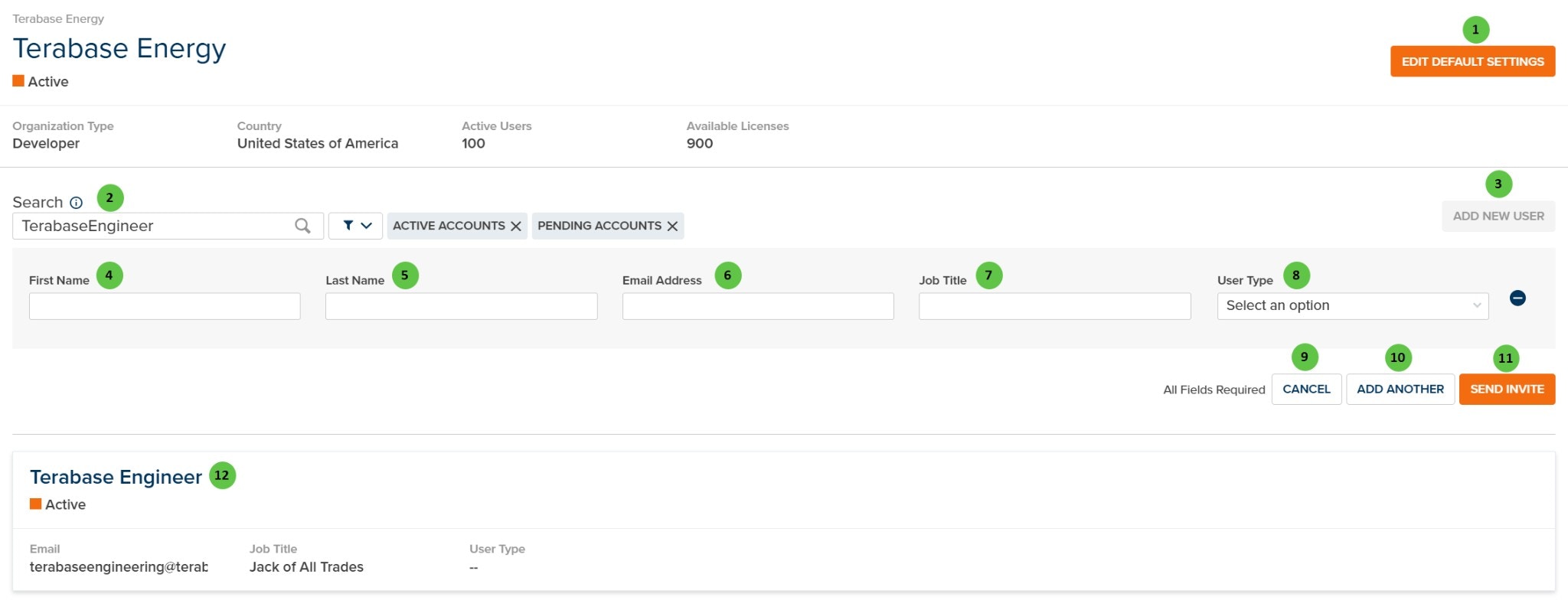
The main view displays organization information and a list of all users. Admins can search, filter, and add new users from this view.

<Frame caption="Manage Accounts - Main View">
  <img src="https://mintcdn.com/terabaseenergy/tiUAkIs8rxL2tN-v/images/manage-accounts-main-ui.png?fit=max&auto=format&n=tiUAkIs8rxL2tN-v&q=85&s=a094721c45c5c3df6ddae9005f631e06" alt="Manage Accounts Main View" width="2048" height="784" data-path="images/manage-accounts-main-ui.png" />
</Frame>

### Overview

The page header displays organization summary information (read-only):

* **Organization Type** — Company classification (e.g., Developer, EPC, Owner)
* **Country** — Organization's registered country
* **Active Users** — Current number of active user accounts
* **Available Licenses** — Remaining user licenses in your subscription

***

### User Inputs (Account Management)
<table>
  <colgroup>
    <col style={{width: "4%"}} />

    <col style={{width: "18%"}} />

    <col style={{width: "10%"}} />

    <col style={{width: "6%"}} />

    <col style={{width: "44%"}} />

    <col style={{width: "18%"}} />
  </colgroup>

  <thead>
    <tr>
      <th>#</th>
      <th>Input</th>
      <th>Type</th>
      <th>Units</th>
      <th>Description</th>
      <th>Related Documentation</th>
    </tr>
  </thead>

  <tbody>
    <tr>
      <td>**1**</td>
      <td>**Edit Default Settings**</td>
      <td>Button</td>
      <td>—</td>
      <td>Opens the Company Default Settings page for editing. This button is only visible to Admins. See [Company Default Settings](#company-default-settings) below for available configuration tabs.</td>
      <td>—</td>
    </tr>

    <tr>
      <td>**2**</td>
      <td>**Search**</td>
      <td>Text Field</td>
      <td>—</td>
      <td>Search for users by name or email. Filter toggles allow filtering by **Active Accounts** and **Pending Accounts** (invited but not yet registered).</td>
      <td>—</td>
    </tr>

    <tr>
      <td>**3**</td>
      <td>**Add New User**</td>
      <td>Button</td>
      <td>—</td>
      <td>Expands the new user invitation form to invite one or more users to join the organization.</td>
      <td>—</td>
    </tr>

    <tr>
      <td>**4**</td>
      <td>**First Name**</td>
      <td>Text Field</td>
      <td>—</td>
      <td>New user's first name. Required field for sending an invitation.</td>
      <td>—</td>
    </tr>

    <tr>
      <td>**5**</td>
      <td>**Last Name**</td>
      <td>Text Field</td>
      <td>—</td>
      <td>New user's last name. Required field for sending an invitation.</td>
      <td>—</td>
    </tr>

    <tr>
      <td>**6**</td>
      <td>**Email Address**</td>
      <td>Text Field</td>
      <td>—</td>
      <td>New user's email address. The invitation will be sent to this address. Required field.</td>
      <td>—</td>
    </tr>

    <tr>
      <td>**7**</td>
      <td>**Job Title**</td>
      <td>Text Field</td>
      <td>—</td>
      <td>New user's job title within the organization. Required field.</td>
      <td>—</td>
    </tr>

    <tr>
      <td>**8**</td>
      <td>**User Type**</td>
      <td>Dropdown</td>
      <td>—</td>
      <td>Select the permission level for the new user. Options: **User** (standard access), **Manager** (can manage projects), **Admin** (full administrative access), **IT Admin** (IT administrative access). Required field.</td>
      <td>—</td>
    </tr>

    <tr>
      <td>**9**</td>
      <td>**Cancel**</td>
      <td>Button</td>
      <td>—</td>
      <td>Cancels the new user invitation and clears the form.</td>
      <td>—</td>
    </tr>

    <tr>
      <td>**10**</td>
      <td>**Add Another**</td>
      <td>Button</td>
      <td>—</td>
      <td>Adds another row to invite multiple users at once. Click the minus button to remove a row.</td>
      <td>—</td>
    </tr>

    <tr>
      <td>**11**</td>
      <td>**Send Invite**</td>
      <td>Button</td>
      <td>—</td>
      <td>Sends invitation emails to all users in the form. Invited users will appear as "Pending" until they complete registration.</td>
      <td>—</td>
    </tr>

    <tr>
      <td>**12**</td>
      <td>**User Card**</td>
      <td>Interactive</td>
      <td>—</td>
      <td>Click on a user card to open the User Detail view. Each card displays the user's name, status (Active/Pending), email, job title, and user type.</td>
      <td>—</td>
    </tr>
  </tbody>
</table>

***

## User Detail View

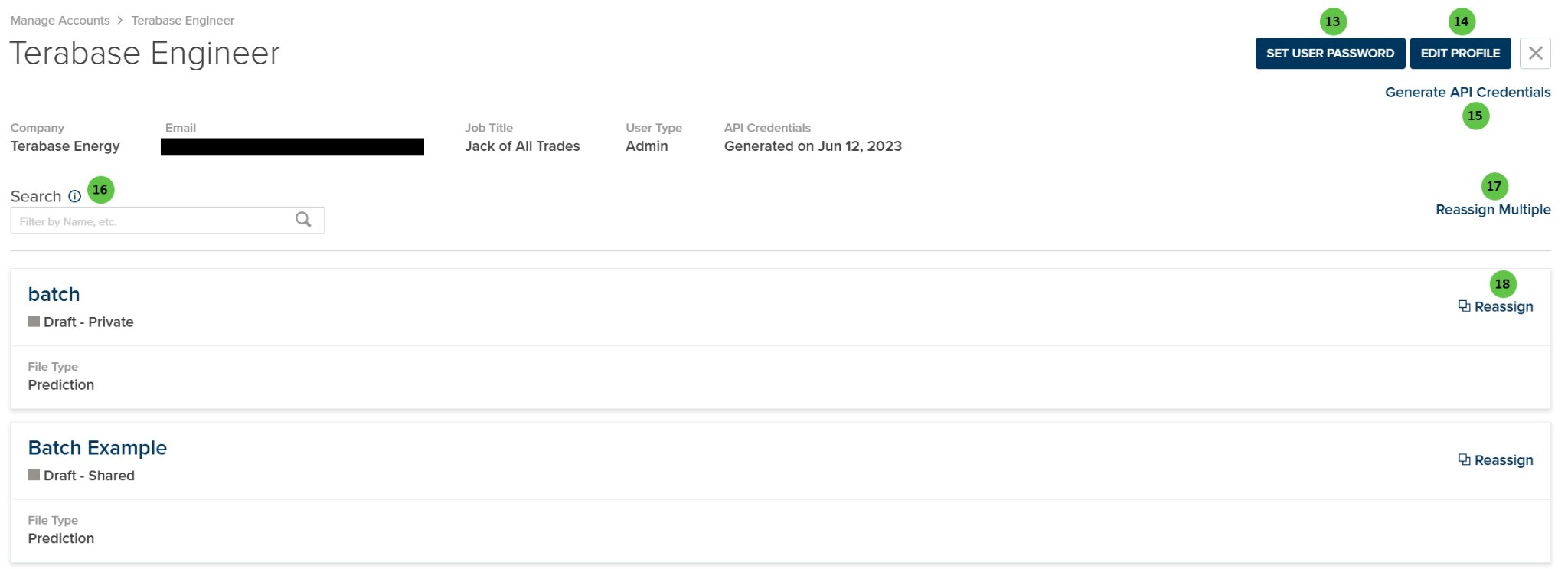
Clicking on a user card opens the User Detail view, where Admins can manage individual user settings, credentials, and reassign their files.

<Frame caption="Manage Accounts - User Detail">
  <img src="https://mintcdn.com/terabaseenergy/tiUAkIs8rxL2tN-v/images/manage-accounts-user-ui.png?fit=max&auto=format&n=tiUAkIs8rxL2tN-v&q=85&s=286cd0f4ba5bf5089f667eddab5a6fc4" alt="Manage Accounts User Detail" width="2048" height="743" data-path="images/manage-accounts-user-ui.png" />
</Frame>

### User Inputs (User Detail)

<table>
  <colgroup>
    <col style={{width: "4%"}} />

    <col style={{width: "18%"}} />

    <col style={{width: "10%"}} />

    <col style={{width: "6%"}} />

    <col style={{width: "44%"}} />

    <col style={{width: "18%"}} />
  </colgroup>

  <thead>
    <tr>
      <th>#</th>
      <th>Input</th>
      <th>Type</th>
      <th>Units</th>
      <th>Description</th>
      <th>Related Documentation</th>
    </tr>
  </thead>

  <tbody>
    <tr>
      <td>**13**</td>
      <td>**Set User Password**</td>
      <td>Button</td>
      <td>—</td>
      <td>Opens a dialog to set or reset the user's password. Use this if a user is locked out or needs a password reset.</td>
      <td>—</td>
    </tr>

    <tr>
      <td>**14**</td>
      <td>**Edit Profile**</td>
      <td>Button</td>
      <td>—</td>
      <td>Opens the profile editor to modify the user's name, email, job title, and user type.</td>
      <td>—</td>
    </tr>

    <tr>
      <td>**15**</td>
      <td>**Generate API Credentials**</td>
      <td>Button</td>
      <td>—</td>
      <td>Generates new API credentials for the user. **Warning:** This overwrites any existing API credentials for this user. The user will need to update their API integrations with the new credentials.</td>
      <td>[API Documentation](/api-docs/intro)</td>
    </tr>

    <tr>
      <td>**16**</td>
      <td>**Search** (Files)</td>
      <td>Text Field</td>
      <td>—</td>
      <td>Search for files (projects, predictions) owned by this user by name.</td>
      <td>—</td>
    </tr>

    <tr>
      <td>**17**</td>
      <td>**Reassign Multiple**</td>
      <td>Button</td>
      <td>—</td>
      <td>Opens a bulk reassignment dialog to transfer multiple files to a different user at once.</td>
      <td>—</td>
    </tr>

    <tr>
      <td>**18**</td>
      <td>**Reassign**</td>
      <td>Button</td>
      <td>—</td>
      <td>Reassigns an individual file (project or prediction) to a different user. The new owner will have full control over the file.</td>
      <td>—</td>
    </tr>
  </tbody>
</table>

The User Detail view also displays user summary information (read-only):

* **Company** — Organization the user belongs to
* **Email** — User's email address
* **Job Title** — User's job title
* **User Type** — Permission level (User, Manager, or Admin)
* **API Credentials** — Status and generation date of API credentials

***

## Company Default Settings

The Company Default Settings page is accessible to **all users**, with permissions varying by user type:

* **Admins** — Click **Edit Default Settings** to open the settings editor with full editing capabilities
* **Managers and Users** — Are directed to a read-only view of the same settings

### Default Settings Tabs

| Tab                          | Description                                                               |
| ---------------------------- | ------------------------------------------------------------------------- |
| **Environmental Conditions** | Default values for albedo, soiling, and environmental parameters          |
| **Power Plant Specs**        | Default inverter, module, and mounting configuration settings             |
| **Energy Storage**           | Default battery storage capacity and dispatch parameters                  |
| **System Detail**            | Default availability, transformer, and transmission line settings         |
| **Simulation Defaults**      | Default model selections for irradiance, temperature, and degradation     |
| **External Vendor Keys**     | Company-wide API keys for SolarAnywhere, SolarGIS, and Array Technologies |
| **Financial Analysis**       | Default financial assumptions and discount rates                          |
| **Miscellaneous**            | Additional default settings                                               |
| **Design Pro**               | Default settings for Design Pro extension                                 |

<Info>
  Company Default Settings provide organization-wide default values that are automatically applied when creating new predictions. Individual predictions can override these defaults as needed.
</Info>