> ## Documentation Index
> Fetch the complete documentation index at: https://docs.plantpredict.com/llms.txt
> Use this file to discover all available pages before exploring further.
# Add New Inverter
> Upload inverter files or create custom inverter specifications from scratch
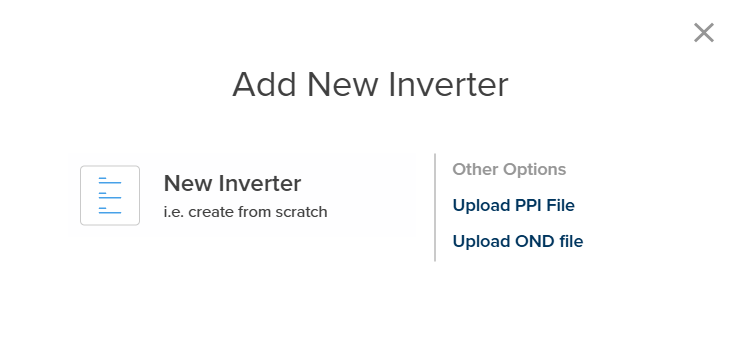
When you click **Add New Inverter** from the [Inverter Library](/user-guide/ui/inverter-library), a modal appears presenting three options for creating a new inverter specification.
 ## Input Options Overview
| Option | Description | Best For |
| ----------------------- | ---------------------------------------- | ------------------------------------- |
| **Upload PPI File** | Import PlantPredict native inverter file | Sharing between PlantPredict accounts |
| **Upload OND File** | Import PVsyst native inverter file | Migration from PVsyst |
| **Create from Scratch** | Define all inverter parameters manually | Custom inverter specifications |
***
## 1. Upload PPI File
Upload a PlantPredict native inverter file (.ppi format). This is a straightforward file import:
1. Click **Add New Inverter**
2. Select **Upload PPI File**
3. A file explorer opens
4. Navigate to and select your .ppi file
5. The inverter is imported with all parameters intact
PPI files can be exported from any PlantPredict inverter using the **Export** button in the Inverter Library.
***
## 2. Upload OND File
Upload a PVsyst native inverter file (.ond format). This allows migration of inverter specifications from PVsyst:
1. Click **Add New Inverter**
2. Select **Upload OND File**
3. A file explorer opens
4. Navigate to and select your .ond file
5. PlantPredict converts the PVsyst parameters to PlantPredict format
Some PVsyst parameters may not have direct equivalents in PlantPredict. Review the imported inverter to ensure all critical parameters are correctly mapped.
***
## 3. Create from Scratch
Creates a new inverter file where you define all parameters manually across four tabs.
1. Click **Add New Inverter**
2. Select **Create from Scratch**
3. The inverter editor opens with all tabs available
4. Enter parameters across all required tabs
5. Click **Save Inverter** when complete
### Inverter File Structure
When creating an inverter from scratch, you define parameters across four tabs. See [Inverter File](/user-guide/ui/inverter-file) for complete documentation of all parameters.
| Tab | Required | Description |
| ------------------------------------ | -------- | -------------------------------------------------- |
| **Parameters** | Yes | General information and electrical ratings |
| **Efficiency** | Yes | Power-efficiency curves at multiple voltage levels |
| **Temperature & Elevation KVA** | No | Temperature-dependent derating curves |
| **Active and Reactive Power Curves** | No | P-Q capability curves (experimental) |
### Parameters Tab (Required)
The Parameters tab contains general information and electrical ratings including:
* **General**: Name, Model, Manufacturer, Data Source
* **Ratings**: Min/Max Voltage, Min DC Power Threshold, Max Current, Max Absolute Voltage
* **Power**: Real Power at 50°C, Apparent Power, Elevation
* **Notes**: Inverter Notes
See [Inverter File - Parameters Tab](/user-guide/ui/inverter-file#parameters-tab) for complete parameter descriptions.
### Efficiency Tab (Required)
The Efficiency tab defines power-efficiency curves at multiple DC voltage levels. PlantPredict requires efficiency curves to calculate DC-to-AC conversion losses.
**Curve Requirements:**
* Minimum of 3 efficiency curves (at different voltage levels)
* Each curve contains AC Power, DC Power, and Efficiency pairs
* Typical voltage levels: Minimum, Nominal, and Maximum MPPT voltage
**Data Entry:**
* Select a voltage level or click **Add Curve** to create a new voltage curve
* Enter power-efficiency pairs using **Add Point**
* Review the efficiency chart to verify curve shapes
See [Inverter File - Efficiency Tab](/user-guide/ui/inverter-file#efficiency-tab) and [Inverter Efficiency Models](/models/inverter-models/inverter_efficiency) for detailed documentation.
### Temperature & Elevation KVA Tab (Optional)
The Temperature & Elevation KVA tab defines temperature-dependent power derating. When enabled, inverter capacity is reduced at high ambient temperatures.
**Curve Structure:**
* Toggle **Enable kVA Curves** to ON
* Define Temperature-kVA pairs at one or more elevation levels
* Click **Add Curve** to add curves at different elevations
**Key Points:**
* If site elevation exceeds all curve elevations, the highest elevation curve is used
* If ambient temperature exceeds the curve range, the inverter shuts down
* Leave disabled if temperature derating is not applicable
See [Inverter File - Temperature & Elevation KVA Tab](/user-guide/ui/inverter-file#temperature--elevation-kva-tab) and [Inverter Temperature Derating](/models/inverter-models/inverter_temperature_derating) for detailed documentation.
### Active and Reactive Power Curves Tab (Optional)
**Experimental Feature — Not Currently Used in Predictions**
The Active and Reactive Power Curves tab is an experimental feature. P-Q capability curves defined in this tab are not currently used in PlantPredict energy predictions.
See [Inverter File - Active and Reactive Power Curves Tab](/user-guide/ui/inverter-file#active-and-reactive-power-curves-tab) for more information.
***
## Workflow Summary
1. Click **Add New Inverter** from the Inverter Library
2. Choose your input method (Upload PPI, Upload OND, or Create from Scratch)
3. For file uploads: Select your file and review the imported parameters
4. For creating from scratch:
* Enter all required Parameters
* Define Efficiency curves at minimum 3 voltage levels
* (Optional) Enable and define Temperature & Elevation KVA curves
5. Click **Save Inverter** to add to the Inverter Library
If you need to create a variation of an existing inverter, use the **Clone** button in the Inverter Library instead of creating from scratch. This copies all parameters which you can then modify as needed.
## Input Options Overview
| Option | Description | Best For |
| ----------------------- | ---------------------------------------- | ------------------------------------- |
| **Upload PPI File** | Import PlantPredict native inverter file | Sharing between PlantPredict accounts |
| **Upload OND File** | Import PVsyst native inverter file | Migration from PVsyst |
| **Create from Scratch** | Define all inverter parameters manually | Custom inverter specifications |
***
## 1. Upload PPI File
Upload a PlantPredict native inverter file (.ppi format). This is a straightforward file import:
1. Click **Add New Inverter**
2. Select **Upload PPI File**
3. A file explorer opens
4. Navigate to and select your .ppi file
5. The inverter is imported with all parameters intact
PPI files can be exported from any PlantPredict inverter using the **Export** button in the Inverter Library.
***
## 2. Upload OND File
Upload a PVsyst native inverter file (.ond format). This allows migration of inverter specifications from PVsyst:
1. Click **Add New Inverter**
2. Select **Upload OND File**
3. A file explorer opens
4. Navigate to and select your .ond file
5. PlantPredict converts the PVsyst parameters to PlantPredict format
Some PVsyst parameters may not have direct equivalents in PlantPredict. Review the imported inverter to ensure all critical parameters are correctly mapped.
***
## 3. Create from Scratch
Creates a new inverter file where you define all parameters manually across four tabs.
1. Click **Add New Inverter**
2. Select **Create from Scratch**
3. The inverter editor opens with all tabs available
4. Enter parameters across all required tabs
5. Click **Save Inverter** when complete
### Inverter File Structure
When creating an inverter from scratch, you define parameters across four tabs. See [Inverter File](/user-guide/ui/inverter-file) for complete documentation of all parameters.
| Tab | Required | Description |
| ------------------------------------ | -------- | -------------------------------------------------- |
| **Parameters** | Yes | General information and electrical ratings |
| **Efficiency** | Yes | Power-efficiency curves at multiple voltage levels |
| **Temperature & Elevation KVA** | No | Temperature-dependent derating curves |
| **Active and Reactive Power Curves** | No | P-Q capability curves (experimental) |
### Parameters Tab (Required)
The Parameters tab contains general information and electrical ratings including:
* **General**: Name, Model, Manufacturer, Data Source
* **Ratings**: Min/Max Voltage, Min DC Power Threshold, Max Current, Max Absolute Voltage
* **Power**: Real Power at 50°C, Apparent Power, Elevation
* **Notes**: Inverter Notes
See [Inverter File - Parameters Tab](/user-guide/ui/inverter-file#parameters-tab) for complete parameter descriptions.
### Efficiency Tab (Required)
The Efficiency tab defines power-efficiency curves at multiple DC voltage levels. PlantPredict requires efficiency curves to calculate DC-to-AC conversion losses.
**Curve Requirements:**
* Minimum of 3 efficiency curves (at different voltage levels)
* Each curve contains AC Power, DC Power, and Efficiency pairs
* Typical voltage levels: Minimum, Nominal, and Maximum MPPT voltage
**Data Entry:**
* Select a voltage level or click **Add Curve** to create a new voltage curve
* Enter power-efficiency pairs using **Add Point**
* Review the efficiency chart to verify curve shapes
See [Inverter File - Efficiency Tab](/user-guide/ui/inverter-file#efficiency-tab) and [Inverter Efficiency Models](/models/inverter-models/inverter_efficiency) for detailed documentation.
### Temperature & Elevation KVA Tab (Optional)
The Temperature & Elevation KVA tab defines temperature-dependent power derating. When enabled, inverter capacity is reduced at high ambient temperatures.
**Curve Structure:**
* Toggle **Enable kVA Curves** to ON
* Define Temperature-kVA pairs at one or more elevation levels
* Click **Add Curve** to add curves at different elevations
**Key Points:**
* If site elevation exceeds all curve elevations, the highest elevation curve is used
* If ambient temperature exceeds the curve range, the inverter shuts down
* Leave disabled if temperature derating is not applicable
See [Inverter File - Temperature & Elevation KVA Tab](/user-guide/ui/inverter-file#temperature--elevation-kva-tab) and [Inverter Temperature Derating](/models/inverter-models/inverter_temperature_derating) for detailed documentation.
### Active and Reactive Power Curves Tab (Optional)
**Experimental Feature — Not Currently Used in Predictions**
The Active and Reactive Power Curves tab is an experimental feature. P-Q capability curves defined in this tab are not currently used in PlantPredict energy predictions.
See [Inverter File - Active and Reactive Power Curves Tab](/user-guide/ui/inverter-file#active-and-reactive-power-curves-tab) for more information.
***
## Workflow Summary
1. Click **Add New Inverter** from the Inverter Library
2. Choose your input method (Upload PPI, Upload OND, or Create from Scratch)
3. For file uploads: Select your file and review the imported parameters
4. For creating from scratch:
* Enter all required Parameters
* Define Efficiency curves at minimum 3 voltage levels
* (Optional) Enable and define Temperature & Elevation KVA curves
5. Click **Save Inverter** to add to the Inverter Library
If you need to create a variation of an existing inverter, use the **Clone** button in the Inverter Library instead of creating from scratch. This copies all parameters which you can then modify as needed.