> ## Documentation Index
> Fetch the complete documentation index at: https://docs.plantpredict.com/llms.txt
> Use this file to discover all available pages before exploring further.
# How To Transfer Digital Assets
> How Company Administrators can transfer ownership of projects, predictions, modules, inverters, and weather files between users
Company Administrators have the ability to transfer Digital Assets (Projects, Predictions, Modules, Inverters, and Weather Files) from one user to another. This is particularly important when deactivating a user account.
If a deactivated user has **Draft-Private** digital assets, those assets will not be visible to anyone unless they are transferred to another active user before deactivation.
***
## Workflow
From the [Company Settings](/user-guide/ui/company-settings) page, click on the name of the user whose digital assets you want to transfer.
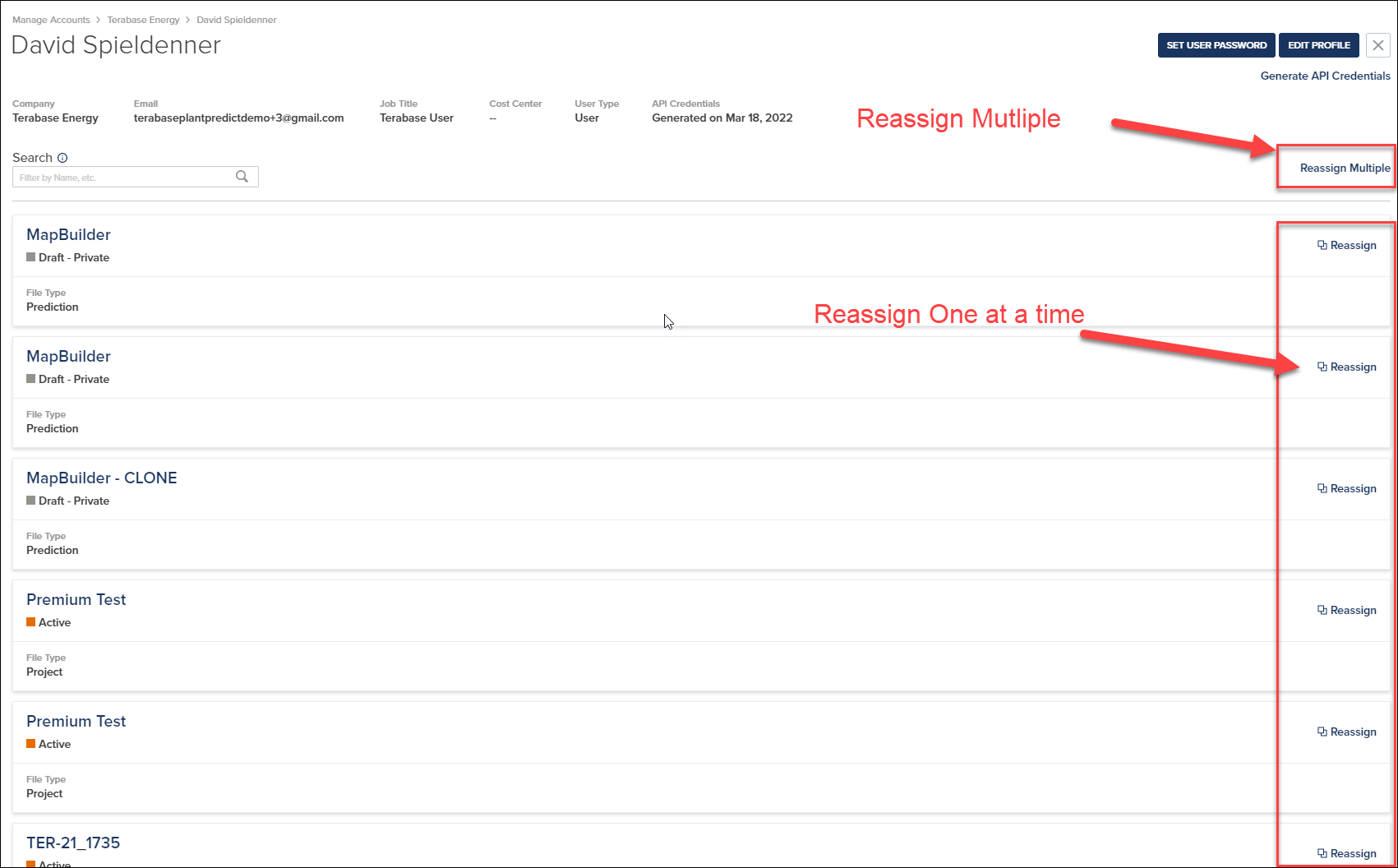
 In the User Administration screen, you have two options:
* **Reassign Multiple** — Transfer multiple assets at once (recommended for bulk transfers)
* **Reassign** — Transfer individual assets one at a time
In the User Administration screen, you have two options:
* **Reassign Multiple** — Transfer multiple assets at once (recommended for bulk transfers)
* **Reassign** — Transfer individual assets one at a time
 To transfer all assets from one user to another:
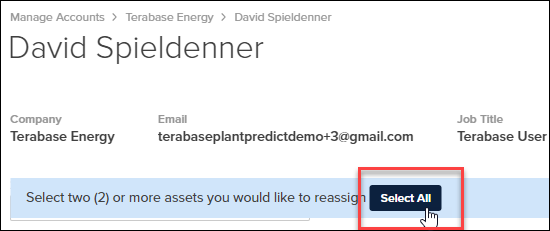
1. Click **Reassign Multiple**
2. Click the **Select All** button near the top of the page
To transfer all assets from one user to another:
1. Click **Reassign Multiple**
2. Click the **Select All** button near the top of the page
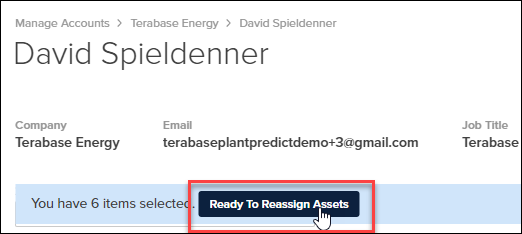
 This places a checkmark on all digital assets owned by the user.
Click **Ready To Reassign Assets** near the top of the page to begin the transfer wizard.
This places a checkmark on all digital assets owned by the user.
Click **Ready To Reassign Assets** near the top of the page to begin the transfer wizard.
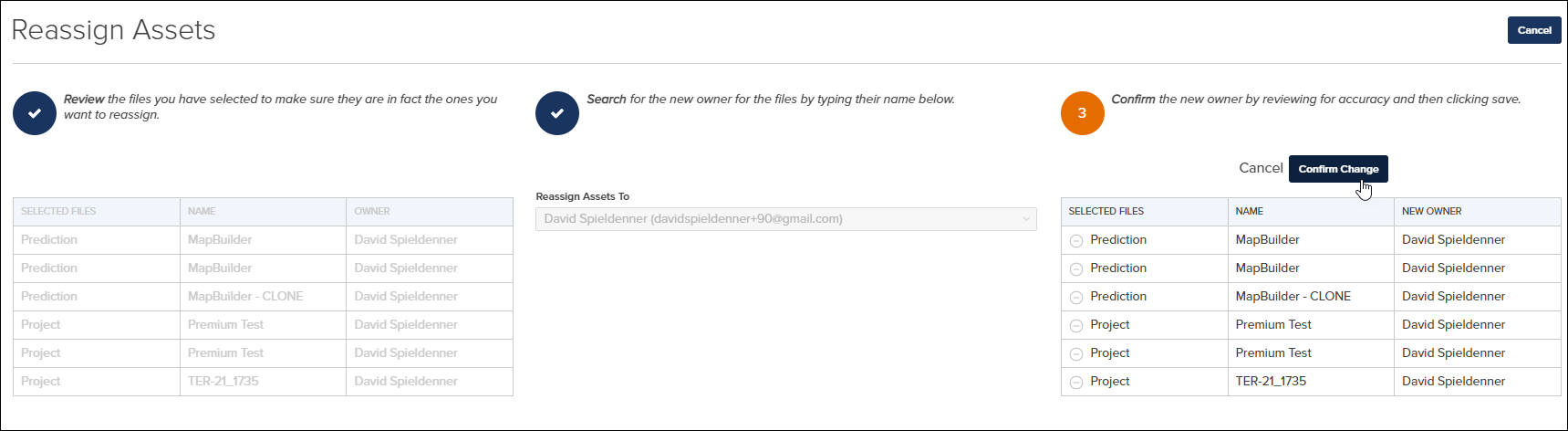
 The Reassign Assets wizard guides you through three steps:
1. **Review** — Verify the digital assets selected for transfer
2. **Search** — Select the new owner by typing their name
3. **Confirm** — Review the new owner assignment and click **Confirm Change**
The Reassign Assets wizard guides you through three steps:
1. **Review** — Verify the digital assets selected for transfer
2. **Search** — Select the new owner by typing their name
3. **Confirm** — Review the new owner assignment and click **Confirm Change**
 ***
## Asset Types
The following digital asset types can be transferred between users:
| Asset Type | Library Location |
| ----------------- | --------------------------------------------------- |
| **Projects** | [Project Library](/user-guide/ui/project-library) |
| **Predictions** | [Predictions](/user-guide/ui/predictions) |
| **Modules** | [Module Library](/user-guide/ui/module-library) |
| **Inverters** | [Inverter Library](/user-guide/ui/inverter-library) |
| **Weather Files** | [Weather Library](/user-guide/ui/weather-library) |
After transfer, the new owner has full control over the assets, including the ability to edit, delete, or change the status of transferred items.
***
## Asset Types
The following digital asset types can be transferred between users:
| Asset Type | Library Location |
| ----------------- | --------------------------------------------------- |
| **Projects** | [Project Library](/user-guide/ui/project-library) |
| **Predictions** | [Predictions](/user-guide/ui/predictions) |
| **Modules** | [Module Library](/user-guide/ui/module-library) |
| **Inverters** | [Inverter Library](/user-guide/ui/inverter-library) |
| **Weather Files** | [Weather Library](/user-guide/ui/weather-library) |
After transfer, the new owner has full control over the assets, including the ability to edit, delete, or change the status of transferred items.