> ## Documentation Index
> Fetch the complete documentation index at: https://docs.plantpredict.com/llms.txt
> Use this file to discover all available pages before exploring further.
# How To Empty Cache and Hard Reload
> How to clear your browser cache and perform a hard reload in Chrome to resolve unexpected PlantPredict behavior
One of the quickest troubleshooting steps when PlantPredict starts behaving unexpectedly is to **empty the cache and perform a hard reload**. Especially right after a new deployment, your browser may still be holding on to older cached files that cause the application to behave incorrectly or perform poorly. Clearing those files lets the browser pull in the latest, correct files so the application works as expected.
This guide uses **Google Chrome**, but the same general approach applies to other Chromium-based browsers such as Microsoft Edge.
***
## Step 1 — Open the Chrome Developer Console
There are several ways to open the Developer Console, which is part of what makes it feel more confusing than it needs to be. Any of the options below will work.
### Option 1
Press the **F12** key to open the Developer Console. On some laptops you may need to hold the **Fn** key to activate **F12**. This is the fastest and most common way to open the console.
### Option 2
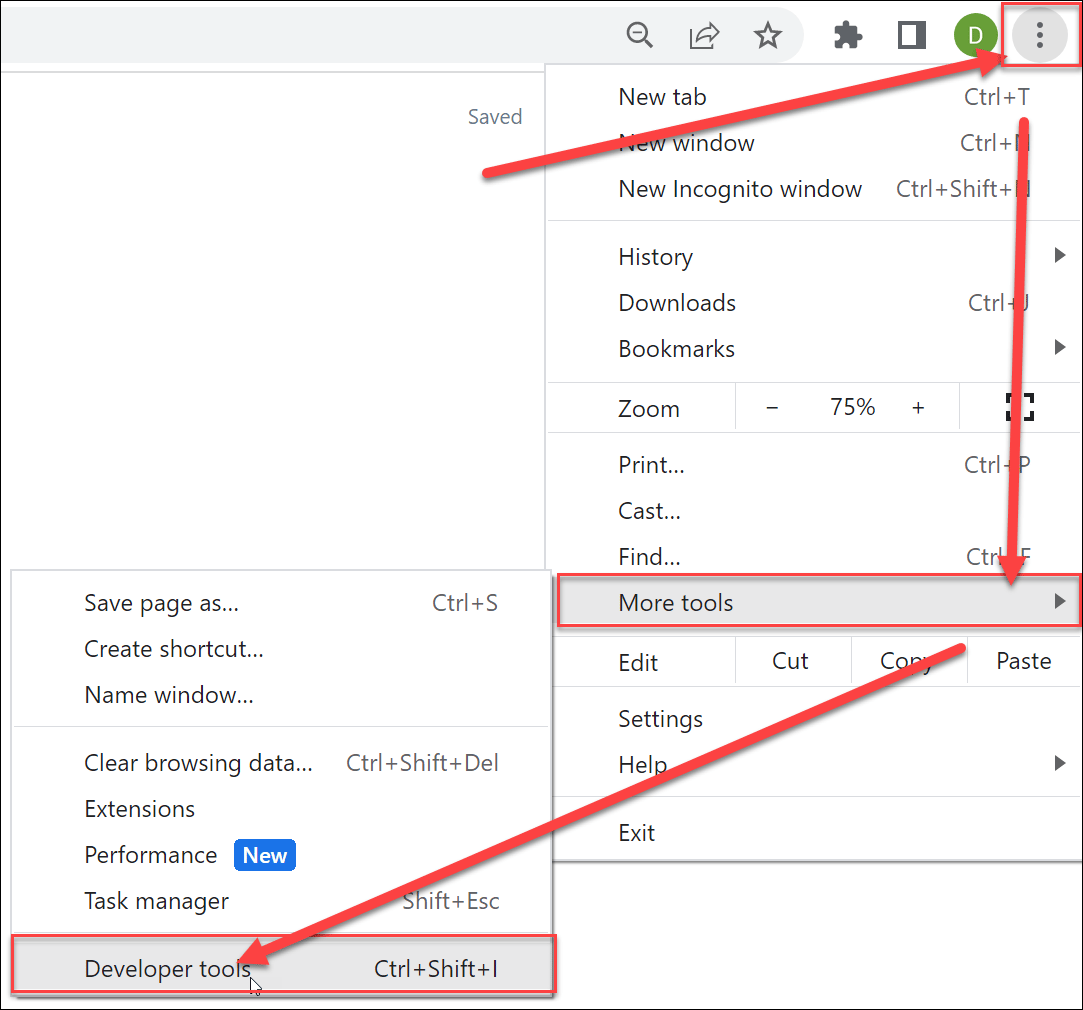
Open the **Chrome menu** (the three dots in the upper-right corner of the browser), then go to **More tools → Developer tools**.
 ### Option 3
You can also use the keyboard combination **Ctrl + Shift + I**. This is handy if your keyboard does not have an **F12** key or if you prefer shortcut combinations.
***
## Step 2 — Empty the Cache and Hard Reload
With the Developer Console open, **click and hold** (or right-click) the page refresh icon in your Chrome browser. A menu will appear with three reload options.
### Option 3
You can also use the keyboard combination **Ctrl + Shift + I**. This is handy if your keyboard does not have an **F12** key or if you prefer shortcut combinations.
***
## Step 2 — Empty the Cache and Hard Reload
With the Developer Console open, **click and hold** (or right-click) the page refresh icon in your Chrome browser. A menu will appear with three reload options.
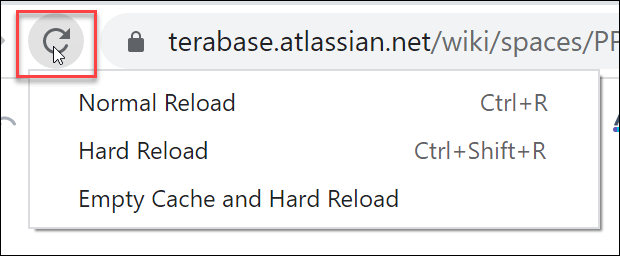 Select **Empty Cache and Hard Reload**. The browser will refresh with a clean cache, and you are all set. It is that easy.
Note that the reload menu only appears when the Developer Console is open. If you don't see the three reload options, make sure the console is still open before clicking and holding the refresh icon.
***
## Bonus — Use the Developer Console for Troubleshooting
The Developer Console is one of the handiest tools when working with PlantPredict. It shows a lot of information about what the application is doing, including errors that aren't visible through the user interface.
Select **Empty Cache and Hard Reload**. The browser will refresh with a clean cache, and you are all set. It is that easy.
Note that the reload menu only appears when the Developer Console is open. If you don't see the three reload options, make sure the console is still open before clicking and holding the refresh icon.
***
## Bonus — Use the Developer Console for Troubleshooting
The Developer Console is one of the handiest tools when working with PlantPredict. It shows a lot of information about what the application is doing, including errors that aren't visible through the user interface.
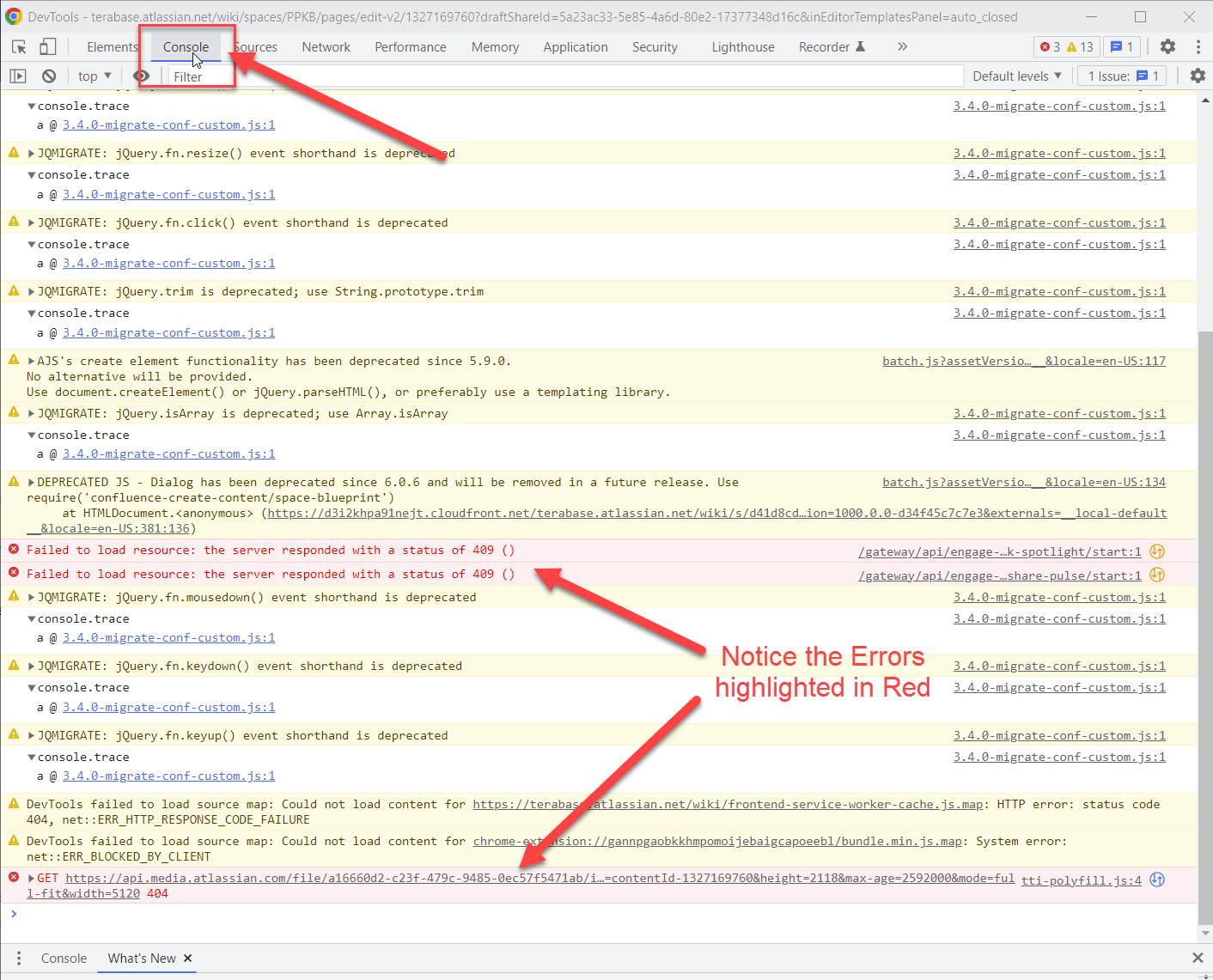 If emptying the cache and doing a hard reload doesn't resolve the issue, check the Developer Console for errors before reaching out to [support@plantpredict.com](mailto:support@plantpredict.com). Including a screenshot of your Developer Console log along with the steps to reproduce the issue gives the support team valuable information and saves everyone time during troubleshooting.